Players, Hosts & Co-Hosts
Everyone at the table can play, but the host sets it up and keeps it running. A host can also share that authority by promoting co-hosts. This guide explains who can do what.
What Every Player Can Do
Any player, with no account, can take the everyday actions that make up play:
- Move, flip, rotate, and lock objects.
- Draw from decks, bags, and stacks.
- Roll dice and flip coins.
- Send pieces to their private hand.
- Increment and decrement counters.
- Use the marker tool, notepad, and action log.
- Rename themselves and pick a color.
- Set their status (Ready / Away / Busy) and send emoji reactions.
- Jump to or ping another player's view.
The Players Panel & Seat Actions
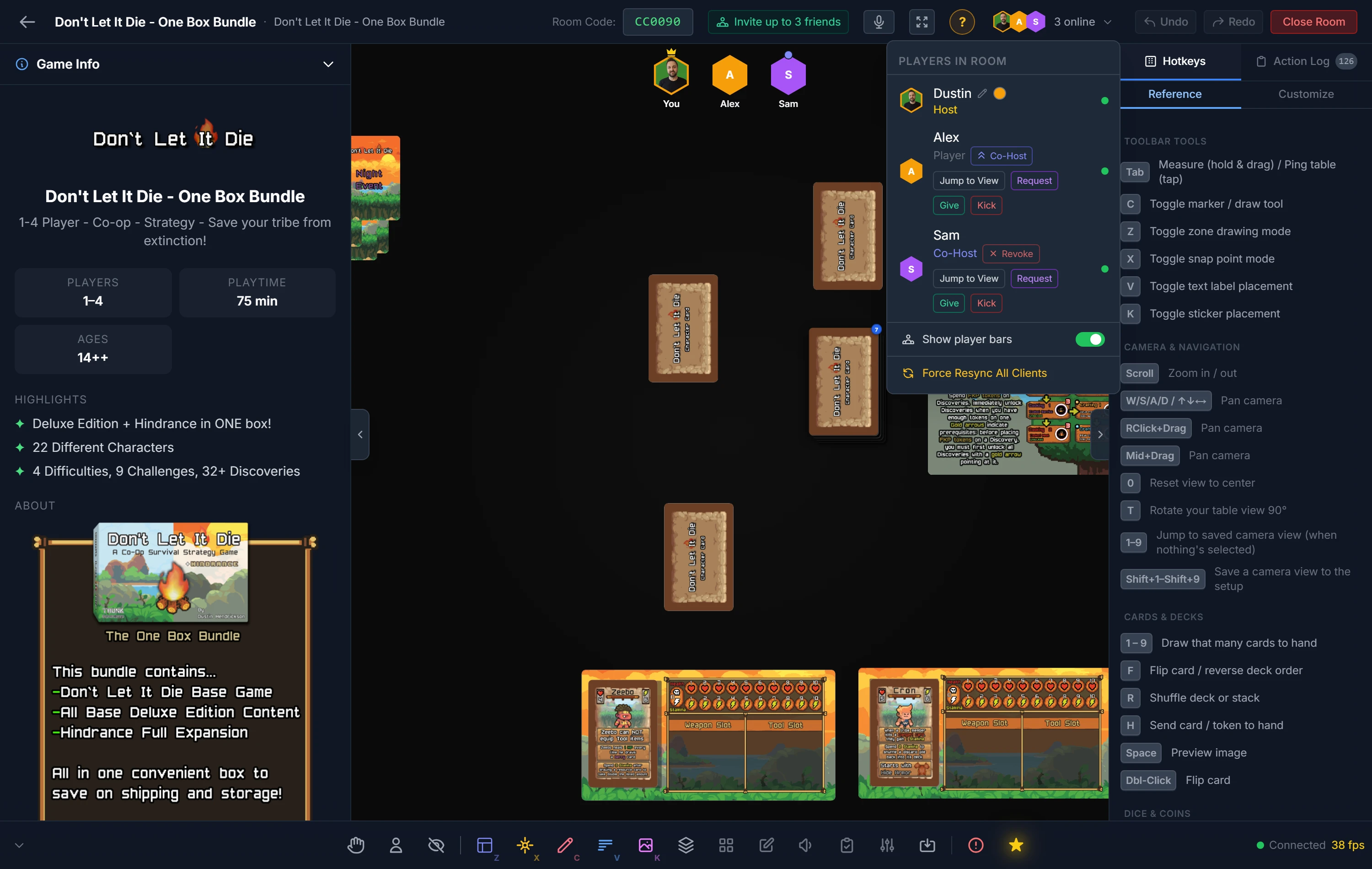
Every player shows as a floating avatar (their profile picture, or their initial) along the top of the table. Click a seat to open its actions.
Your own seat:
- Set status — mark yourself Ready, Away, or Busy so the table knows if you're paying attention.
- Rename / change color.
- Hide avatars — a personal toggle that replaces everyone's portrait with a plain initial. Useful to reduce clutter, or if you'd rather not see other players' pictures.
Another player's seat:
- Jump to View — move your own camera to exactly what they're currently looking at.
- Ping their View — drop a ping on the table where they're focused, so everyone can look there.
- React — pop emoji reactions on their avatar (great for celebrating a natural 1).
Note
Jump to View and Ping their View follow each player's actual camera (position and zoom), not their mouse — so they land where the player is really looking.
What the Host (and Co-Hosts) Can Do
Host-only powers shape the table itself:
- Spawn objects from the sidebar or the right-click menu.
- Remove, rename, duplicate, and scale objects. (Copy, paste, and duplicate can be handed to every player with Allow copy, paste & duplicate in Room Options.)
- Edit a piece's color, size, flippable state, image mask, and board grid.
- Change the table background, textures, and configure the grid.
- Save camera view presets into the setup (see Camera & Navigation).
- Create zones, place snap points, and add text labels.
- Force Resync or close the room.
- View any player's private hand.
- Mute or kick a player from their seat menu (see below).
Important
Object configuration (color, size, flippable, mask, grids) is host and co-host only. Regular players can still move, flip, rotate, and lock pieces; they just can't restyle or resize them.
Promoting a Co-Host
Co-hosts get the full host toolset, which is perfect for a co-designer helping run a busy table. Open the Players panel and click the Co-Host pill next to a player's name. Click it again to revoke. Co-hosts can do everything a host can except promote other players.
Muting & Kicking Players
From a player's seat menu, a host or co-host can:
- Mute — silence that player's microphone in voice chat for everyone.
- Kick — remove the player from the room. A kicked player is banned for the rest of that room session and can't rejoin with the same link, so use it to deal with genuine disruption.
Note
A ban lasts for the life of the room session. Starting a fresh room clears it.
The Hand Viewer
The host can inspect any player's private hand, read-only, from the Players dropdown by clicking the hand icon next to a name. Players are not notified, so use it to follow along or settle a rules question rather than to snoop.
Force Resync
If objects ever look out of step between players (a rare hiccup), the host can open the Players dropdown and click Force Resync to push the full, authoritative game state to everyone. Affected players can also simply refresh.
Related: Starting & Joining Rooms · Your Hand & Dealing · Host Controls