Help - Realtime Playtest System

← Back to Help Center

Realtime Playtest System

Your collaborative virtual tabletop for testing board games in real-time

Getting Started

For Hosts — Creating a Room

  1. Navigate to Realtime Playtest from your dashboard
  2. Find the project you want to test and click Launch Playtest Room
  3. Optionally choose a saved table setup to start with a pre-arranged layout
  4. The room opens in your browser — share the 6-character room code with your playtesters
  5. Click the room code in the top bar to copy the full join link to clipboard

Note: Your project's components appear in the left sidebar, grouped by type and deck. Generic objects (dice, tokens, etc.) are also there.

For Players — Joining a Room

  1. Go to the public join page — no account required
  2. Enter the 6-character room code from your host
  3. Enter a display name (or use the "Random Name" button)
  4. Click Join Room
  5. Your cursor appears on the table and is visible to everyone in real-time

No account needed. Players join anonymously with just a name. Only the host needs an account.

What Players Can Do vs. Host Only

All Players Can:

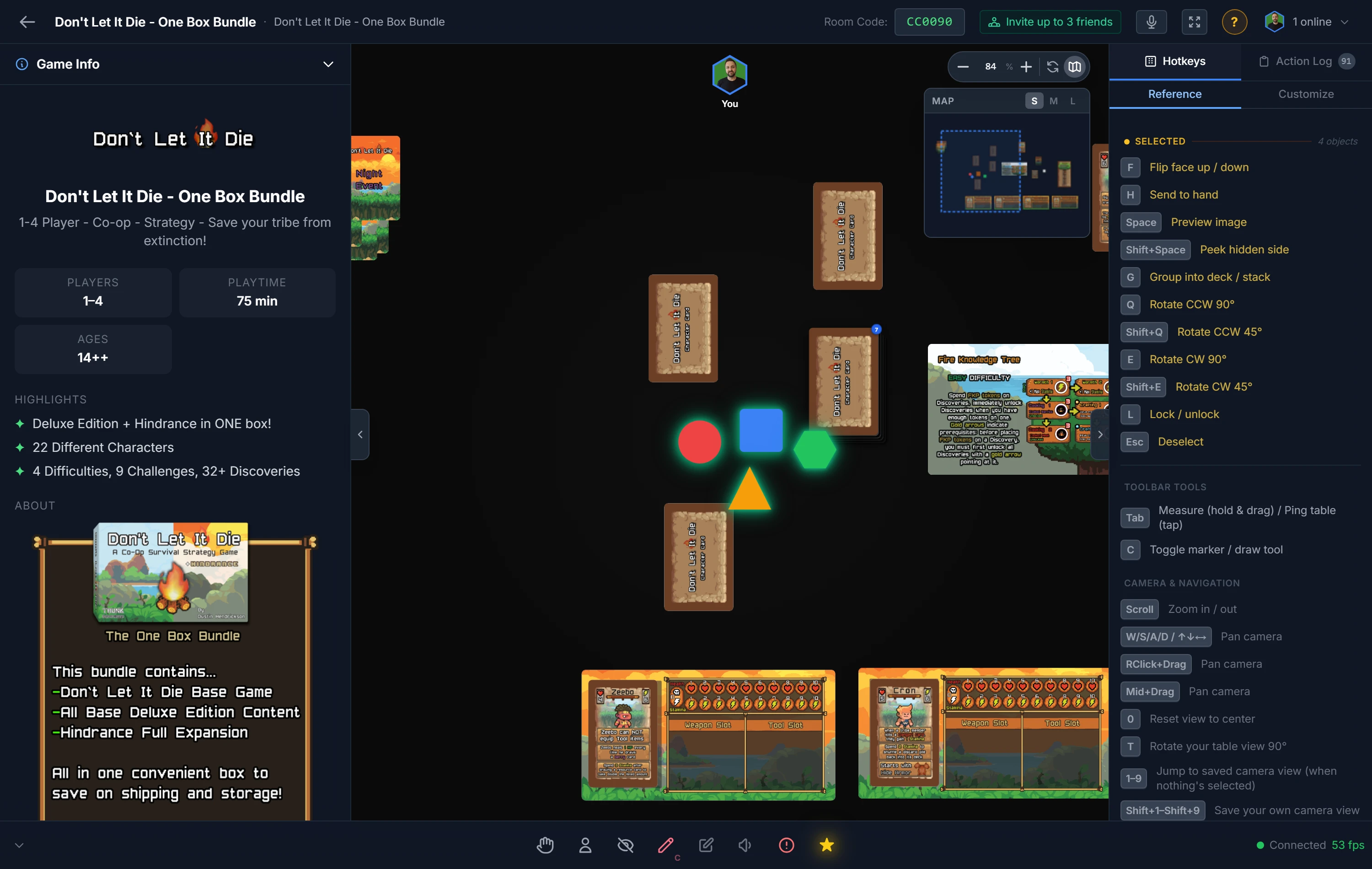
  • Move, flip, rotate, lock objects
  • Draw from decks, bags, stacks
  • Roll dice, flip coins
  • Add objects to their private hand (H)
  • Increment/decrement counters
  • View the action log
  • Use the notepad
  • Rename themselves

Host Only Can:

  • Spawn objects (sidebar or right-click table)
  • Remove, rename, duplicate objects
  • Scale objects (keyboard or context menu)
  • Change table background color
  • Configure the grid
  • Place snap points
  • Place and manage text labels
  • Create and manage zones
  • Force Resync all players
  • Close the room
  • Open component in editor, save or reload component data (Component ▶ submenu)

Room Management

Room Types

Temporary Rooms (Free)

  • Default room type
  • Auto-close when the last player leaves
  • Auto-cleanup after 30 seconds of inactivity
  • Perfect for scheduled sessions

Persistent Rooms (Pro)

  • Stay open 24/7, even when empty
  • Great for asynchronous play or long campaigns
  • Up to 5 persistent rooms per account
  • Toggle with the lock icon in the top bar

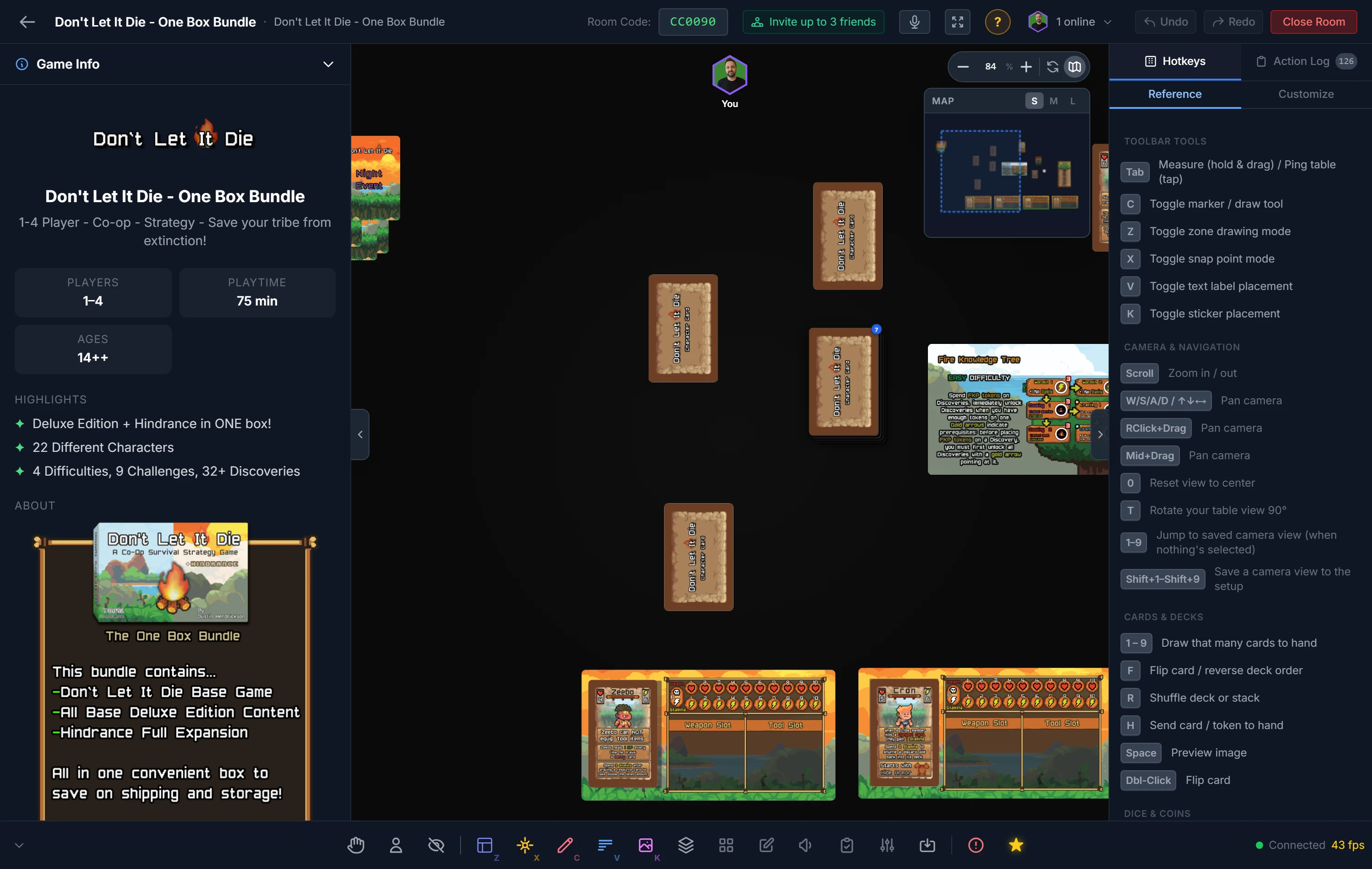
Host Controls (Top Bar)

Close Room

Ends the session and disconnects all players immediately.

Force Resync

Found in the Players dropdown. Pushes full game state to all clients — use when objects appear out of sync.

Analytics Toggle (Pro)

Green "Recording" / gray "Not Recording" button. Only paid hosts see this. Non-host players see the badge but cannot toggle it.

Persistence Toggle (Pro)

Lock/unlock icon. Makes the room stay open when empty.

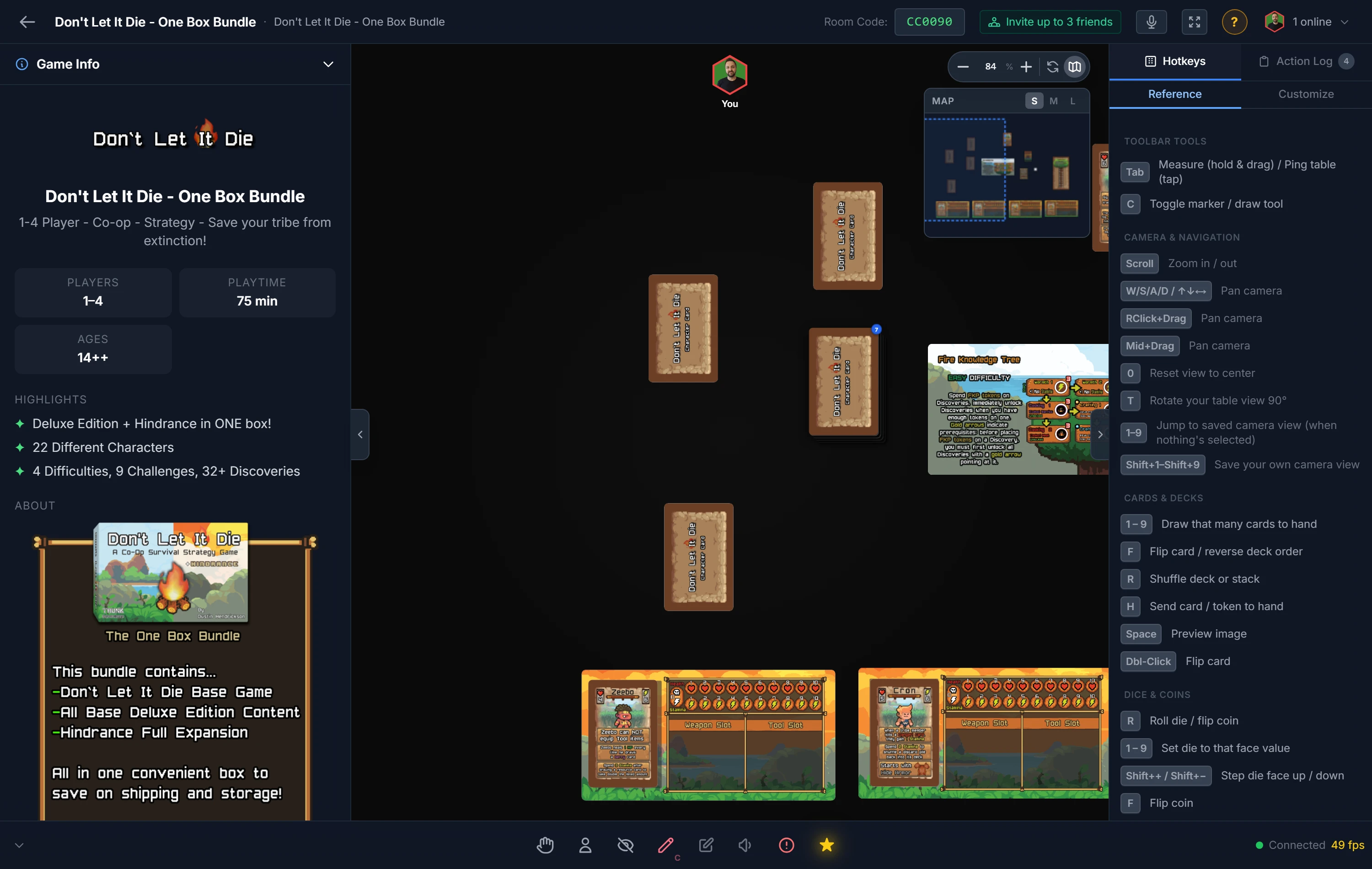
Camera Controls

Zoom In / Out

Scroll wheel — range is 0.1× to 4.0×. Zoom buttons in the bottom-right corner (±0.1 steps). Click the zoom % label to reset to default.

Pan

W A S D or Arrow Keys for smooth panning. Hold Space and drag. Middle-click and drag also pans.

Reset View

Press 0 (zero) to snap back to default zoom and position. Shows a "View reset" toast.

Q / E in Preview Mode

When the preview overlay is open, Q/E rotate the preview image only — they do not rotate the object on the table.

Mobile Support

The playtest room works on phones and tablets. Use landscape orientation for the best experience — the room enforces it automatically on mobile.

Camera Controls (touch)

Pan

One finger drag on empty table space scrolls the view.

Zoom

Pinch two fingers to zoom in or out. Zoom centers on the midpoint of your fingers. The + / − buttons in the toolbar also work.

Selecting & Moving Objects

Tap

Tap an object to select it. Tap empty space to deselect.

Double-Tap

Performs the primary action on a selected object (flip card, draw from deck, roll die, etc.).

Drag Object

Tap and drag an object to move it. Remote players see a ghost while you drag.

Long Press (450 ms) → Multi-Select

Hold your finger on any object for ~½ second. The device vibrates and you enter multi-select mode. Tap additional objects to add them. Drag any selected object to move the whole group.

Floating Action Bar

When an object is selected a vertical action bar appears on the left edge of the screen. All buttons work on the full multi-selection when more than one object is selected.

Flip

Flip the selected card, token, or board face-up / face-down.

Roll / Draw

Roll selected dice, or draw the top card from a selected deck.

Rotate

Rotate selected objects 90° clockwise.

Hand

Send selected card(s) to your private hand.

More (⋯)

Opens the context menu for the selected object — the mobile replacement for right-click.

Bottom Toolbar

Controls Toggle Button

A circle button in the bottom-right corner shows or hides the bottom toolbar. Use it to reclaim screen space while you play.

Mobile Tips

  • Use landscape orientation — the room locks to it automatically on phones.
  • Long press is the equivalent of Ctrl+Click on desktop: it starts multi-select mode.
  • To open the context menu, tap the More (⋯) button in the action bar instead of right-clicking.
  • The action bar button count badge shows how many objects are in your selection.
  • Pinch zoom is smooth and centers on your fingers — use it to inspect small pieces.

Object Manipulation

Spawning Objects

Your project components appear in the left sidebar, grouped by type and deck. Click any item to spawn it.

Generic pieces (dice, tokens, bags, counters, poker chips, other pieces, standard decks) are also in the sidebar.

Right-click the table (host only) for a quick spawn menu: Add D6, Add D20, Add Coin, Add Cube, Add Token, Add Bag, or Add Counter.

Project Dependencies: Click "Add Project Dependency" at the bottom of the sidebar to also load components from another project (expansions, multi-game setups).

Selecting & Moving

Single Select

Click an object — it shows your player color border. Others see who has it selected.

Multi-Select

Ctrl + Click to add objects to selection. Drag to move them all together.

Drag Select

Click and drag on empty table space to draw a selection rectangle. All objects inside are selected. Hold Ctrl while dragging to add to your existing selection.

Move

Click and drag any object. Remote players see a ghost image while you drag.

Deselect

Click empty table space, or press Esc.

Keyboard Actions — Full Reference

Key Object What Happens
Q Any object Rotate selected object(s) 90° clockwise. Counter-clockwise only via right-click.
Shift+Q Any object Rotate selected object(s) 45° clockwise. Counter-clockwise also available via right-click.
E Rotate your table view 90° clockwise — like moving to the next seat around the table. Local only; other players are unaffected. Press four times to return to the default orientation (or press 0).
F Card / Token / Board Flip face-up ↔ face-down (requires a back image). On a token stack — shuffles instead.
F Deck / Bag Shuffle (randomizes order).
Shift+F Deck Flip deck order — bottom becomes top, label shows "(Flipped)". Press again to restore.
R Die Roll with animation (~480ms). Result shown on die, logged in action log, toast shown.
R Coin Flip coin — shows heads or tails. Logged.
R Deck / Bag / Stack Draw the top item, place it face-up near the container.
H Card / Piece / Token Send to your private hand. Not available for dice, boards, bags, decks, counters, or stacks.
V Any object Toggle full-screen preview overlay. Press V or Esc to close.
L Any object Lock / unlock. Locked objects cannot be moved by anyone.
B Toggle blindfold — covers the table so only you can’t see it. Your hand stays visible and interactive. Press again to uncover.
Del / Bksp Any — host only Remove all selected objects from the table.
1 – 9 Die Set die to that face value (must be ≤ max faces).
1 – 9 Deck Draw that many cards directly to your hand at once.
1 – 9 Bag / Token Stack Draw that many items/tokens directly to your hand at once (e.g. press 5 to draw 5 tokens to hand).
+ / = Any — host only Scale up by 25%.
- / _ Any — host only Scale down by 25%.
Shift + + Die Advance face by 1 (wraps from max to 1).
Shift + - Die Reduce face by 1 (wraps from 1 to max).
Esc Any Clear selection; also exits snap mode, closes preview, closes tag editor.
0 Any Reset camera view to default zoom and position.

Double-click shortcut: Double-clicking performs the primary action — flips cards/tokens/boards, rolls dice, flips coins. Useful when you prefer not to use the keyboard.

Decks, Bags & Stacks

Deck Operations

Draw Card R

Draws the top card face-up, places it near the deck.

Draw to Hand 1–9

With a deck selected, press a number to draw that many cards directly to your hand. Right-click → "Draw to Hand" draws 1.

Shuffle F

Randomizes draw order. Broadcast to all players.

Flip Deck Shift+F

Reverses draw order — bottom becomes top. Deck shows "(Flipped)". Press Shift+F again to restore.

Change Card Back

Right-click a standard playing card deck → "Change Card Back". 16 back designs available.

Bags

Drag any object onto a bag to store it inside. Use bags for draw pools, token banks, or mystery piles.

Draw Item R

Randomly pulls one item from the bag to the table.

Shuffle F

Randomizes which item will come out next.

Right-click a bag to change its top-bar color — useful for color-coding resource bags by type.

Token Stacks

Drag a token onto another token to create a stack. Use for token piles, resource pools, or life point trackers.

Draw Token R

Takes the top token from the stack onto the table.

Shuffle F

Randomizes the order inside the stack.

Draw to Hand 1–9

With a token stack selected, press a number to draw that many tokens directly to your private hand at once (e.g. press 3 to draw 3 tokens to hand). Right-click → Draw to Hand draws 1 at a time.

Counters

Counters show a name and a numeric value with clickable and + buttons. Starting value is 0. All players can click the buttons — changes sync to everyone. Host can rename a counter via right-click → Rename.

Important: The + and − keyboard shortcuts do NOT increment counters. They scale objects (host only) or cycle die faces. Counter values are changed by clicking the on-screen buttons only.

Booklets (Multi-Page Components)

Booklets (rulebooks, reference cards with multiple pages) show ◀ / ▶ navigation arrows directly on the object. The right-click menu also has: Previous Page, Next Page, First Page, Last Page.

Player Hand

Your private hand is a row at the bottom of your screen. Only you can see your own hand — it is never shown to other players or synced. Hand data is stored in your browser (localStorage), so it survives page refreshes.

Sending Objects to Hand

  • Select a card, piece, or un-stacked token → press H
  • Right-click → Add to Hand
  • Select a deck → press 1–9 to draw that many cards to hand at once
  • Right-click a deck or token stack → Draw to Hand (1 at a time)

H does NOT work on dice, boards, bags, decks, counters, or token stacks.

Using Your Hand

  • Hover a hand card to highlight it
  • Hover + press V to see a full preview
  • Hover + press F or double-click to flip it (private — only you see the change)
  • Drag from hand to table to play it out, face-up or face-down based on its current orientation

Generic Pieces

Available to all users from the left sidebar — no project needed. Great for quick prototyping or supplementing your game's components.

Core Generic Objects

Dice: D4, D6, D8, D10, D12, D20

Roll with R or double-click. Set face with 1–9. Cycle with Shift+±.

Coin

Flip with R or double-click. Shows heads or tails. Result logged.

Cube

Colored square marker. Right-click to change color.

Token

Colored circle. Right-click to change color. Drag onto another token to stack.

Bag

Container. Drag objects onto it to store them. Draw randomly with R.

Counter

Numeric tracker with + / − buttons. Shared across all players.

Poker Chips

5 denominations with chip imagery, spawned as circular tokens:

$1 white $5 red $10 blue $25 green $100 black

Other Pieces (12 types)

Colorizable piece silhouettes — right-click to change color:

Boat Car Chip ChipSide Flag Flag Waving House Meeple Pawn Plane Tower Train

Standard Playing Card Decks

16 different card-back designs (Blue 1–5, Red 1–5, Green 1–5, and "Don't Let It Die"). Each is a full 52-card standard deck. Right-click any standard deck → Change Card Back to swap the design at any time during play.

Stacking & Containers

The system automatically groups objects when you drop them on top of each other — no setup required.

Card + Card → Deck

Drop one card onto another to form a facedown deck. Drag more cards onto the deck to add them.

Token + Token → Stack

Drop a token onto another to start a stack. Draw from it with R, shuffle with F.

Anything + Bag → Stored

Drop any object onto a bag to store it inside. Items are drawn out randomly with R.

Right-Click Context Menu

Available to All Players

Flip / Draw / Roll

The primary action for that object type — same as the keyboard shortcut.

Add to Hand (H)

Move the object to your private hand. Cards, pieces, and single tokens only.

Preview (V)

Opens the full-screen preview overlay.

Rotate submenu

Rotate 90° CW (Q), 90° CCW, 45° CW (Shift+Q), 45° CCW, or 180°. Counter-clockwise rotation is only available here — no keyboard shortcut for CCW.

Restrictions submenu

Lock/Unlock (L), Allow/Prevent Stacking, Allow/Prevent Bagging, Allow/Prevent Snap to Point, Enable/Disable Snap Follow.

Host-Only Options

Scale row ( − | % | + | Free )

Click + or − to scale ±25%. Click Free for drag-corner free-scale mode.

Rename

Change the display label of any object on the table.

Duplicate

Creates a copy of the object at a slight offset.

Component ▶ (project components only)

Appears when right-clicking any spawned project component. Hover to open a submenu with three options:

  • Open in Editor — Opens the component's edit page in a new browser tab so you can make design changes mid-session without leaving the room.
  • Save to Component — Writes the current scale, orientation, color, and snap point data back to the component definition as the new default for future spawns.
  • Load From Component — Pulls the latest saved component data from the database and refreshes the table object — useful if you edited the component in another tab and want to sync the changes live.

Snap Tags

Assign snap point tags to control which snap points this object is attracted to.

Remove (Del)

Permanently removes the object from the table.

Right-Click Empty Table (Host Only)

Quick spawn menu that places the object at your cursor: Add D6, Add D20, Add Coin, Add Cube, Add Token, Add Bag, Add Counter.

Add Action Item (submenu)

Opens a text panel where you can type a designer note and hit Save Note (or Ctrl+Enter). The note is saved to your project and appears on the project dashboard and on the linked playtest session page. See Action Items for details.

Player Tools

Real-time Cursors

Every player's cursor is visible on the table in their assigned color, with a name label. When someone drags an object, a semi-transparent ghost shows the movement to all other players in real time.

Selection Indicators

When you select an object, it shows your color border. Other players can see who has what selected — useful for avoiding conflicts when multiple people are active.

Player List

The Players dropdown in the top bar shows all connected players, their colors, and connection status. Click the pencil icon next to your own name to rename yourself at any time.

Action Log

A collapsible panel on the right side records all session events — joins, leaves, dice rolls (with result), card draws, shuffles, flips, locks, counter changes, and more. Each entry shows player name (in their color), action, and time. "Clear Log" button removes entries locally only.

Notepad

A private text area accessible from the bottom controls. Use it for tracking your own health points, resources, turn notes, or any reminders. Stored in browser localStorage — only you can see it. Persists through page refreshes.

Sound Effects

Audio cues play for dice rolls, coin flips, shuffles, and object placements. A volume slider is in the bottom-right controls panel — set to 0 to mute entirely.

Blindfold B

Press B to toggle your blindfold — a dark overlay covers the entire table so you cannot see or interact with any objects. Your hand at the bottom remains fully visible and usable.

Useful for hidden-role games, secret setup phases, or any moment where one player shouldn’t see what’s on the table. Only you are blindfolded — other players see the table normally. Press B again to uncover.

Feedback System (Pro hosts only)

When a Pro host has analytics recording enabled, a Submit Feedback button appears at the end of the session. Feedback fields:

  • Overall rating (1–10, required)
  • Fun factor (1–10)
  • Difficulty (1–10)
  • Rule clarity (1–10)
  • Would you play again? (Yes / Not sure)
  • Favorite part (free text)
  • What could be improved? (free text)
  • Additional comments

Responses are saved to the analytics session and viewable in the Playtest Analytics dashboard.

Action Items (Host only)

Capture designer notes mid-session without leaving the room. Action items are private to the designer — players never see them.

How to Add an Action Item

  1. Right-click anywhere on the empty table (no object selected)
  2. Hover over Add Action Item at the bottom of the menu
  3. A text panel slides open — type your note
  4. Click Save Note or press Ctrl+Enter

Example notes: "Turn 3 felt slow — cut 2 cards from hand limit", "Players kept forgetting the scoring rule — needs clearer iconography"

Where They Appear

  • Your project dashboard — Action Items panel under Playtest Sessions
  • The linked playtest session page — shown in a dedicated section if the room had an active session

Managing Action Items

  • Click the checkbox to mark an item complete — it moves to the bottom with a strikethrough
  • Click the button to permanently delete an item
  • Open items are always sorted before completed ones

Tip: Use action items for things you want to change in the design. Use the private Notepad (bottom toolbar) for in-session tracking like scores or resource counts.

Host Tools

Features available only to the designer who created and launched the room.

Table Background Color

A color picker in the bottom controls lets you change the table surface color. Changes broadcast live to all players in the room.

Grid System

In the bottom controls, toggle a visible square or hex grid, adjust grid size, and enable snap-to-grid. All grid settings are broadcast to all players so everyone sees the same layout.

Text Labels

The Text (¶) toolbar button opens the label panel. Configure text, font size, colour, and layer, then click Place Label to enter placement mode. Click anywhere on the table to drop a free label anywhere on the table. See the Text Labels section for full details.

Project Dependencies

At the bottom of the left sidebar, "Add Project Dependency" lets you load components from another one of your projects — useful for expansions, promo cards, or multi-game setups. Multiple projects can be loaded simultaneously.

Room Code & Invite Link

The 6-character room code is always displayed in the top bar. Click it to copy the full join URL to your clipboard — share this with players to let them join without manually typing the code.

Zones (Host Only)

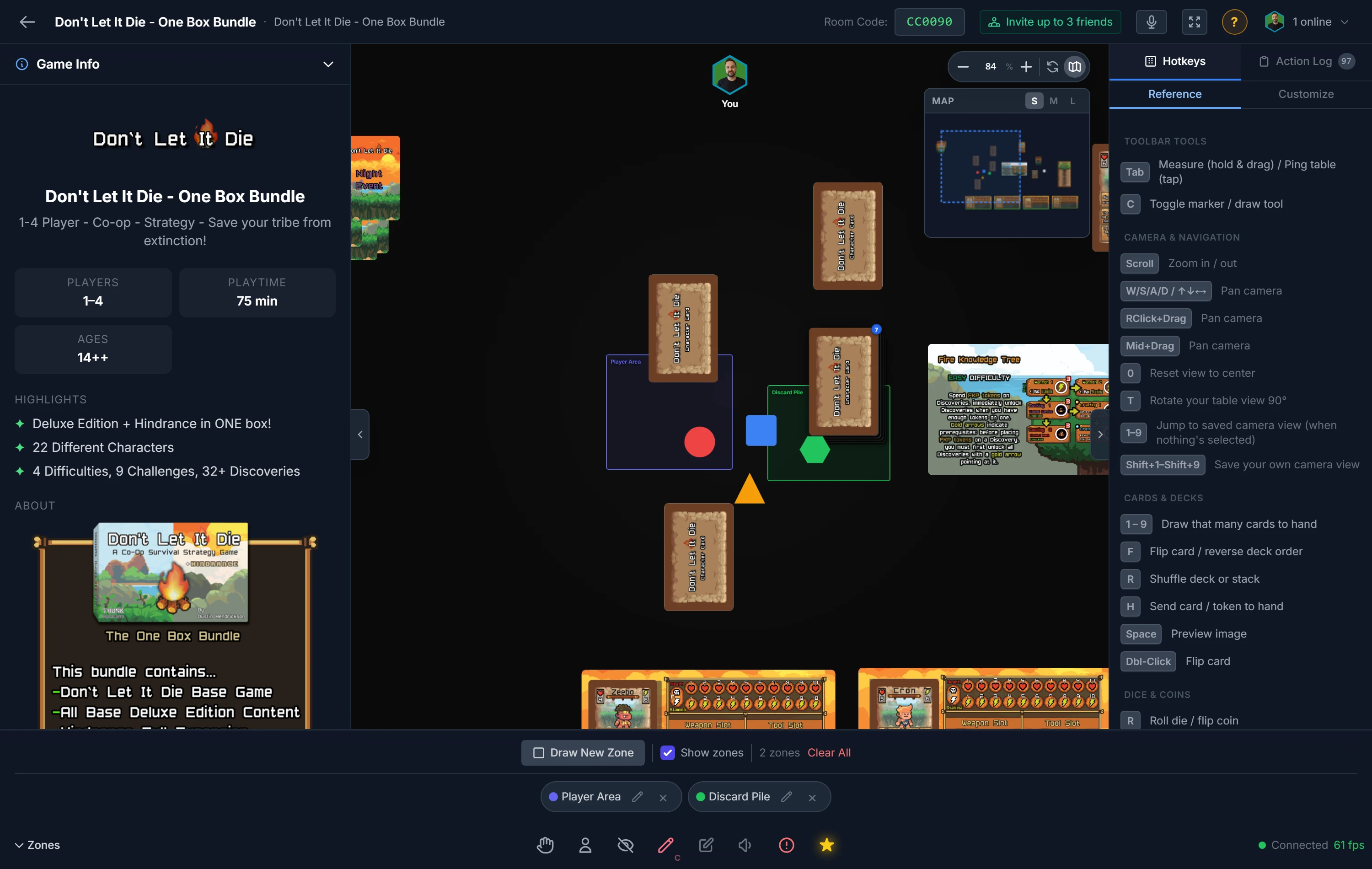
Zones are rectangular regions you place on the table to give areas special behaviour — hidden contents, private hands, or random shuffling. Only the host can create and configure zones; all players can join or leave zones via right-click.

Creating a Zone

  1. Click the Zones icon in the bottom-right host toolbar to open the Zones panel.
  2. Click Draw New Zone — the button turns blue and drawing mode activates.
  3. Click and drag on any empty area of the table to draw the zone rectangle.
  4. Release the mouse — the Create Zone modal opens automatically.
  5. Give the zone a name, pick a border colour, select a type (or leave it as None), then click Create Zone.

New zones are locked by default — they cannot be moved until you unlock them from the right-click context menu.

Zone Types

Each zone has exactly one type. Select it in the Create/Edit modal:

None

Standard coloured region with no special rules. Useful for visually marking board areas.

Hidden

Objects inside are invisible to players who have not joined. The zone border is always visible with a dashed outline. Right-clicking prompts non-members to join.

Hand

Cards and tokens dropped inside are sent automatically to the joined player's private hand. Useful for per-player draw areas.

Random

Adds a Randomize Objects option to the zone's right-click menu. Shuffles all objects currently inside to new random positions within the zone.

Moving Zones

  • Zones that are unlocked can be repositioned by the host — click and drag.
  • Zones that are locked (padlock icon) cannot be dragged until unlocked.
  • Right-click the zone → Lock Zone / Unlock Zone to toggle.

Right-Click Context Menu

  • Edit Zone — rename, recolour, or change type
  • Lock / Unlock Zone — prevent or allow dragging (host only)
  • Delete Zone — removes the zone (objects inside stay on the table)
  • Join / Leave Zone — available to all players including the host
  • Randomize Objects — only appears on Random-type zones

Zone Icons

Hover over any zone to reveal its status icons in the top-right corner: padlock (locked), eye (Hidden), hand (Hand), shuffle arrows (Random). A member count badge appears when players have joined.

Zones Panel

Click the Zones icon in the host toolbar to open the panel. It shows a Show Zones toggle, a list of all zones with their name, colour swatch, and type icons, and quick edit/delete buttons per zone.

Advanced Features

Table Setup Save & Load (Pro)

Saving a Setup:

  1. Arrange all components exactly as you want them
  2. Pan and zoom the camera to the view you want players to start with
  3. Click the save (disk) icon in the bottom-right toolbar
  4. Give it a descriptive name (e.g. "4P Starting Position")
  5. Click Save — table state, positions, rotations, and camera position/zoom are all captured

Loading a Setup:

  1. From the lobby, choose a saved setup from the dropdown before creating the room
  2. The room opens with that arrangement already in place — camera pans and zooms to the saved view

Saved Camera View

The zoom level and camera position you had when the setup was saved become the new default view for that room. Pressing 0 or clicking the zoom-reset button will always return to that saved position — not the generic center. This lets you frame the table exactly the way you want players to see it on load.

Use cases: Different player count configurations, tutorial setups, campaign checkpoints, specific test states you want to return to repeatedly.

Free Scale Mode (Host)

Resize any component to an arbitrary size by dragging its corners, instead of fixed 25% steps.

  1. Right-click the object
  2. In the Scale row, click Free
  3. A blue "Drag corners to resize" banner appears
  4. Drag any of the 4 corner handles to resize
  5. Click Done in the banner to lock in the size

Component Submenu (Host)

Right-click any spawned project component to access the Component ▶ submenu with three actions:

Open in Editor

Opens the component's edit page in a new browser tab — you can adjust images, settings, or rules text without closing the room. When you come back, use Load From Component to pull the changes in.

Save to Component

Writes the object's current scale, orientation, color tint, and snap points back to the component definition as the new default for all future spawns. Useful for dialing in the right size during playtesting.

Load From Component

Fetches the latest saved component data and refreshes the live table object (name, images, color, scale, snap points). Use this after editing the component in the editor to sync changes without re-spawning.

Community / Public Setups (Pro)

Pro users can toggle a saved setup to "public," making it appear in the community browse page. Other users can host a room using your setup and your game's components — useful for sharing a demo or letting remote players test your game without you hosting.

Text Labels (Host Only)

Text labels let you annotate the table or individual components with richly formatted text — instructions, reminders, player-area names, or anything else you'd write on a sticky note. They live on the table like any other object and sync to all players in real time.

Placing a Label

  1. Click the Text (¶) icon in the host toolbar to open the Text Label panel.
  2. Enter your text — supports **bold**, *italic*, ## Heading, and - list item.
  3. Adjust font size, width, text colour, and optional background colour.
  4. Choose a LayerBehind (renders under all components) or In Front (renders above).
  5. Click Place Label — the cursor enters placement mode.
  6. Click anywhere on the table to drop the label.

Layer (Render Order)

The Layer setting controls whether the label appears in front of or behind other components on the table.

  • Behind — the label sits beneath all components. Useful for board labels, area markings, and background annotations.
  • In Front — the label floats above other objects. Useful for component tags and overlaid notes.
  • Change the layer at any time from the right-click context menu (Send Behind / Bring In Front) or the Edit modal.

Editing & Managing Labels

  • Double-click a label, or right-click → Edit Text, to open the full edit modal with all styling options including Layer.
  • Right-click → Send Behind / Bring In Front to toggle the layer instantly without opening the modal.
  • Labels can be moved, rotated (Q), scaled, locked, renamed, and deleted exactly like any other object.

Markdown Formatting Reference

**text**Bold
*text*Italic
# HeadingLarge heading
## HeadingMedium heading
- itemBullet list item
---Horizontal divider

Snap Points (Host Only)

Snap points are invisible anchor positions on the table or attached to components. When a player drops an object within 60 units of a snap point, it locks into that position automatically. They're entirely optional — most designers start without them.

Enabling Snap Point Mode

  • Click the crosshair icon in the host toolbar, or
  • Right-click any object → Snap Tags
  • A blue preview circle follows your cursor while in mode
  • Click to place. Press Esc or click Done to exit

Two Types of Snap Points

Table snap point — click empty table space. Fixed, never moves.
Component snap point — click on an object. Moves, rotates, and scales with that object.

Tags & Matching

Tags filter which objects snap to which points. Without tags, any object snaps to any point.

  • Right-click a snap point → Edit Tags to assign labels (e.g. hand, p1-zone, card-slot)
  • Right-click an object → Snap Tags to assign a matching tag
  • Objects prefer snap points whose tags match their own tag
  • Leave both empty to allow any object to snap anywhere

Snapped Object Behavior

  • Objects on component snap points follow the parent when it moves or rotates
  • Right-click a snapped object → Disable Snap Follow to keep it in place when the parent moves
  • Right-click any object → Prevent Snap to Point to stop it snapping entirely
  • Toggle snap point visibility with the Show Snap Points switch in the right panel

Two-Sided Component Snap Points

Snap points placed on a two-sided component record which face was showing at placement. The snap point hides automatically when the component is flipped — letting you define completely different snap zones for each side.

Tips & Best Practices

For Hosts

  • Add all components to the project before launching the room — they appear in the sidebar automatically
  • Use image URLs for card fronts and backs to make your game look polished even in prototype
  • Create a saved setup (Pro) for "clean start" so every session begins identically
  • Share the room code in advance and remind players they don't need accounts
  • Enable analytics recording (Pro) before the session starts — you can't add data retroactively
  • Use voice chat (Discord, Zoom) alongside the tabletop for play discussion
  • Ask players to submit feedback before the session ends — once they close the tab, you can't prompt them again

For Players

  • Learn the core shortcuts: Q rotate, R draw/roll, F flip/shuffle, H to hand, V preview, B blindfold
  • Double-click also works for the primary action on any object
  • Check the color border before grabbing — if another player has it selected, coordinate first
  • Hold Ctrl and click to multi-select, then move them all at once
  • Drag on empty table space to box select multiple objects. Hold Ctrl while dragging to add to your current selection
  • Use the Notepad for personal tracking (health, resources, turn order notes)
  • Give specific feedback — "the attack card felt too powerful because X" is far more helpful than "it was fun"

Troubleshooting

"Room not found" error

  • Double-check the 6-character code — it must be exactly right (case-insensitive)
  • The room may have been closed by the host (temporary rooms close when the last player leaves)
  • Ask the host to confirm the room is still open and share a fresh join link

Objects appear out of sync between players

  • Host opens the Players dropdown and clicks Force Resync — pushes the full current game state to all clients
  • If that doesn't help, affected players refresh the page — they rejoin automatically with the current room code
  • Persistent sync issues usually indicate a degraded internet connection for one player

Can't move an object

  • Object may be locked — look for a lock icon on it. Press L to unlock, or right-click → Restrictions → Unlock
  • Another player may have it selected — their color border appears on it. Wait or coordinate
  • Try clicking first to select, then drag

Slow performance or sluggish table

  • Too many objects on the table — bag or remove objects you're not currently using
  • Close other browser tabs to free memory
  • Use Chrome, Firefox, or Edge — they perform best. Safari works but can be slower
  • The tabletop is designed for desktop/laptop — avoid mobile browsers

My hand cards disappeared

The hand is stored in browser localStorage. If you cleared browser data, switched browsers, or used a different device, the hand will be empty. This doesn't affect the shared game state — other players never saw your hand anyway.

Something else is broken

Use the red Bug Report button in the bottom controls (visible to all players) to submit a report directly from the room. Every report is read and helps improve the platform.

Keyboard Quick Reference

Q Rotate 90° CW
Shift+Q Rotate 45° CW
E Rotate View 90°
F Flip / Shuffle
R Draw / Roll
H To Hand
B Blindfold
V Preview
L Lock / Unlock
Shift+F Flip Deck Order
1–9 Set Die / Draw N
+/- Scale (host)
0 Reset Camera
WASD Pan Camera
View complete shortcuts reference →