Keyboard Shortcuts
Master these hotkeys, and touch gestures, to work faster in realtime playtest sessions.
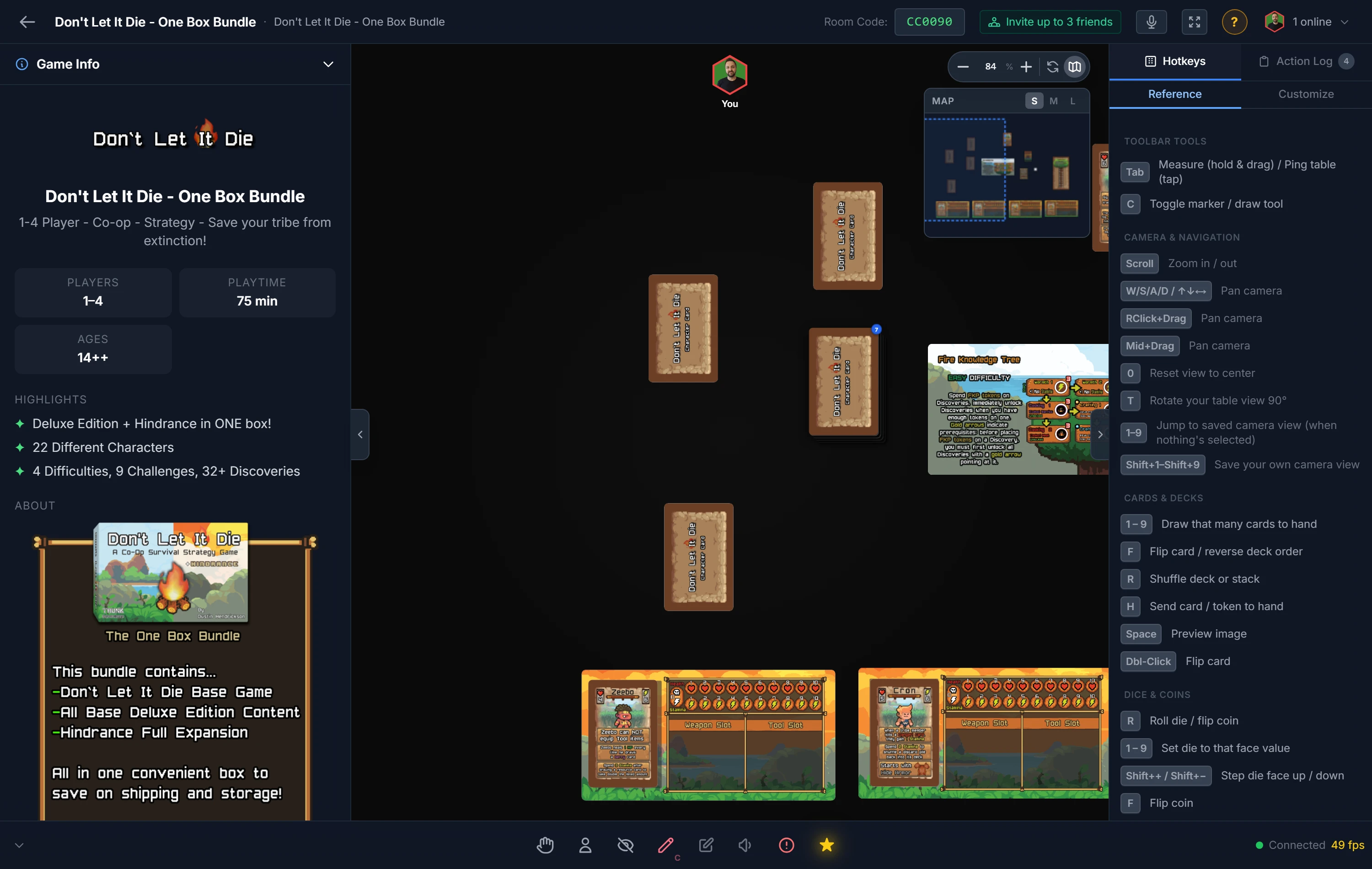
Bindings shown are defaults. You can customize every hotkey from inside any playtest room: open the right sidebar, click Hotkeys, then the Customize tab. Your changes are saved to your account and apply across all rooms.
Note
Shortcuts act on the object under your cursor (just hover over it) or on your current selection. Click an object to select it, or use multi-select to affect multiple objects at once.
Tip
With multiple objects selected, pressing a shortcut applies that action to the object under your cursor and every other selected object. Flip, roll, rotate, or move a whole group at once.
Selection & Basic Actions
| Action | Shortcut |
|---|---|
| Select Object, shows green border | Click |
| Multi-Select, hold Ctrl and click to select multiple objects | Ctrl+Click |
| Drag Select, box select on empty space; hold Ctrl to add to selection | Drag / Ctrl+Drag |
| Move Object, drag to move it (a deck, token stack or bag draws instead, see the next two rows) | Drag |
| Draw from a Pile, drag a deck or token stack to pull its top card or token out; a bag gives a random item. The pile stays where it is | Drag |
| Move a Pile, hold Shift while dragging a deck, token stack or bag to move the whole pile | Shift+Drag |
| Cancel / Close, closes any open popup or dialog; with none open, deselects all and closes the preview | Esc |
| Confirm, accepts the open popup or dialog (e.g. a prompt, picker, or rename) | Enter |
| Delete Object, remove selected object(s) from table (host only) | Delete |
| Select All Same, select every copy of the hovered/selected component (generic pieces match by type and shape) | Ctrl+A |
Mobile Touch Controls
Use the room in landscape orientation on phones and tablets. All touch gestures work without any extra setup.
| Action | Gesture |
|---|---|
| Select Object, tap an object to select it | Tap |
| Primary Action, flip card, roll die, draw from deck, etc. | Double Tap |
| Multi-Select Mode, hold ~½ sec (device vibrates), then tap more objects to add them | Long Press |
| Move Object, drag any selected object; the whole multi-selection moves together | Drag |
| Draw from a Pile, dragging a deck, token stack or bag pulls the top item off it | Drag |
Move a Pile, touch it, wait for the short vibration, then drag; this is the touch equivalent of Shift+Drag |
Hold then Drag |
| Pan Camera, one finger drag on empty table space | 1-Finger Drag |
| Zoom Camera, pinch toward/away; zoom centers on midpoint between fingers | Pinch |
| Context Menu, tap the More button in the floating action bar (replaces right-click) | More |
| Toggle Toolbar, circle button in bottom-right shows/hides the bottom toolbar | Toggle |
Card & Object Manipulation
| Action | Shortcut |
|---|---|
| Flip, flip card/board/token face up/down, OR flip deck draw direction | F |
| Randomize, roll dice, flip a coin, spin a spinner, or shuffle a deck, bag, or token stack (this does NOT draw) | R |
| Draw, draw from a deck, bag, or token stack | Double-click |
| Rotate Counter-Clockwise, step size set in Player Options (default 90°) | Q |
| Rotate Half-Step Counter-Clockwise, by half the configured step size | Shift+Q |
| Rotate Clockwise, step size set in Player Options (default 90°) | E |
| Rotate Half-Step Clockwise, by half the configured step size | Shift+E |
| Rotate View 90°, rotate your table view clockwise (like moving to the next seat); local only | T |
| Lock/Unlock, lock selected object(s) in place to prevent movement | L |
| Send to Back, move to bottom of layer order; if dragging onto a deck, drops to the bottom of the deck | B |
| Group / Ungroup, merge 2+ selected cards into a deck, or 2+ tokens into a stack; press again to ungroup | G |
| Undo, undo the last board action | Ctrl+Z |
| Redo, redo the last undone action | Ctrl+Y or Ctrl+Shift+Z |
| Add to Hand, add selected card/piece/token to your hand area | H |
| Toggle Preview, open/close large preview of selected object or hand card (while hovering) | Space |
| Peek, privately reveal the hidden (face-down) side of the hovered/selected card, token, board, etc. as a large preview. While you peek, an eye marked with your name and color shows on the piece for everyone, and the action log notes that you are peeking | Shift+Space |
| Ping & Measure Ruler, hold to draw a live ruler from your cursor; release to send a ping | Tab |
Ping & Measure Ruler: Hold Tab and move your mouse to draw a live ruler from your cursor, the label shows the distance in inches (80 px = 1"). Release Tab to send a visible ping to all players at that location. The ruler is only visible to you while held; the ping is broadcast to everyone.
Dice Controls
| Action | Shortcut |
|---|---|
| Set Specific Face, with dice selected, set to that face (if it exists) | 1–9 |
| Next Face, cycle to the next face value (wraps to 1 at max) | Shift+Plus |
| Previous Face, cycle to the previous face value (wraps to max at 1) | Shift+Minus |
Deck Operations
| Action | Shortcut |
|---|---|
| Draw Cards to Hand, with deck selected, draw that many cards to hand | 1–9 |
| Shuffle Deck / Stack / Bag, randomize draw order of the selected deck, bag, or token stack | R |
| Draw While Dragging, while dragging a card or token, right-click any deck, bag, or token stack to draw its top item into your drag group | Right-Click (during drag) |
Stacking & Deck Rules
Drag cards onto decks, tokens onto token stacks, or objects into bags. These rules control what can combine:
- Matching Size Required: Cards and tokens must be the same size (width & height) to stack together. A poker-sized card cannot join a mini-card deck, and a large token cannot stack onto a small token.
- Matching Shape Required for Tokens: Tokens must share the same shape (circle, square, hex, etc.) to form a stack. Mismatched shapes will not merge.
- Matching Mask Type Required for Cards: Cards and decks must share the same mask type (rectangle, circle, hex pointy, hex flat, diamond, triangle) to combine. A standard rectangular card cannot join a hex-shaped deck.
- Locked Components Cannot Be Stacked: A locked component cannot be used as a stack target. Unlock the component first (
L) to allow stacking.
Rulebooks
| Action | Shortcut |
|---|---|
| Turn to a page, with a rulebook selected or under the cursor. Out of range does nothing | 1–9 |
| Turn pages in the preview, does not move the book on the table for anyone else | ← / → |
| Find in Rulebook, searches a text rulebook that is open in the preview or selected on the table, and jumps to the page a phrase is on. With no rulebook open or selected it stays your browser's own find | Ctrl+F |
Tip
Only a text (Markdown) rulebook can be searched, because an image rulebook has no text in it. See Text Rulebooks.
View & Camera
| Action | Shortcut |
|---|---|
| Pan Camera, move the camera view around the tabletop | WASD or Arrow Keys |
| Pan Mode, right-click drag, middle-click drag, or WASD to pan the view | Right-Click+Drag |
| Zoom, zoom in/out on the tabletop | Scroll Wheel |
| Reset View, reset zoom and pan to default position | 0 |
| Save Camera View, save your current view (pan, zoom, and seat rotation) into a slot. The host saves to the setup so it loads for everyone; other players save a personal view for their own session | Shift+1–Shift+9 |
Jump to Camera View, jump to a saved camera view. Only fires when no deck, die, bag, stack, rulebook or loose card is selected or hovered; otherwise 1–9 draws, sets the die face, or turns to that rulebook page (see above) |
1–9 |
Tip
Hosts can pre-define up to 9 camera views per setup. Frame a view and press Shift+a number to save it; anyone who loads the setup can press that number to jump straight there. Manage and clear views from Camera Views → Manage in Player Options.
Voice
| Action | Shortcut |
|---|---|
| Push-to-Talk, when enabled (PTT toggle in the voice bar), hold to transmit; release to mute | ` (backtick / tilde) |
Tool & Mode Toggles
| Action | Shortcut |
|---|---|
| Marker / drawing tool | C |
| Sticker mode | K |
| Notepad, open or close your private notes panel | Shift+N |
| Blindfold | N |
| Zone placement mode (host) | Z |
| Snap-point placement mode (host) | X |
| Text-label placement mode (host) | V |
Host-Only Controls
| Action | Shortcut |
|---|---|
| Copy, copy selected object(s) to clipboard (or the object under your cursor if nothing is selected) | Ctrl+C |
| Paste, paste clipboard at your cursor position; snaps to grid if grid snap is enabled | Ctrl+V |
| Duplicate, duplicate selected object(s) stacked directly on top of the original | Ctrl+D |
| Scale Up, increase size of selected object(s) by 25% | + or = |
| Scale Down, decrease size of selected object(s) by 25% | - |
Important
Scaling and delete shortcuts are only available to the room host. Copy, paste, and duplicate are host-only too unless the host turns on Allow copy, paste & duplicate in Room Options, which lets every player use them (handy for building a personal deck that needs more than one copy of a card).
Host Tools (Right-Click Menu)
| Tool | Where |
|---|---|
Snap Tags, set which snap points this component may snap to (only matching tags snap; open the snap-point tool with X to place the anchors) |
Right-Click → Snap Tags |
| Prevent / Allow Snap Follow, prevent a snapped object from moving when its parent component moves or rotates | Right-Click → Restrict |
| Prevent / Allow Auto-Lift, stop a piece being auto-lifted by whatever it is sitting on (or stop a board auto-lifting anything) | Right-Click → Restrict |
| Prevent / Allow Snap to Point, stop an object from ever snapping to any snap point | Right-Click → Restrict |
| Free Scale Mode, drag the 4 corner handles to resize a component freely; click Done in the blue banner to finish | Right-Click → Scale → Free |
| Rotate Submenu, CW/CCW 90°, CW/CCW 45°, and 180° rotate options all in one place | Right-Click → Rotate |
Tips
- Multi-Select Actions: Use
Ctrl+Clickor drag on empty space to select multiple objects, then pressF,Q,E, orLto affect all at once. HoldCtrlwhile dragging to add to your existing selection. - Quick Cleanup: Multi-select unwanted pieces and press
Deleteto remove them all at once. - Fast Drawing: Double-click a deck repeatedly to draw cards quickly, or press
1–9to deal that many straight to your hand. - Hand Management: Draw multiple cards at once by selecting a deck and pressing a number key (
1–9). - Lock Important Objects: After placing the game board, select it and press
Lto prevent accidental movement. - Hand Card Actions: When hovering over a card in your hand area, press
Fto flip it orSpaceto preview it. - Dice Precision: Set dice to exact values (
1–9) or cycle through faces withShift+Plus/Shift+Minus. - Ping & Measure: Hold
Taband move your mouse to pull out a live ruler. Release to fire a ping all players can see. - Draw While Dragging: With a card or token in hand (dragging), right-click any deck, bag, or token stack to draw the top item into your current drag group.
Complete Keyboard Reference
| Shortcut | Action |
|---|---|
Click |
Select object |
Ctrl+Click |
Multi-select |
Drag (empty space) |
Box select objects |
Ctrl+Drag |
Add to selection |
Drag |
Move object |
Esc |
Cancel / close any open popup; otherwise deselect all & close preview |
Enter |
Confirm the open popup or dialog |
Delete |
Remove selected |
F |
Flip card/board/token OR flip deck draw direction |
R |
Roll dice / flip coin / spin spinner / shuffle deck, bag, or stack |
Double-click |
Draw from a deck, bag, or token stack |
Ctrl+F |
Find in a text rulebook (open in the preview, or selected) |
Q |
Rotate object CCW (configurable step) |
Shift+Q |
Rotate object CCW (half-step) |
E |
Rotate object CW (configurable step) |
Shift+E |
Rotate object CW (half-step) |
T |
Rotate view 90° (next seat) |
C / Z / X / V / K |
Marker / Zone / Snap-point / Text-label / Sticker mode |
Shift+N |
Notepad |
L |
Lock / unlock |
G |
Group / ungroup (2+ selected) |
B |
Send to back layer |
Ctrl+Z |
Undo |
Ctrl+Y / Ctrl+Shift+Z |
Redo |
H |
Add to hand |
Space |
Toggle preview |
Tab |
Hold = ruler; release = ping |
N |
Toggle blindfold |
Ctrl+C / Ctrl+V / Ctrl+D |
Copy / paste / duplicate (host, or anyone when the host allows it) |
1–9 |
Draw # cards / set die face / turn to a rulebook page, OR jump to a saved camera view when nothing's targeted |
Shift+1–Shift+9 |
Save camera view (host → setup, others → personal) |
0 |
Reset view |
+ / = |
Scale up (host only) |
Shift+Plus |
Next die face |
- |
Scale down (host only) |
Shift+Minus |
Previous die face |
WASD / Arrows |
Pan camera |
Right-Click |
Drag to pan |
Scroll |
Zoom in/out |