Patch Notes
v1.0.215
Setup Defaults and Layout Polish
Player Defaults and Redesigned Room Menus
Player defaults for table setups
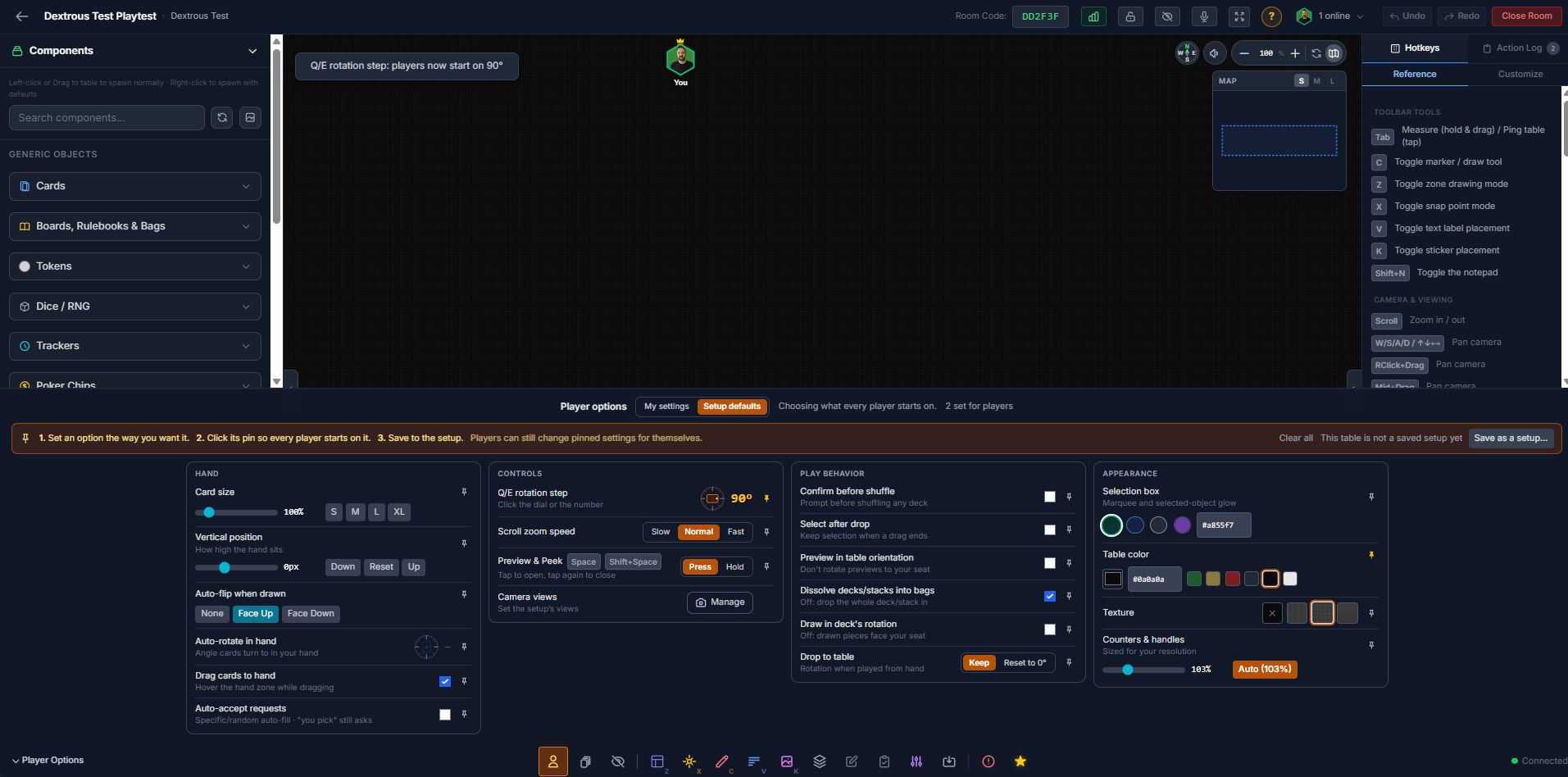
Hosts can now choose the settings every player starts on, and save them with a setup. A hex game can start everyone on a 60° rotation step and a green felt table.
- Open Player Options and switch from My settings to Setup defaults.
- Set an option the way you want it, then click its pin. Every player who loads or joins a room with that setup starts on that value.
- Save to setup saves only your defaults into the setup. The table, hands and other options are left as they were saved.
- The bar at the top shows whether your setup has your latest defaults, and Clear all removes every default.
- Every option in Player Options can be a default, including table color and texture. Camera views are managed separately under Camera Views.
For players
- Defaults are a starting point, not a rule. You can still change any setting for yourself.
- Settings set by the setup show an amber pin. If you change one, click its pin to go back to the setup's value.
- A setup's defaults never change the settings you keep for other rooms.
Changes
- Table color and texture are now player defaults like everything else. Saving a setup no longer saves your current table look automatically. Pin them to save them. Setups saved before this update keep the look they were saved with.
- Hand Options is now part of Player Options, in its own Hand section. One place for all your personal settings.
Redesigned room menus
Every menu in the bottom toolbar has a cleaner, consistent layout:
- A title bar that says what the tool does and how to use it
- Settings grouped into labeled cards
- One setting per row, with its name and a short explanation next to the control
- Cards stay compact on wide screens, so you never have to look across the whole screen to match a setting to its control
This covers Player Options, Room Options, Marker, Stickers, Text Labels, Zones, Layers, Snap Points, Action Items, Decks and Game Progress, and Save & Sync.
Simpler Hand Settings and Action Items in the Notepad
Changes
- Drag to Hand and Auto-flip When Drawn are now player defaults. They're no longer locked from Room Options. Hosts set a starting value the same way as every other player setting: open Player Options, switch to Setup defaults, and pin it. Players can change it for themselves.
- Older setups keep working. A setup or room that used to force either setting now starts every player on that value instead.
Action items in the Notepad
- The Notepad now has a Notes | Action item switch for the room's owner.
- Notes works as before: personal notes saved on your device, with + for a new tab.
- Action item sends a note straight to your project's Action Items on your dashboard. Select components first to reference them, then click Save action item or press Ctrl+Enter. The notepad stays open, ready for the next one.
- The separate Action Item toolbar button has been removed. You can still right-click the table and choose Add Action Item.