Split up and Search!
Playtest Room: Updates
Split a Deck or Stack
Right-click a deck or token stack and choose Deck ▸ Split… to cut a set number of cards off the top or bottom into a new pile beside it. Type the amount, pick which end, and the rest stays put. At least one card always stays behind. Top and bottom follow the pile as it is right now, so flip it first and Top means the other end.
Reorder Cards While Searching
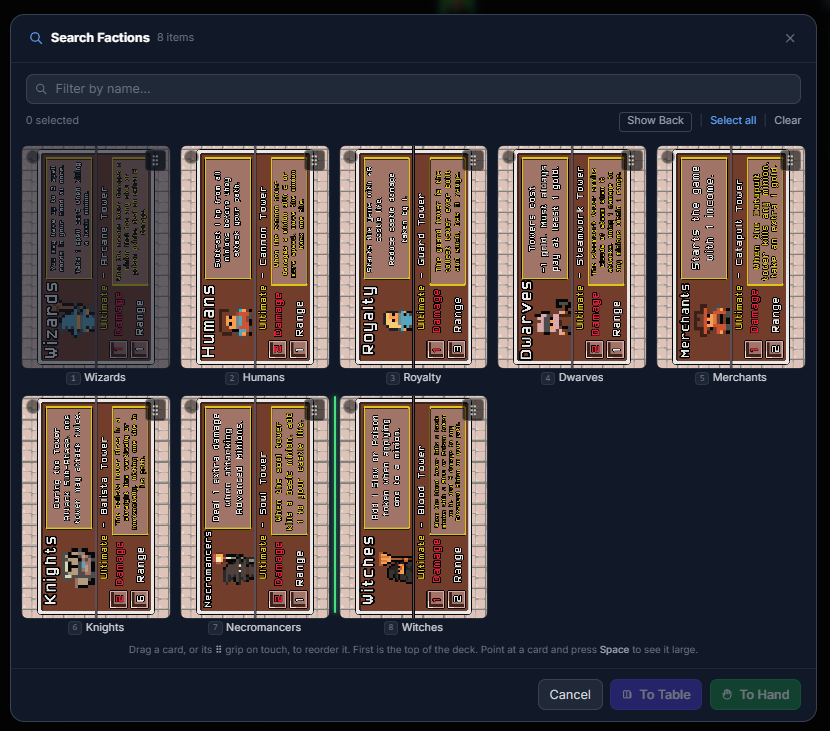
Search Deck and Search Stack now let you drag cards into a new order. Drop a card between two others and a green line shows exactly where it will land, with the side of a card you are on deciding whether it goes before or after. On a touchscreen, drag the small grip in a card's corner instead, so a swipe anywhere else still scrolls the grid. Clear the filter box first: with a filter applied there is no way to say where a card sits relative to the ones being hidden.
Card Positions In Search
Every card in the search grid now shows its position in the pile, so 1 is the top. No more counting tiles to work out which way the order runs.
Preview A Card While Searching
Point at any card in the search grid and press your preview key (Space by default) to see it full size. The grid steps aside while the preview is up, and one press of Esc brings it straight back with your filter and selection intact.
Bigger, Clearer Search Grid
The search window was too narrow to read a real card face. It is now much wider, and the number of columns adapts to your screen: two on a phone, up to five on a large display. Cards are roughly twice the size they were.
Decks No Longer Shuffle When You Place Them
A deck used to arrive on the table pre-shuffled, which quietly destroyed any order set up in the Deck Builder or brought in from a feed. Decks now spawn in exactly the order they are listed, the same as token stacks always have. Shuffle is still there when you want it: the deck's right-click menu, the mobile toolbar, or the R hotkey.
Dextrous Sync: Improvements
Deck Order Now Comes Through
Dextrous sends the order of the cards within each deck, and DDD now uses it. Decks arrive in the order you set them up in, instead of arriving jumbled and needing to be rebuilt by hand.
Use Dextrous's Card Order For Decks
A new option on the sync settings, on by default. Turn it off if you arrange your decks here in DDD and do not want a sync rearranging them. Either way, cards are still added, removed and updated normally, only the ordering is skipped. Available on the components page and on the in-room re-sync.
Note that your first sync after this update will put Dextrous-managed decks into the order Dextrous specifies. If you had arranged one of those decks by hand, turn this option off before syncing.
Re-syncing No Longer Scrambles Your Decks
Re-syncing could reshuffle decks already on your table, and if a deck's card count had changed, for example after removing a card and adding a replacement, it could quietly duplicate some cards and drop others. A sync now only re-points cards whose component genuinely no longer exists, matches them by name, and leaves the deck's order untouched. Anything it cannot match is left exactly as it is and reported to you rather than silently swapped for a different card.
Mask Editor: Updates
Transform, Scale and Rotate Modes
Three modes decide what a drag does. The handles change to match, so you can see which mode you are in at a glance: round dots for Transform (edit one point), squares for Scale, rings for Rotate. Hold Shift for 10% or 15 degree steps.
Whole Shape Controls
Fit to box, Centre, Mirror H, Mirror V and quarter-turn buttons, now above the canvas. Fit stretches your shape to touch all four edges. Fit and Centre grey out when there is nothing for them to do.
Notepad: Tabs, Pinning, and Drag to Move
The in-room notepad is now a floating panel instead of a pop-up window, so you can keep your notes open and carry on playing underneath them. Open it from the notepad button in the bottom toolbar.
- Move it anywhere. Drag the panel by its title bar, with a mouse or a finger. It stays where you put it, and it can never be dragged so far off-screen that you lose hold of it.
- Pin it. Click the pin button and
Escwill leave the notepad alone. Unpinned,Esccloses it along with everything else. - Named tabs. Click
+for a new tab, double-click a tab to rename it, and use thexon the active tab to remove it. Keep a tab for scores, one for rules questions, one for changes you want to make. - Your tabs follow you. Tabs are shared across every room you join, so a "Rules questions" tab is waiting for you in the next session instead of starting from scratch.
Notes are saved in your browser on the device you are using. They are never sent to the server and nobody else in the room can see them, and they survive closing the tab, refreshing, and coming back another day. Because they live in the browser, they do not follow you to a different device or a different browser.