Becoming a Publisher
Publisher mode is a free add-on to any Designer Den account. Turning it on never affects your designer tools — you keep everything and simply gain a publisher side.
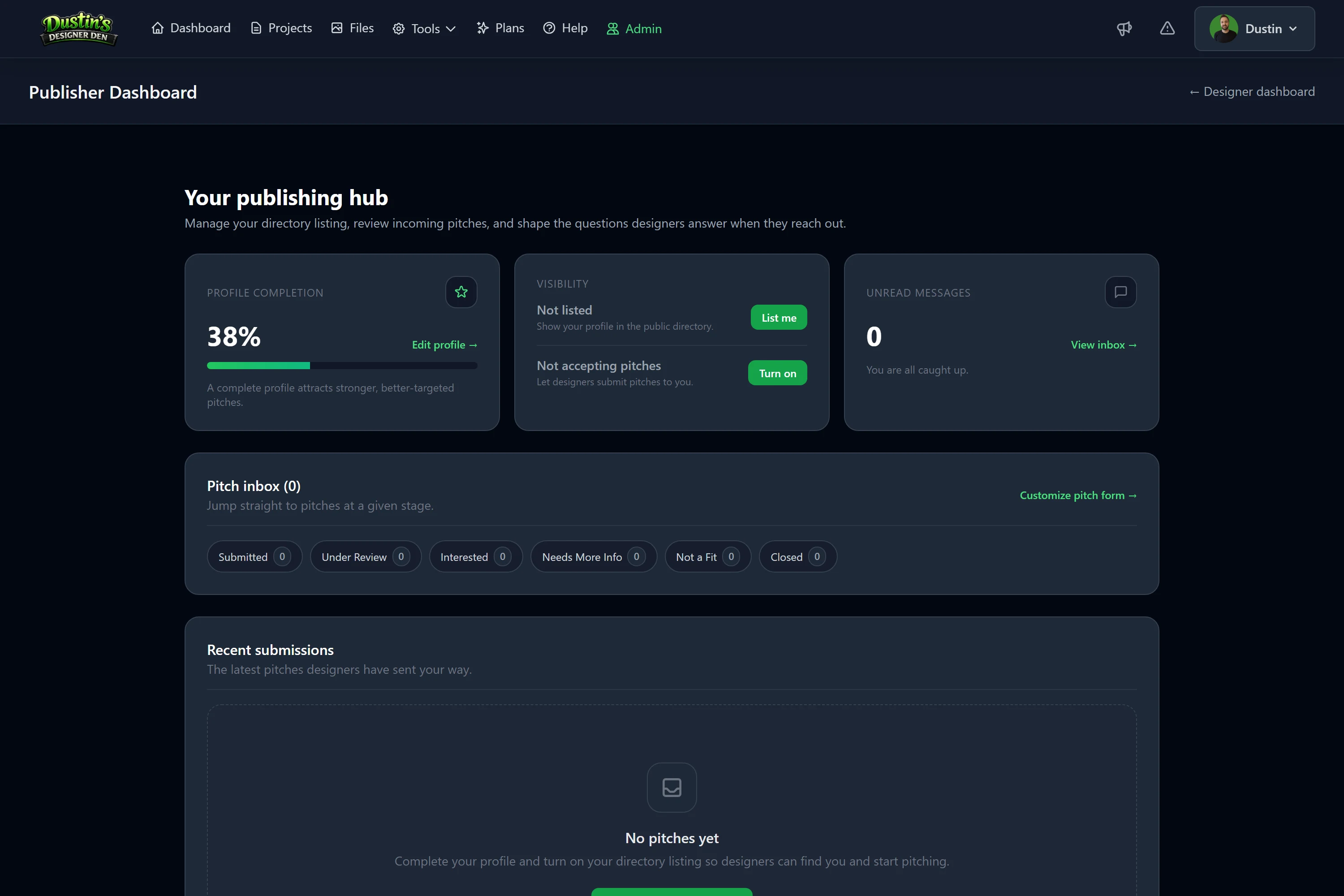
Turning it on
There are two ways:
- At signup — tick "I'm a publisher" on the registration form.
- Any time after — open your account menu (top right) and choose Become a Publisher.
Either way you land on your new Publisher Dashboard, with a starter profile ready to fill in.
Building your profile
Open Edit profile from the dashboard. A strong, complete profile attracts better, more relevant pitches. You can set:
- Publisher / business name — what designers see in the directory.
- Page URL — your public address (e.g.
…/publishers/your-studio). You choose the slug; we tidy it automatically. - Cover image — a wide banner across the top of your page. This is the biggest lever for showing off your brand.
- Logo — a square image that frames your profile.
- Website and contact email (email is kept private — used for notifications, never shown publicly).
- About — who you are and what you publish.
- Submission guidelines — set expectations: response times, what to include, what you're not looking for.
Tip
Upload a cover image. A profile with a real banner reads like a brand storefront; the gradient fallback is just a placeholder.
Say what you're looking for
In the profile editor, pick the genres, player counts, and complexity levels you accept. These power the directory filters designers use to find you — so the more accurately you set them, the more on-target your pitches will be. Leaving one blank signals "open to anything."
Two switches: Listed and Accepting
Your visibility and your availability are independent, and both start off:
| Switch | Controls |
|---|---|
| Listed in directory | Whether your profile shows up in the public directory. |
| Accepting pitches | Whether designers can submit pitches to you. |
This lets you, for example, be listed but closed (people can find and read your profile, but can't pitch yet), or accepting but unlisted (you share your page link directly without appearing in the directory).
Flip both from the Visibility card on your dashboard, or from the bar at the top of the Publishers directory.
Note
New publisher profiles are hidden and closed until you turn these on. Set up your profile first, then list yourself when you're ready.
Customize your pitch form
Beyond the standard questions, you can add your own — see Managing Incoming Pitches for the form builder and the inbox.
Turning publisher mode off
Changed your mind? You can switch publisher mode off from any of these:
- your Publisher Dashboard (a "Turn off publisher mode" card at the bottom),
- Profile settings → Publisher Mode, or
- the bottom of your publisher Edit profile page.
Turning it off hides your publisher profile and stops new pitches, but it's reversible — your profile, custom questions, and received pitches are kept. Turn it back on any time to restore everything. Your designer account is never affected.
Related: Managing Incoming Pitches · Publishers & Pitching: Overview