Submitting a Pitch
When you've found a publisher who fits your game (see Finding the Right Publisher), open their profile and click Submit a pitch.
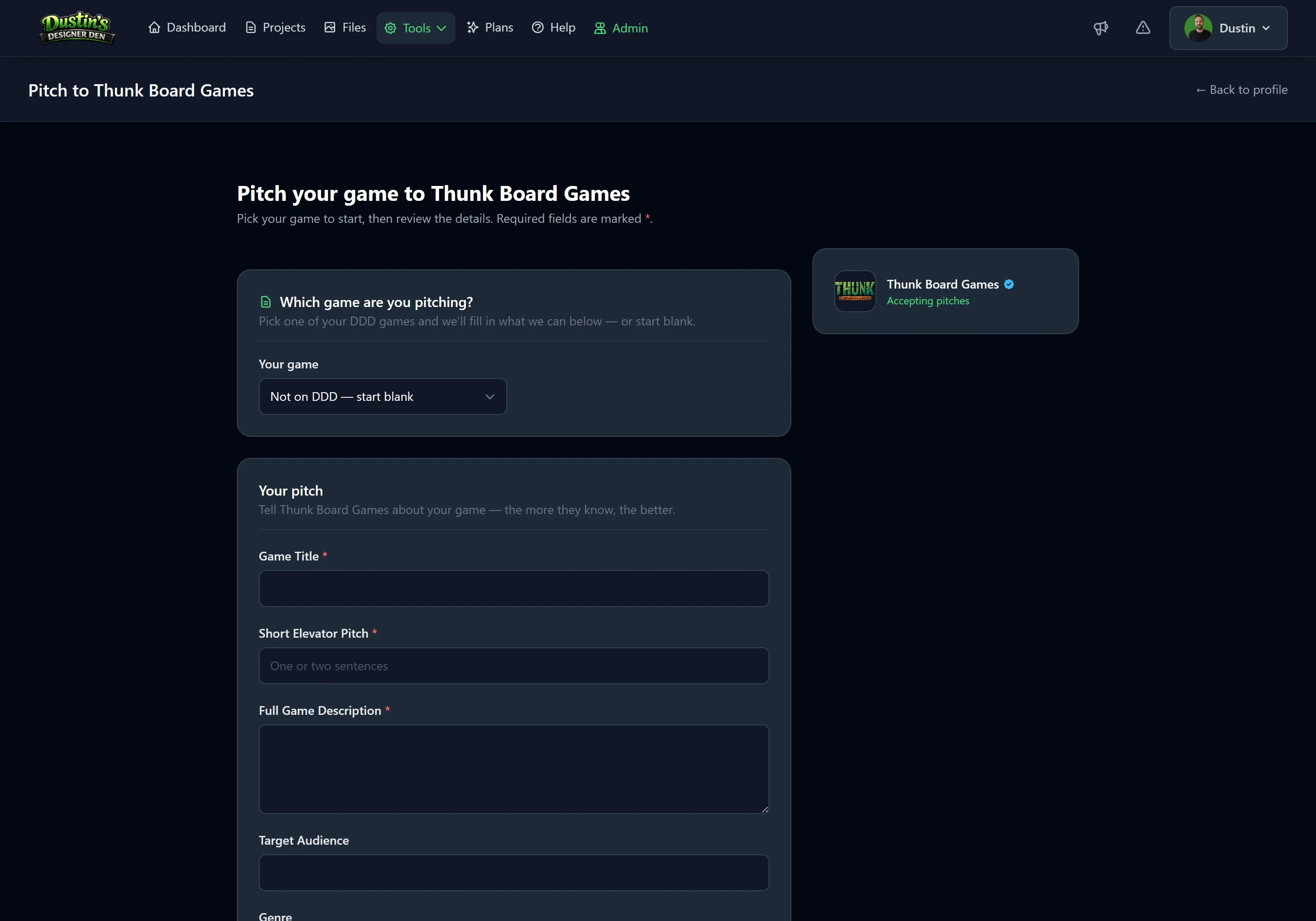
Start with your game
At the top of the form, pick the DDD game you're pitching. Designer Den auto-fills what it can from that project — game title, elevator pitch, description, genre, and target audience — which you can edit before sending. It's a fast head start.
If that game has saved table setups, a picker appears so you can attach one for the publisher to play (see below). Not on DDD yet? Choose "start blank" and just fill the form out by hand.
The pitch questions
Every pitch includes a set of standard questions — title, a short elevator pitch, a full description, target audience, what you're looking for from a publisher, and so on. Required fields are marked with an asterisk (<span style="color:#f87171">*</span>).
A publisher can also add their own custom questions to the form (budget expectations, a prototype link, anything they care about). Answer what you can — the more complete your pitch, the easier it is to evaluate.
Attachments
You can attach up to 5 files (PDF or images), 25 MB each — a pitch deck, a sell sheet, box mockups, or screenshots. These go straight to the publisher with your pitch.
Attach a playtest setup (the good part)
This is what makes pitching on Designer Den different. If you've saved a table setup for the game you picked, attach it so the publisher can load your game into a private playtest room and actually play it — no files to download, nothing to install. It's optional — choose "No setup" to send a written pitch only.
See Attaching a Playtest Setup for the full details, including how your game stays private.
Tip
A clean "ready to play" setup — board down, decks shuffled, player areas marked — lets a publisher get a feel for your game in seconds. It's the single strongest thing you can include.
Note
Don't have a setup yet? Open your project in the playtest room, arrange the table, and save a setup. Then it'll be available to attach.
After you submit
Your pitch lands in the publisher's inbox, and you'll find it under My Pitches (in your account menu, or via the Publishers area).
From a pitch's page you can:
- see the status the publisher has set,
- read and send messages in a threaded conversation,
- and re-open the attached setup any time.
Pitch statuses
| Status | Meaning |
|---|---|
| Submitted | Received, not yet reviewed. |
| Under Review | The publisher is looking at it. |
| Interested | They'd like to talk further. |
| Needs More Info | They have questions — check your messages. |
| Not a Fit | Not right for them this time. |
| Closed | The conversation has wrapped up. |
Tip
If a pitch sits at Needs More Info, the publisher is waiting on you. Open the conversation and reply.
Pitching more than one game
You can pitch the same publisher more than once — just not the same game twice while a pitch for it is still open. Each open pitch has to be a different game. Once a pitch is marked Not a Fit or Closed, you're free to pitch that game to them again. From a publisher's profile you'll see "Pitch another game" once you've already pitched them.
Related: Attaching a Playtest Setup · Finding the Right Publisher · Saved Table Setups