My Files
My Files is your personal image library. Upload artwork once and reuse it on cards, tokens, boards, and project covers, without re-uploading every time.
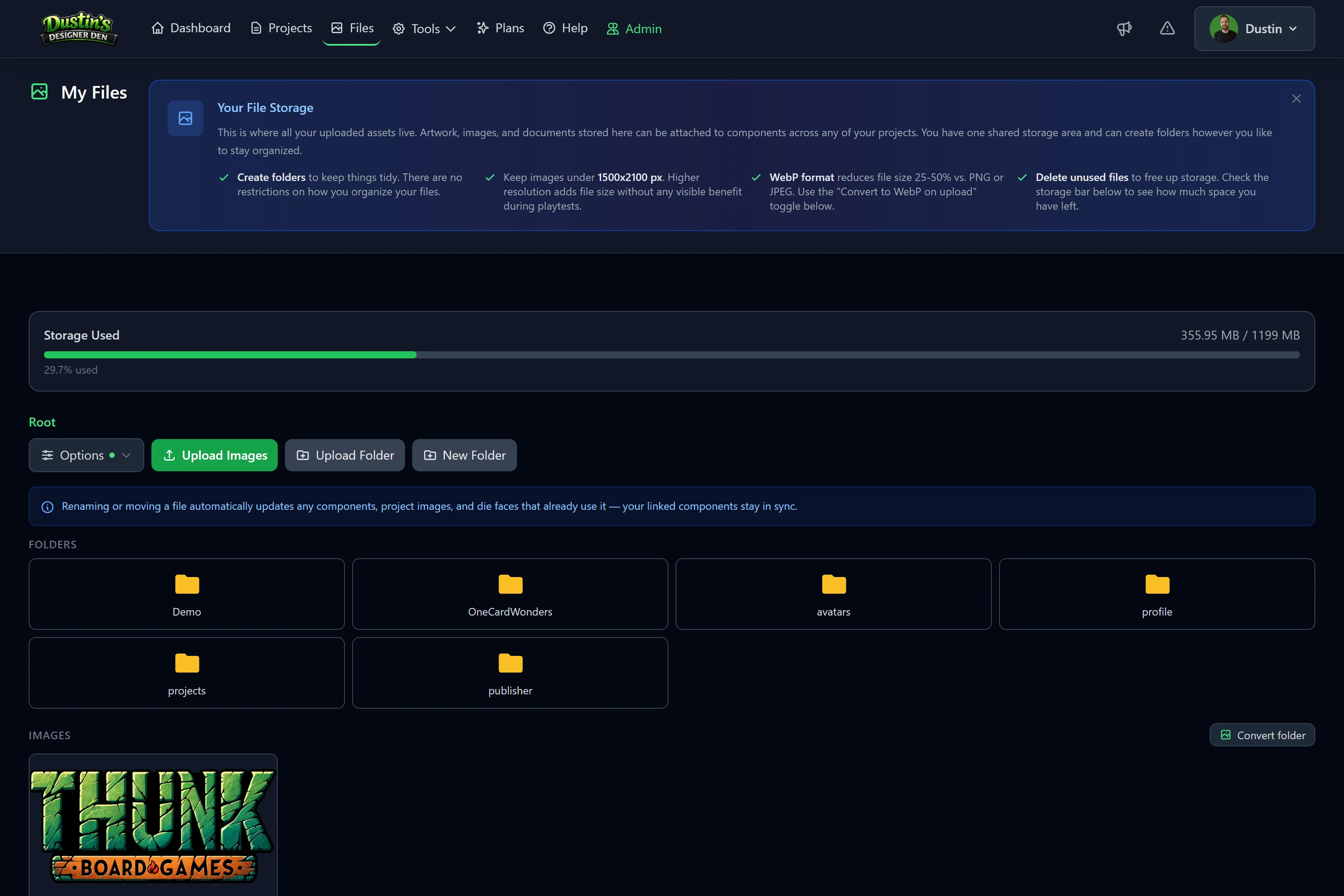
Uploading images
- Open My Files from the main menu.
- Drag images in, or click Upload.
- Pick an image anywhere a component asks for one, it's already hosted for you.
Supported formats: PNG, JPG, GIF, WebP, AVIF, and SVG.
Organizing
- Create folders to group art by project, deck, or type.
- Rename and move files at any time, links update automatically.
- Each file shows its size so you can keep an eye on your storage.
Storage limits
This is one shared pool: the images you upload here, plus every PDF, CSV, Print & Play PDF, and project backup you generate (see Exports & Bulk Import), all count against the same limit. Manage generated files from My Exports (account menu → My Exports).
| Plan | Included storage |
|---|---|
| Free | 100 MB |
| Pro | 1 GB |
| Storage Add-ons | +5, +10, or +20 GB on top of either plan (they stack) |
Tip: convert large PNGs to WebP on upload to fit far more art in the same space.
Need more room? Pro raises the base to 1 GB, and Storage Add-ons add 5, 10, or 20 GB more on any plan (from $2.50 / month, with the bigger tiers cheaper per GB). Add one from Account Settings → Storage, or the "Get more storage" link right on this page's storage bar.
Over your limit (after a downgrade)
The same rule applies no matter how your limit went down, whether you dropped from Pro to Free or canceled a Storage Add-on. If your files are over your new limit, uploads are blocked and a 14-day grace period starts: you get an email with the exact deadline and a countdown in Account Settings. Delete files to get back under the limit, or add storage to raise it, and nothing is removed. If you're still over the limit when the grace period ends, your newest files are deleted automatically until your account fits. The full timeline is in Storage Add-on.