Exports & Bulk Import
Your data isn't locked in. You can export your component list for manufacturing or reference, pull a session's full action log into a spreadsheet, and bulk-create components from a CSV. This guide covers all the ways data moves in and out.
Component List Exports (Pro)
From a project page you can export your whole component catalog two ways:
- PDF, a bill of materials. A formatted list of every component with quantities and costs. Great for printing an in-person reference, sending to a manufacturer or co-designer, or archiving a snapshot of the project. Use the Export PDF button on the project page.
- CSV, component data. The same catalog as a spreadsheet, for your own analysis in Excel or Google Sheets.
Note
PDF and CSV exports are a Pro feature. See Plans & Pricing.
Every PDF or CSV you generate is saved to your account's storage (My Files) and counts against your plan's storage quota, the same as a Print & Play PDF or a full Project Backup. If a file would push you over quota, the export is blocked upfront with a clear message rather than leaving you with a broken download.
Open your account menu (top right) → My Exports to see everything you've generated, PDF, CSV, Print & Play, or a project backup, with its file size, redownload it anytime, or delete it to free up space.
Session Data Exports
Each logged playtest has its own export. Open a session from the Playtests tab and export its action log as CSV or JSON, every move, draw, roll, and flip with timestamps, for digging into how a game actually played out. See Playtest Sessions & Feedback.
Bulk Component Import & Export
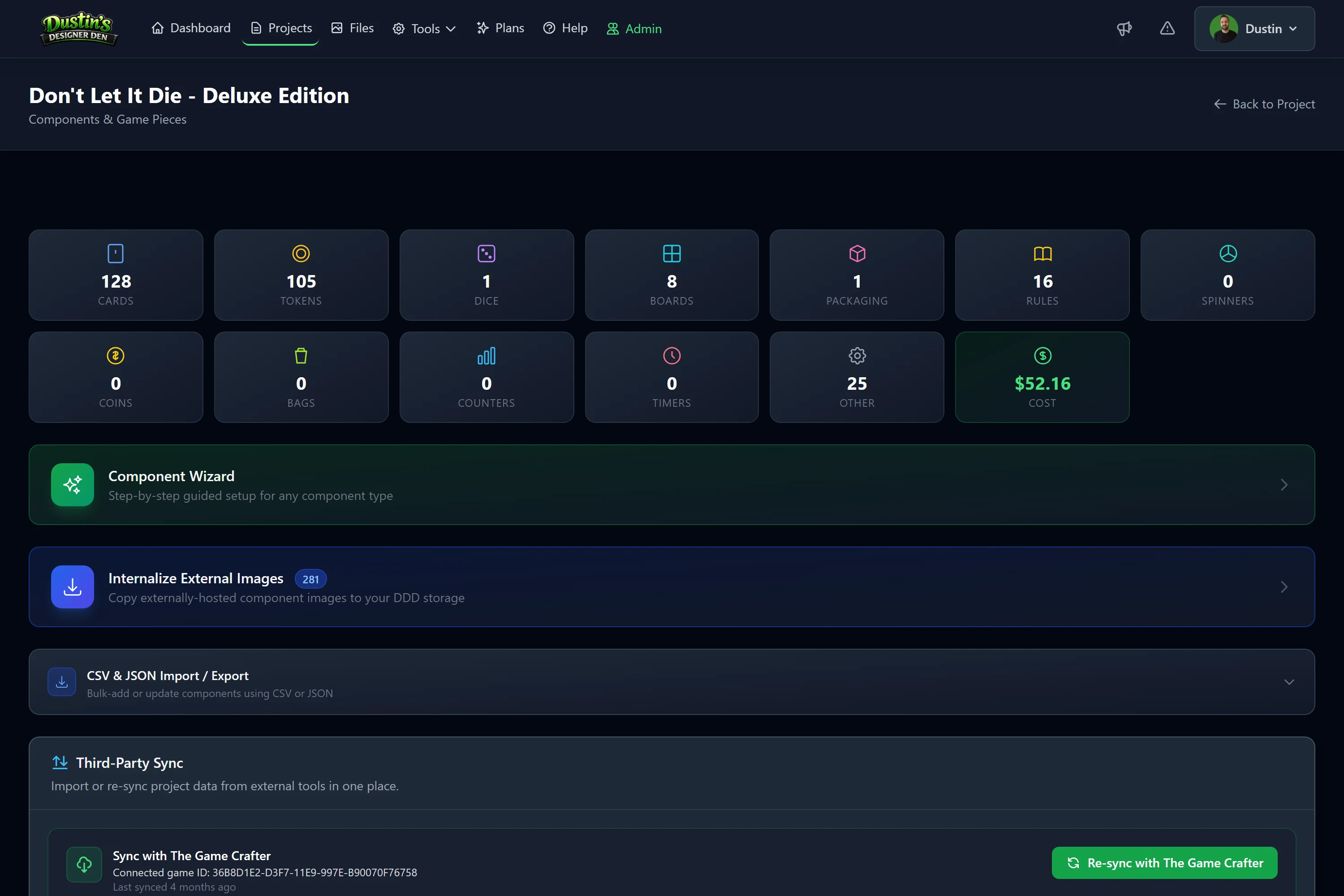
Building a big deck or a long component list is far faster from a spreadsheet than one piece at a time. The CSV & JSON Import / Export panel in a project's Components section does that in both directions: download an empty template or export what you already have, edit it, and import it back to create and update components in bulk.
That panel has its own guide, including the field rules, how rows are matched on re-import, and the Google Sheets option: CSV & JSON Import / Export.
Tip
Already keep your data in Dextrous? Sync it directly instead of exporting and re-importing by hand.
Related: CSV & JSON Import / Export · Projects · Components · Playtest Sessions & Feedback · Project Backup (Export & Import) · My Files · Plans & Pricing