Projects
Your project is the central hub for everything about your board game: design details, components, playtests, and exports all live here.
On This Page
- Creating a Project
- Project Details & Fields
- Projects Dashboard
- The Project Page
- Exporting (PDF & CSV)
- Importing from The Game Crafter
- Organization Tips
Creating a Project
- Click Projects in the navigation.
- Click + New Project.
- Enter a project name (required) and any other details you have ready.
- Click Create Project.
You can always come back and fill in details later. The only required field is the project name.
Project Limits
Your plan determines how many projects you can create. Your current usage and limit are shown on the Projects dashboard. Free accounts can create a set number of projects; Pro accounts get unlimited projects. See the Plans page for details.
Read-Only Projects (after a downgrade)
If you drop from Pro to Free with more projects than the Free limit, no project is deleted. Every project becomes read-only, any open or persistent rooms close, and shared/public setups turn off. (Storage has its own downgrade rule; see Storage Add-on.)
To keep working, unlock the projects you want full access to, up to the Free limit:
- A read-only project shows a READ-ONLY badge and an Unlock button on its card and project page.
- You can keep the Free limit unlocked at once. If your slots are full, Lock another project first (this frees a slot, closes that project's rooms, and turns off its shared setups), then unlock the one you want.
- A read-only project can still be viewed; you just can't edit it, change components, or host playtests until it's unlocked.
Tip
Re-subscribing to Pro instantly unlocks every project again, no need to pick.
Project Details & Fields
The project edit form lets you record key information about your game. None of these are required beyond the name, but filling them in helps organize your work and impresses playtesters.
Basic Info
- Project Name: the game's title (required)
- Short Description / Tagline: one-line pitch shown in listings
- Full Description: your pitch, lore, rules, or design notes, formatted with Markdown: headings, lists, links, images, and embedded YouTube/Vimeo videos. See Formatting Your Project Description
- Genre: e.g., Strategy, Party, Cooperative
Game Specs
-
Min Players / Max Players: displayed as a badge on the project page
-
Playtime (minutes): estimated play duration
-
Min Age: minimum age rating
Artwork
- Logo / Box Art: displayed centered over the hero section
- Backdrop / Banner Image: banner image behind the hero
- Both accept public image URLs
Status
- Status: e.g., Concept, In Development, Playtesting
Projects Dashboard
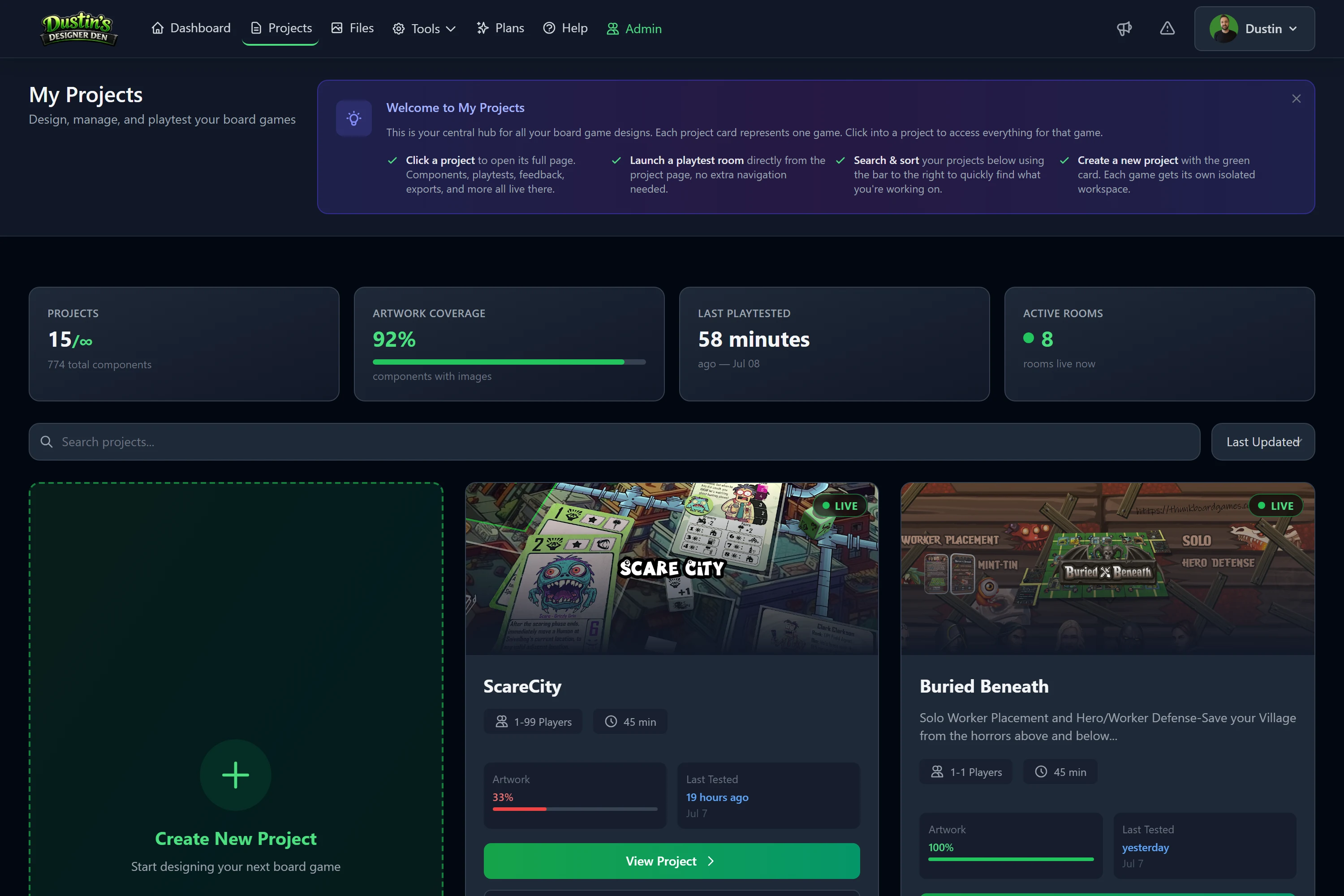
The Projects list page is your overview of all games you're working on. At the top it shows four quick stats:
| Stat | What it shows |
|---|---|
| Projects | Your current project count vs. plan limit, with a "remaining" indicator. |
| Artwork Coverage | Percentage of your components (across all projects) that have image URLs attached. |
| Last Playtested | How long ago your most recent playtest session was logged, across all projects. |
| Active Rooms | Live count of currently open playtest rooms across all your projects. |
Project Cards
Each project is shown as a card with its logo/backdrop, name, tagline, component count, playtest count, and key stats (players, playtime). Click any card to open the full project page.
The Project Page
Opening a project takes you to its full page, where you can access every feature tied to the project.
Hero Section
The backdrop image fills the top banner, with the logo centered over it. Quick-stat badges show player count and playtime. Action buttons for Edit, Export PDF, and Launch Playtest appear in the action bar.
Tabs
- Overview: full description, design notes, and project metadata.
- Components: all game pieces, organized by type. Add, edit, delete, and view costs.
- Playtests: session history, feedback, and analytics for this project.
Exporting (PDF & CSV)
A project can export a PDF bill of materials and CSV data (both Pro), and you can bulk-import components from a spreadsheet. The Export PDF button is on the project page. For the full rundown, including session-log exports and CSV import, see Exports & Bulk Import.
Importing from The Game Crafter
Already have your game listed on The Game Crafter? You can import the whole thing, details and every component, straight into a project from its Edit page, rather than entering it by hand. The full walkthrough lives in the dedicated guide: The Game Crafter Import.
Organization Tips
- Naming: Use your game's working title as the project name (changeable any time); use the tagline for a one-sentence hook; keep work-in-progress notes in Design Notes.
- Images: Even a rough logo or backdrop makes the project feel real. Backdrops look best in landscape (16:9). Check that URLs are public.
- Multiple Games: Create a separate project for each distinct game, including expansions or variants; don't combine them.
- Staying Organized: Use the status field to know where each game stands, and document design changes in the description before making them.