Markers, Labels & Drawing
Sometimes a game needs a scribble: circle the contested territory, point an arrow at the active player, or label the draw pile. Designer Den gives you two ways to write on the table: freehand drawing (anyone can do it) and formatted text labels (host only). Both sync live, so the whole table sees them as you go.
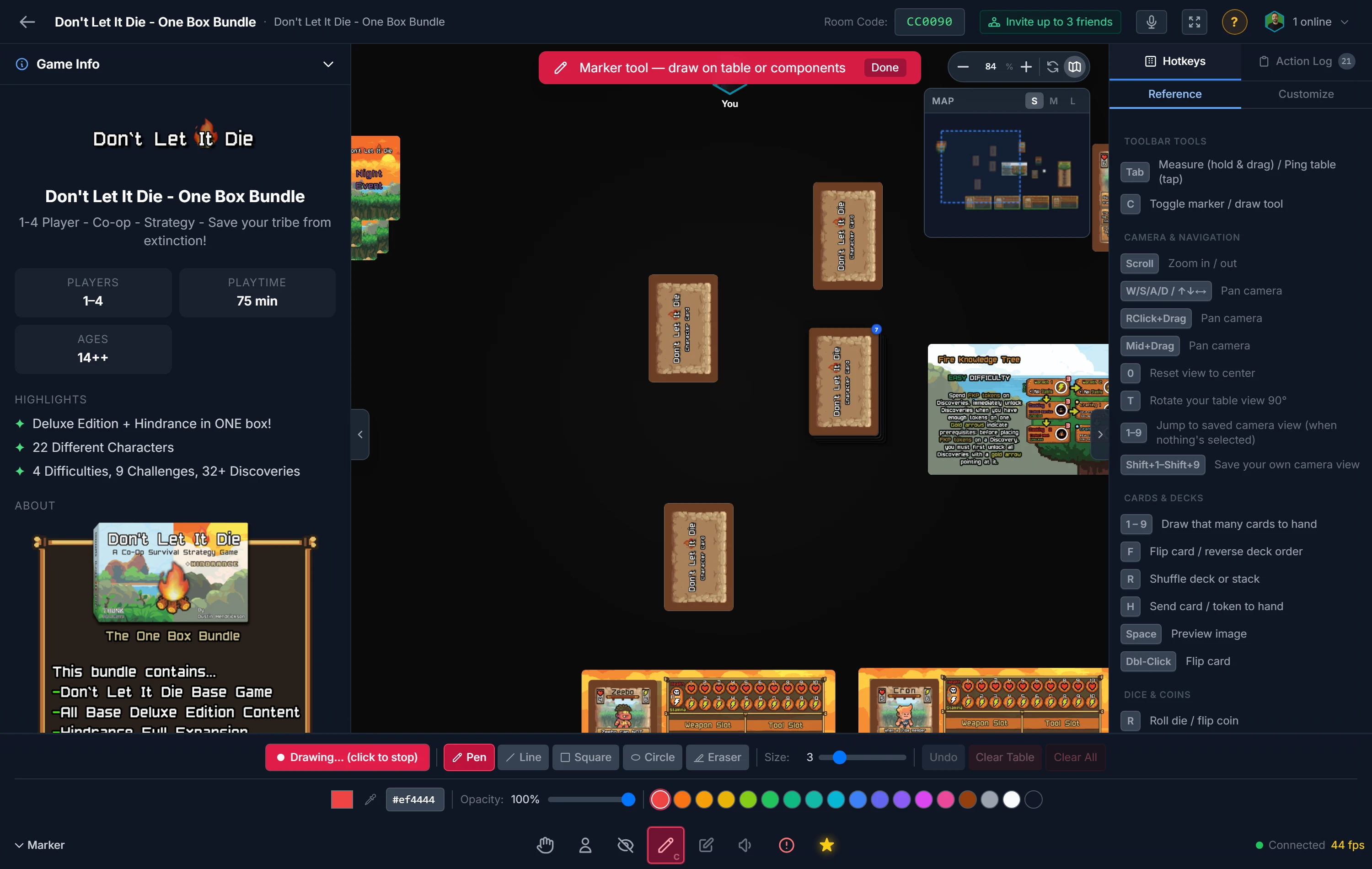
Drawing on the Table
The marker is your whiteboard pen. Use it to highlight a region during a rules explanation, sketch a quick diagram, or, as a playtester, circle the card that felt overpowered.
How to use it: click the marker (pencil) icon, pick a tool (Pen, Line, Square, Circle, or Eraser), set the color, opacity, and size, then Start Drawing and drag. Click Done or press Esc when you're finished.
What you can draw on:
- The table itself: strokes float above every piece. Clean them up with Clear Table or Undo.
- A specific component: draw on a card or board and the marks stick to it, rotating and scaling with the piece. These last the whole session and even show in players' hands and the Hand Viewer.
Drawing is face-aware: toggle Front / Back before you draw so your marks land on the right side of a card or board.
Tip
Session strokes are temporary. To bake an annotation into every copy of a component (a permanent callout on a reference card, say), use Save State to Component, or the Appearance tab of Edit Component…, instead (host only).
Text Labels
Where the marker is for sketches, labels are for words: clean, formatted text placed on the table. They're how you turn a blank felt into an organized board: "Draw Pile", "Discard", "Player 1", or a quick turn-order reminder.
To place one: click the Text icon, type your text (it accepts **bold**, *italic*, ## headings, and - lists), set the font size, width, and colors, choose a Layer (Behind your pieces or In Front), then Place Label and click the spot.
A label is just another object once placed: move it, rotate it with Q, scale it, lock it, rename it, or delete it.
Note
Labels live above or below your pieces depending on the Layer you pick: put area names Behind so pieces sit on top of them, and turn reminders In Front so they're never buried.
Related: Realtime Playtest hub · Host Tools & Zones · Grids, Snapping & Placement