Grids & Snapping
Freeform tables are great for card games, but a lot of designs want pieces to sit exactly on a square or hex. Two tools give you that precision: a table grid that covers everything, and per-board grids for individual boards. (For aligning pieces to specific, irregular spots, see Snap Points.) All of these are host and co-host only.
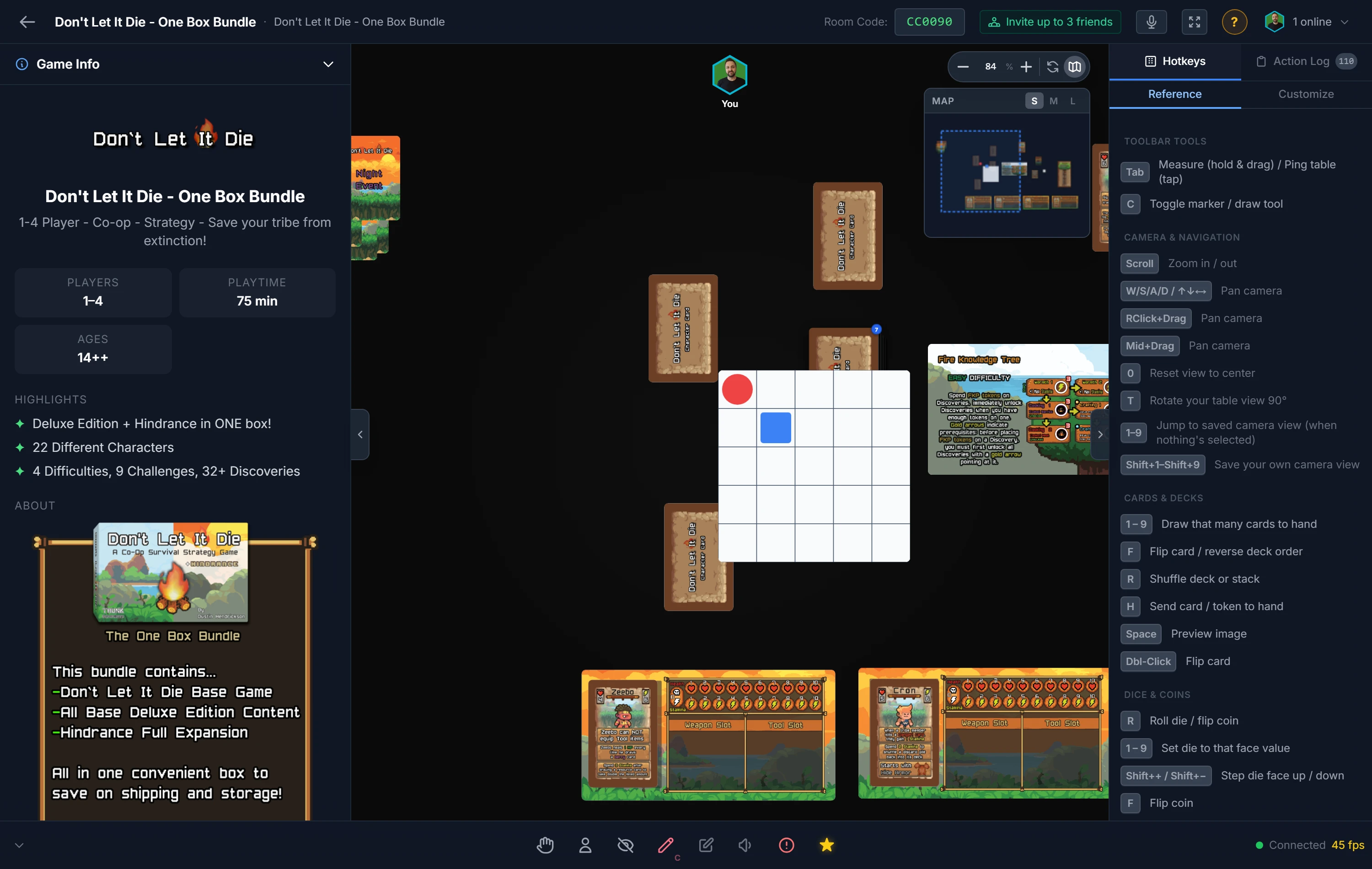
The Table Grid
The table grid lays an alignment lattice over the whole table. Turn it on, and pieces you drag, paste, or spawn click into place instead of landing wherever your mouse let go. It's the quickest way to make a tidy battle map or a square-grid puzzle.
You'll find it under Room Options in the bottom toolbar (host only):
- Type: Square, Hex Flat, or Hex Pointy, to match your game's geometry.
- Size: the cell size, in inches.
- Show grid: draw the lattice so players can see it (you can also snap without showing it).
- Snap: actually pull pieces onto the grid as they're placed.
- Line color: pick one, or leave it on Auto to contrast with your background.
- Snap location: Center drops pieces in the middle of a cell; Intersection drops them on the line crossings (the hex vertices, on a hex grid). More on that below.
Per-Board Grids
Here's the powerful part: any board can carry its own grid, independent of the table, configured separately for its front and back face. A hex-map board can snap to hexes while the rest of the table stays freeform, and flipping the board to its night-side map can switch to a different grid entirely.
Right-click a board → Board Grid:
- Front / Back: each face has its own settings; switch which you're editing.
- Show grid and Snap: independent toggles, both off by default. Show a grid without snapping, or snap without showing the grid; whatever the board needs.
- Type, Size, Snap location, Line color, same meanings as the table grid (the selected type highlights green).
Important
A board grid wins over the table grid. Drop a piece on a snap-enabled board and it snaps to that board's grid, correctly accounting for the board's position, rotation, and scale, and falls back to the table grid everywhere else. So a rotated hex board still snaps to its own hexes.
Board grid settings save with the component, so every future spawn of that board remembers them. You can also set them up ahead of time in the component editor's Appearance tab.
Tip
Worked example, a hex wargame map: spawn your map board, right-click → Board Grid → Front, choose Hex Flat, set the size to one hex, and turn on Snap (leave Show grid off if your art already shows the hexes). Now every unit you drop onto the map clicks to a hex center, and because the grid is the board's, it stays aligned even if you rotate the whole map.
Center vs. Intersection, which to use
This trips people up, so here's the rule of thumb:
- Center: pieces sit inside a cell. Use it for chess, checkers, hex maps, anything where a piece "occupies a space."
- Intersection: pieces sit on the corners where lines meet. Use it for Go, and many classic wargames, where stones or markers sit on grid points rather than in the squares.
On a hex grid, Intersection snaps to the hex vertices, the points where three hexes touch.
Tip
For aligning pieces to specific, one-off positions (a card slot, a dice tray, six start hexes) rather than an all-over lattice, use Snap Points instead.
Related: Snap Points · Moving & Arranging Objects · Component System