Zones
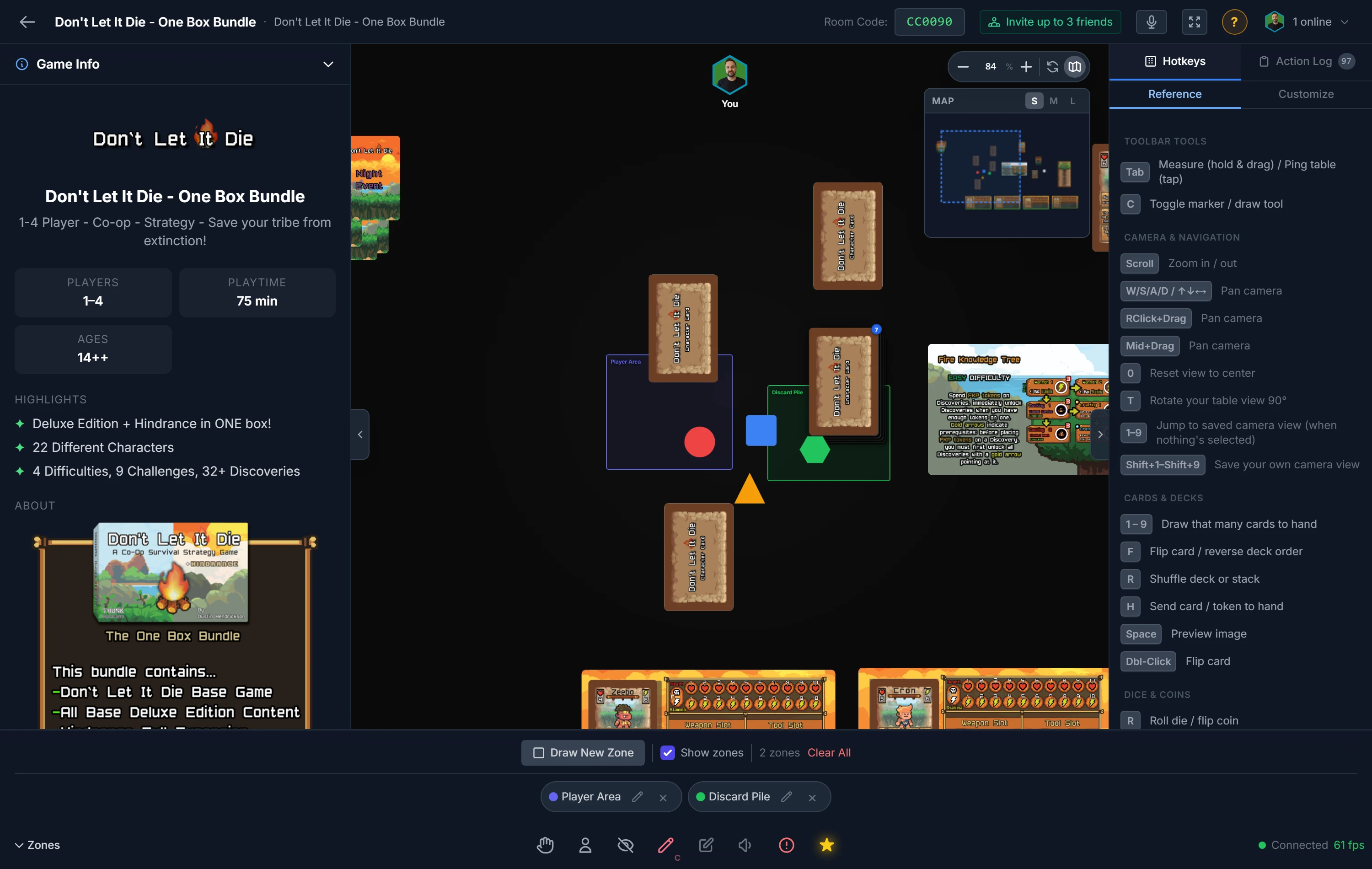
A zone is a rectangle on the table with rules attached. Instead of asking players to remember that one corner is the discard or that another is a player's private area, you draw a region and the table enforces the behavior for you. Only the host creates and configures zones, but any player can join or leave one.
Note
While the Zones panel is open, table pieces are paused — clicks go to zones, not to cards or tokens. Close the panel to play normally again.
Drawing a Zone
- Open the Zones panel. Drawing mode starts armed — drag out a rectangle where you want the zone.
- The zone is created immediately with an automatic name and no behaviors.
- It's selected in the panel, ready to edit: rename it, pick a color, set its opacity, and switch on the behaviors you want.
To edit any zone later, click it on the table (with the panel open) or click its chip in the panel. Press Delete to remove the selected zone; deleting is undo-able.
Zone Behaviors
A plain zone does nothing — it's just a labelled region. Each behavior is an independent toggle, and you can combine them freely (for example, a Hidden zone that also keeps its contents in a tidy Grid Layout). Every enabled behavior shows as an icon on the zone and on its chip in the panel.
| Behavior | What it does | Use it when |
|---|---|---|
| Hidden | Contents are invisible to non-members | a player needs a private play area |
| Player Hand | Pieces dropped in go to the joined player's hand | you want a "play to hand" drop spot |
| Randomizable | Adds a Randomize Objects right-click action | shuffling positions of pieces inside |
| Grid Layout | Auto-arranges dropped pieces into a grid | keeping a market row or tableau tidy |
| No Stacking | Cards and tokens dropped in stay separate instead of auto-combining into a deck or stack | a market row or individual card display where pieces should never merge |
Separately, On drop controls what happens to a card or token's facing when it lands in the zone: keep it as-is, flip it (toggle front/back), or force it face-up or face-down — one setting, since those options contradict each other.
Exempting a Component
A zone applies to everything sitting inside it, which is usually what you want — but not for the board you drew the zone on top of. You don't want the board hidden, flipped, or shuffled into the grid along with the pieces played onto it.
Right-click the component (or a multi-selection) and choose Restrictions → Ignore Zone Rules. That component is then exempt from every zone behaviour — hidden, hand, grid layout, randomize, no stacking, and on-drop facing — while everything else in the same zone carries on as normal. Choose Obey Zone Rules to put it back.
Note
Turning the rules back on doesn't retroactively apply the drop behaviours — the component is governed again the next time it's moved or dropped. Hidden zones are the exception: those take effect immediately either way, because they depend on where a piece is sitting rather than on it being dropped.
Tip
Zones can be moved by dragging while the panel is open. If you keep nudging one by accident, Lock Zone from its right-click menu pins it in place.
Which Layer a Zone Draws On
If a board keeps burying a zone, the fix is layers. A zone draws at the bottom of its layer: under every component on that layer, over everything on the layers below.
So put boards on a layer beneath the zone's and the zone shows through, while the cards and tokens you play into it still sit on top.
There are two places to set it, and both appear once the room has more than one layer:
- Draw into , the dropdown beside Draw New Zone. Sets the layer the next zone you draw lands on.
- Layer , the dropdown beside the selected zone's opacity. Moves a zone that already exists.
Joining a Zone
Hidden and Player Hand zones belong to whoever joins them. A player right-clicks the zone and chooses Join Zone. After that, a Hidden zone's contents are visible only to members, and a Player Hand zone routes their dropped pieces into their private hand.
Tip
Worked example, a private hand area: draw a rectangle in front of a seat and switch on Player Hand. Have that player right-click it and Join Zone. Now anything they drop there slides straight into their hidden hand. Switch on Hidden too and pieces sitting in the zone stay invisible to everyone else.
Related: Your Hand & Dealing · Host Controls · Grids & Snapping