Session Replay
Plan: Pro · Status: Beta
Record every playtest session and watch it back, see board state, card draws, moves, and player hands at any moment in time.
Warning
Replay is currently in beta. The viewer works well for most sessions but may have edge cases, especially with complex object interactions. If something looks wrong, please submit a bug report describing what you expected versus what was shown.
Overview
Session Replay captures every action taken during a playtest room (moves, draws, flips, rolls, and more) and stores them as a timestamped event log. After the session ends, you can watch the full session back in the replay viewer, scrub to any moment, and see exactly what the board looked like at each point in time.
Replay is separate from Playtest Analytics. Analytics gives you aggregate stats (dice averages, most-used cards, etc.). Replay gives you a visual playback of the full session, like a video, but driven by the actual event data.
Replay vs. Analytics
| Session Replay | Playtest Analytics |
|---|---|
| Visual playback of the full session | Aggregate stats across the whole session |
| See every card, move, and draw in order | Dice roll distributions and averages |
| Scrub to any moment in time | Card draw counts per deck |
| See player hands as they were held | Component interaction heatmap |
Enabling Replay Recording
Replay is enabled per Table Setup, not per session. Once enabled, every session that runs from that setup is automatically recorded.
- Open your project dashboard and find the Table Setups section.
- Find the red REC toggle. Each setup has a REC toggle switch. Click it to enable replay recording for that setup; it turns red when active.
- Run a session as normal. When you launch a room from that setup, you'll see a pulsing REC badge in the top bar confirming recording is active. Players don't need to do anything different.
- The replay is saved when the room closes. When the host closes the room, all recorded events are compiled into a replay and stored.
Replay expiry & saving: Every new recording appears in Recent Replays and is kept for 7 days before it is automatically deleted. To keep a replay permanently, click Save, and it moves to Saved Replays and never expires. You can save up to 25 replays per project. Recording is never blocked by the limit.
What Gets Recorded
The replay captures all game object interactions. Cursor positions are recorded periodically so you can see where players were looking.
Recorded
- Card moves (position, rotation, scale)
- Card/board flips (face-up / face-down)
- Drawing cards from decks to the table or to a player hand
- Drawing tokens from token stacks
- Placing cards and tokens from hand
- Picking up cards to hand
- Shuffling decks
- Flipping cards within a player's hand
- Dice rolls (with values)
- Token counter updates
- Zone adds and removals
- Stacking and combining decks
- Cursor movement (sampled every 3 s)
Not Recorded
- Chat messages or voice
- Snap point edits (host-only tool)
- In-game feedback scores (analytics only)
- Viewport zoom/pan of other players
- Admin/host-only menu actions
Watching a Replay
There are two places to access replays:
- Project dashboard: open your project and find the Replays section. It shows both Recent Replays (expiring soon) and Saved Replays. Click Watch on any replay.
- Playtest session page: if a session was recorded, there is a Watch Replay button at the top of the session detail page.
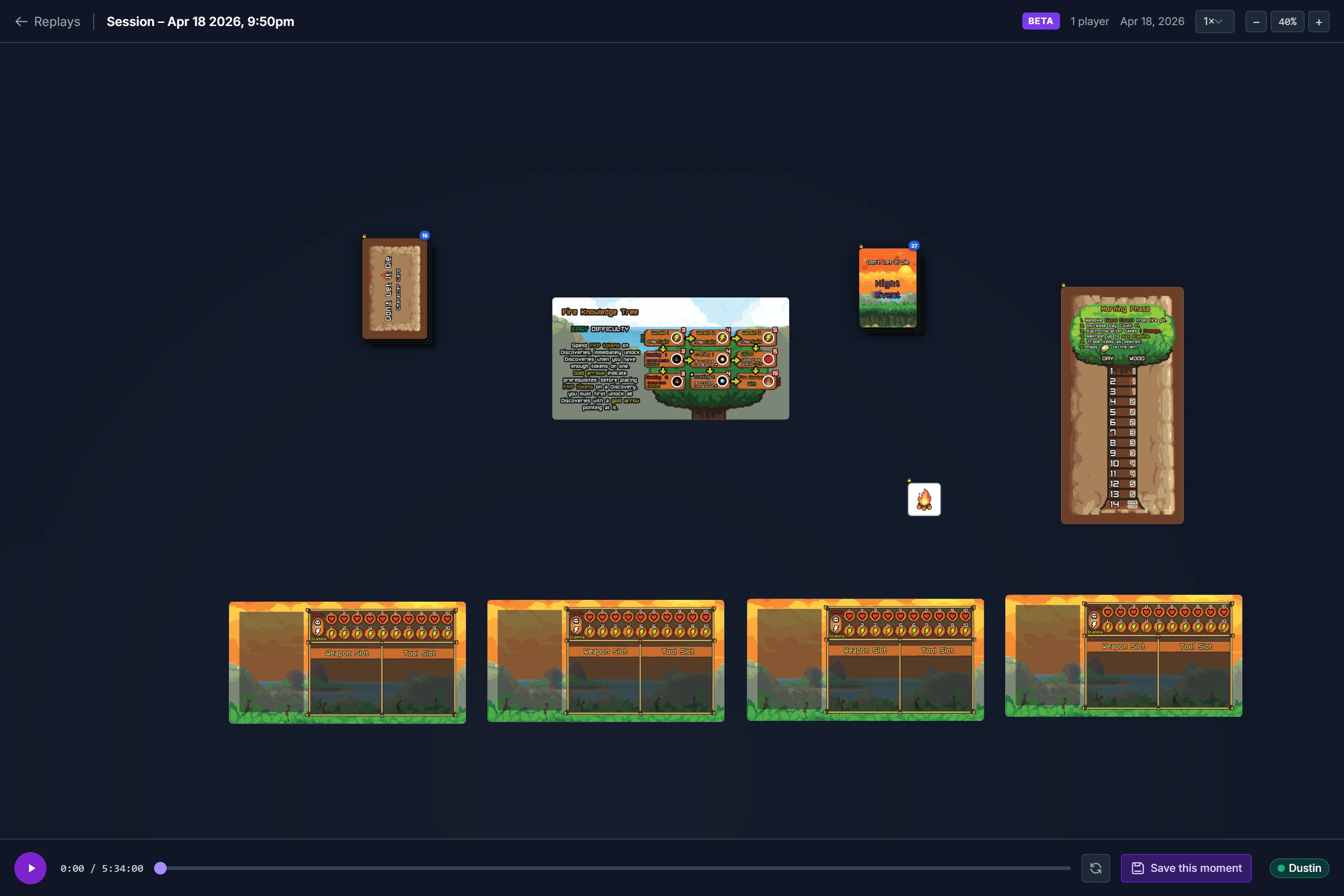
The replay opens in a full-screen viewer. The table starts in its initial state (exactly how the room launched) and plays forward from there.
Viewer Controls
| Control | What it does |
|---|---|
| Play / Pause | Click the play button or press Space |
| Scrub Timeline | Drag the progress bar to jump to any moment |
| Playback Speed | Choose 0.5×, 1×, 2×, 4×, or 8× in the top-right dropdown |
| Zoom | Use the + / − buttons in the top-right, or scroll the mouse wheel |
| Pan the Table | Click and drag anywhere on the table background |
| Restart | Click the restart button to go back to the beginning |
Player Hands Panel: When players draw cards to their private hand, a Player Hands panel appears in the bottom-right corner. It shows thumbnail previews of each player's current hand at that moment in the replay, including face-up and face-down cards.
Managing Replays
Replays are listed in the Replays section of your project dashboard. There are two tiers:
Recent Replays
- Created automatically after every session
- Deleted after 7 days if not saved (an expiry badge shows time left)
- No limit on how many can exist at once
Saved Replays
- Up to 25 saved replays per project
- Never expire, kept until you delete them
- Can be unsaved back to Recent (the 7-day clock restarts)
Actions Available on Every Replay
- Watch: opens the full replay viewer
- Rename: give it a descriptive name (e.g. "4-player Saturday run")
- Save / Unsave: move between Recent and Saved
- Delete: permanently removes the replay (cannot be undone)
Known Limitations
The replay system is in beta. Known edge cases we're working on:
- Timestamps are second-precision. Multiple actions within the same second are spread evenly across that second, so ordering may appear slightly off in fast-paced moments.
- Multi-player sessions. Actions from different players recorded in the same second may appear in a slightly different order than they occurred.
- Stacked decks created mid-session. A deck created by stacking two cards during a session (rather than loaded from a setup) may not always show correctly.
- Free-scale objects. Objects resized with the free-scale tool may not reflect the correct size at all points in the replay.
Found a bug or something that looks wrong? Submit a bug report, describe what you expected to see and what the replay showed instead.