Moving & Arranging Objects
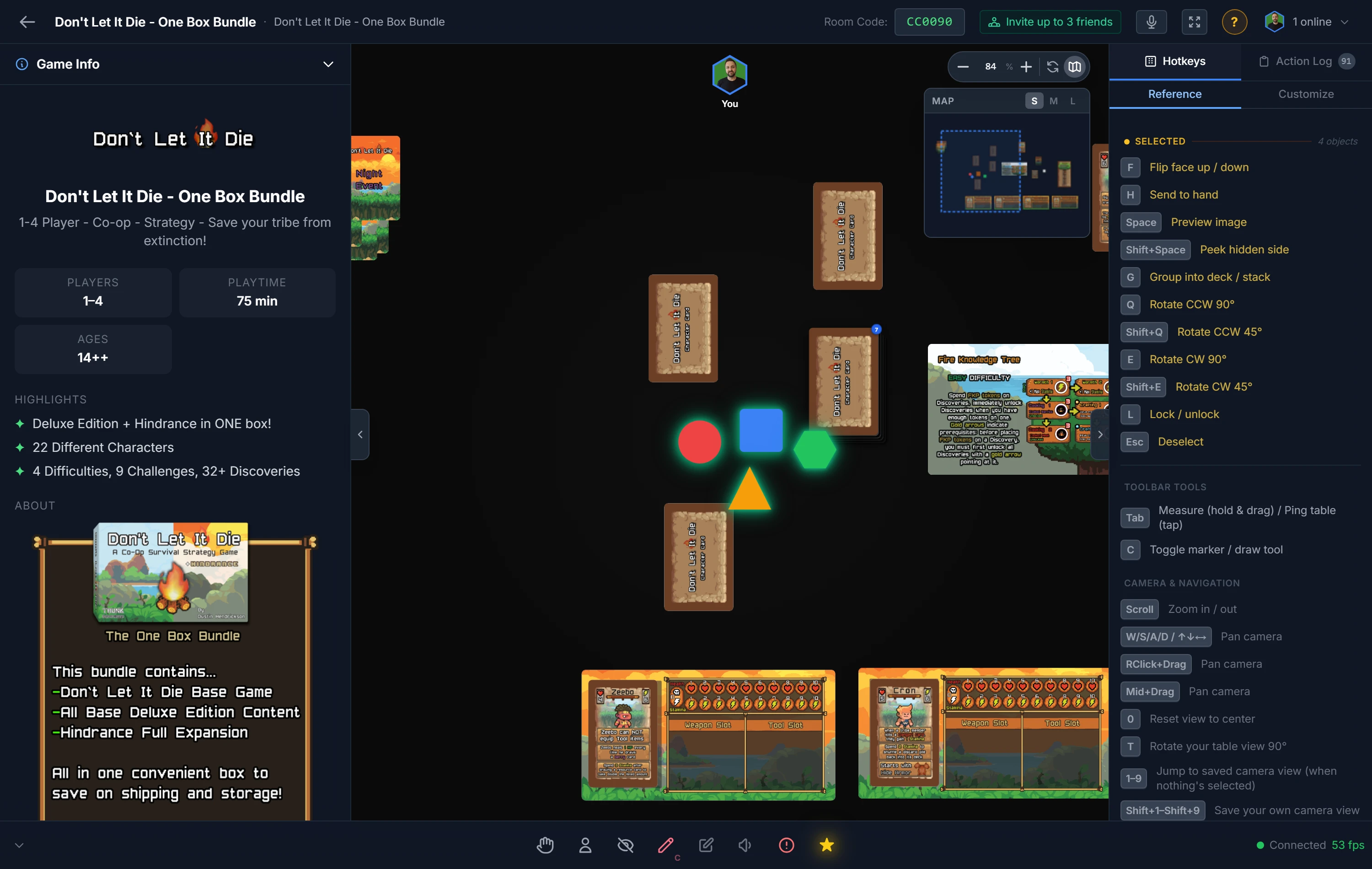
Everything on the table is an object, and they all share a common set of moves: select, drag, rotate, flip, lock. Learn these once and they work on a card, a die, a board, or a whole handful at once. (For what individual piece types do, see Cards & Decks, Bags, Token Stacks, and the other piece guides.)
Getting Pieces Onto the Table
Nothing appears automatically when a room opens; you place pieces as you need them. There are three ways:
- Your project's components are in the left sidebar, grouped by type and deck. Click one, choose a quantity, and spawn it. This is how you set up your own game.
- Generic pieces (plain dice, tokens, bags, counters, blank decks) are in the sidebar too, no project required. They're perfect for trying a mechanic before you've built art.
- Quick spawns: right-click an empty spot on the table (host only) for an instant D6, D20, coin, cube, token, bag, or counter.
Tip
Working across games or an expansion? Project Dependencies pull another project's components into this room's sidebar.
Selecting & Moving
Click an object to select it; a border in your player color shows it's yours to control. Drag it anywhere, and everyone else sees a live "ghost" follow your move so the table never feels frozen. Click empty space or press Esc to deselect.
To act on several pieces at once, multi-select: Ctrl+Click to add pieces one by one, or drag a box across empty table to grab everything inside (hold Ctrl while dragging to add to the current selection). Drag any selected piece and the whole group moves together.
Tip
Multi-select has a hidden superpower: press a shortcut while one piece sits under your cursor and it fires on your entire selection. Select a fistful of tokens, tap Q, and they all rotate together.
Rotating & Flipping
- Rotate with
Q(counter-clockwise) andE(clockwise), by your configured step (default 90°).Shift+QandShift+Erotate by half that step. - Flip a card, token, or board with
For a double-click, to show its other face.
You can set your rotation step in Player Options (see the Realtime Playtest overview).
Layering
When pieces overlap, control which sits on top from the right-click Layering menu: Send to Back, Back 1, Forward 1, Send to Front. You can also Tuck Behind a component to slide a piece partly under it, useful for tucking earned cards under a player board.
Bringing a tucked piece forward past whatever it was tucked behind releases the tuck for you, so it can actually reach the front. You'll see a note saying it happened, and Undo puts the tuck back. Anything still tucked behind a piece you raise comes up with it.
Auto-Lifting Pieces
Drag a card, token or board and anything sitting on top of it is auto-lifted along with it, the way a snapped piece follows the component it is snapped to. A piece is auto-lifted if it is drawn above the one you are dragging and far enough onto it, so tokens on a board travel with the board, and a card lying across another goes with it.
How far onto it counts is the host's decision. Auto-Lift, in the Room Options panel, is a slider from 1% to 100% that starts at 50%. It measures how much of the piece on top is over the one underneath, so at 50% a card has to be at least half on. Drop it to 1% and anything that so much as clips a corner comes along; push it to 100% and only a piece sitting squarely on top does. See Host Controls.
Auto-lifted pieces keep their stacking order while they travel: what was on top stays on top, and the component you dragged never ends up covering what it is carrying.
It carries all the way down a pile, not just the first layer: a piece on the card you dragged comes along, a piece on THAT comes along, and so on. Each piece is measured against the one directly beneath it rather than against the piece you grabbed. Anything snapped to one of them travels with it too, so components joined by snap points move as one thing.
A few things are deliberately left where they are:
- Locked pieces. Locking means the piece stays put, so nothing drags it around.
- Pieces below the one you are dragging. Only what is on top comes with it.
- Decks, bags and token stacks never auto-lift anything, because dragging one of those pulls an
item out of it instead. Hold
Shiftwhile dragging to move the whole pile.
Turn it off for a single piece with Prevent Auto-Lift on the right-click Restrictions menu. Set on a piece, nothing will auto-lift it; set on a board, that board auto-lifts nothing.
Locking & Restrictions
These keep pieces from being moved or used in ways you don't want. Most are on the right-click Restrictions menu:
- Lock (
L): pin a piece in place so it can't be dragged. PressLagain, or use the menu, to unlock. While a piece is locked,Lis the only hotkey that acts on it: flip, shuffle, roll, rotate, scale, delete and the rest leave it alone, and a locked piece inside a selection is skipped. The one exception is drawing: a locked deck, stack or bag still hands out cards (click it to select it, drag off it to draw, or use1to9). - Prevent Stacking / Bagging / Hand: stop a piece from merging into stacks, going into bags, or being sent to a hand.
- Prevent Snap to Point / Grid: stop a piece from snapping to anchors or the grid.
- Prevent Snap Follow (host): keep a snapped piece from moving when its parent rotates or scales.
- Prevent Auto-Lift: stop a piece being auto-lifted by whatever it is sitting on, or, set on a board, stop that board auto-lifting anything. See Auto-Lifting Pieces above.
- Prevent Auto Adjust Layer Order: stop a piece being re-layered automatically, so it keeps the position you gave it in the Layering menu.
Note
If you can't move a piece, it's probably locked, or another player has it selected. Press L or check the Restrictions menu.
The Core Shortcuts
These act on whatever is under your cursor or selected. A double-click always triggers a piece's primary action.
| Key | What it does |
|---|---|
Q / E |
Rotate left / right |
Shift+Q / Shift+E |
Rotate by half-step |
F |
Flip card/board/token, or flip deck draw direction |
R |
Roll dice / flip coin / spin spinner / shuffle deck, bag, or stack |
Double-click |
Draw from a deck, bag, or token stack |
H |
Send to your hand |
Space |
Full-screen preview |
L |
Lock / unlock |
T |
Rotate your view |
0 |
Reset the camera |
The complete list, including host-only actions like delete and scale, is in the Keyboard Shortcuts reference.
Related: Cards & Decks · Camera, Navigation & Mobile · Keyboard Shortcuts