Cards & Decks
Cards are the workhorses of most tabletop games, and a deck is just a face-down pile you draw from. This guide covers everything you do with them at the table.
Tip
Decks in the room sidebar come from the Deck & Stack Builder — build a deck once from your cards (a card can be in several decks) and spawn it here. Everything below works the same once it's on the table.
Drawing a Card
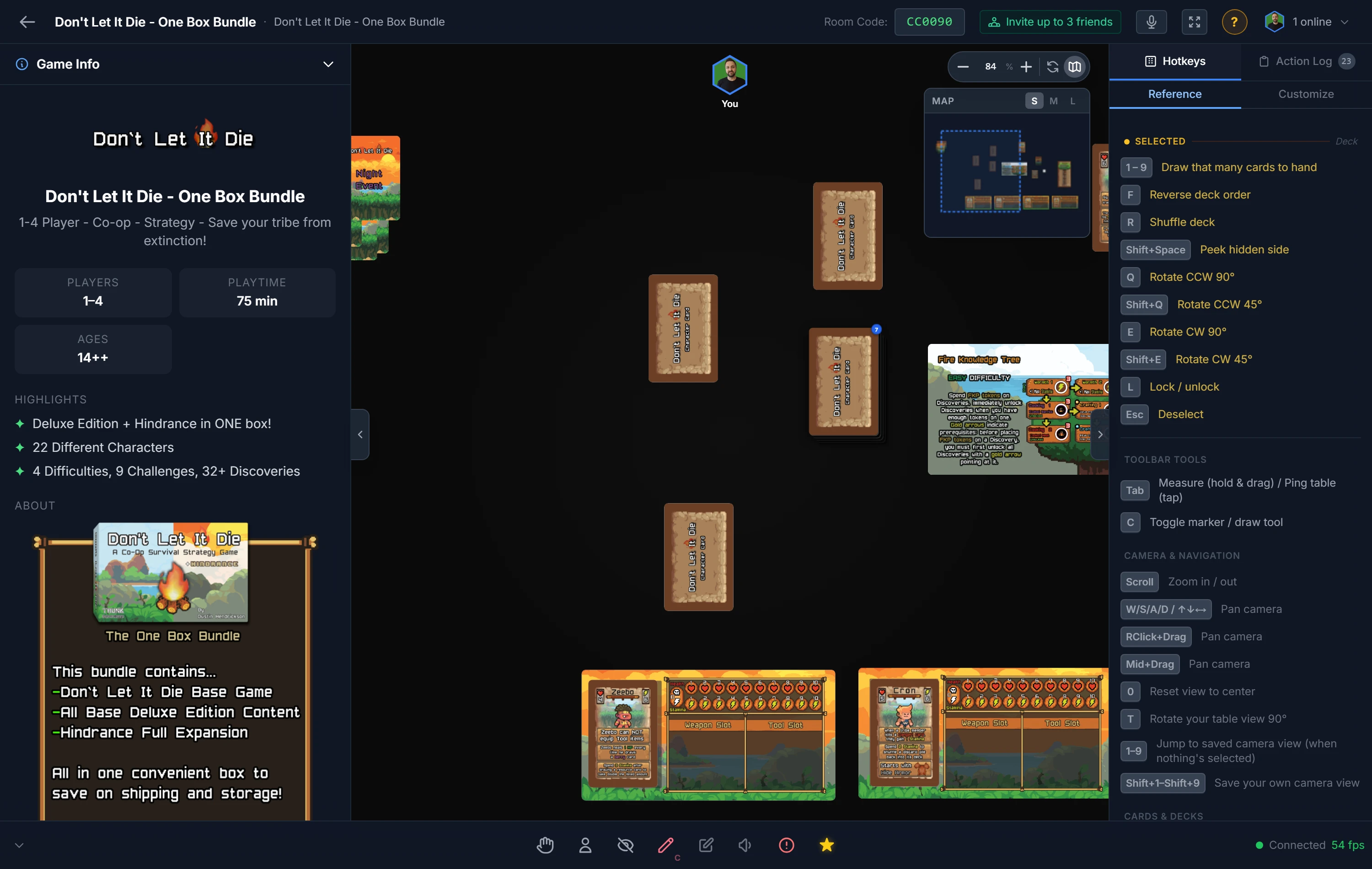
Double-click a deck to draw, the top card flips face-up next to the deck, ready to grab. Dragging the deck draws too: the top card comes away under your cursor and the deck stays put. To move the whole deck instead, hold Shift while you drag it. To pull cards straight into your private hand instead, press a number key: 1 through 9 draws that many at once. You can also right-click the deck and choose Draw Card or Draw to Hand.
Tip
Right-click a deck for the same actions as menu items, including Draw to Hand (one card), handy on touchscreens where number keys aren't available.
Flipping & Shuffling
- Flip the deck with
F. This turns the whole pile over so you draw from the other end. A flipped deck shows a "(Flipped)" label so everyone knows. - Shuffle with
R(the randomize key, the same one that rolls dice). The draw order is randomized. If you'd like a confirmation prompt first (so you never shuffle by accident), turn on Confirm before shuffle in Player Options.
Searching & Reordering a Deck
Right-click a deck and choose Search Deck to see every card in it at once, laid out as a grid. The first card in the grid is the top of the deck, the one you'd draw next.
From here you can:
- Find a card by typing in the filter box.
- Look at the backs with Show Back.
- See a card up close: point at it and press your preview key (
Spaceby default). The grid steps aside while the preview is up; pressEsconce to come back to it, exactly where you left off. - Take cards out: tick the ones you want and send them To Table or To Hand.
- Change the order: drag a card and drop it between two others. A green line shows exactly where it will land, and which side of a card you're on decides whether it goes before or after. On a touchscreen, drag the small grip in the card's top-right corner instead, so a swipe anywhere else still scrolls the grid.
Each card shows its position number under the thumbnail, so 1 is the top of the deck.
Note
Reordering is only available while the filter box is empty. With a filter applied you're seeing part of the deck, so there's no way to say where a card should land relative to the ones being hidden.
Splitting a Deck
To cut a set number of cards off a deck, right-click it and choose Split…. Type how many, pick Top or Bottom, and that many cards move into a new deck beside the original, keeping their order. The rest stay where they are.
At least one card always stays behind, so you can't split a deck into nothing.
Tip
"Top" and "Bottom" follow the deck as it is right now. Flip the deck first and Top means the other end.
Building a Deck
You rarely have to build a deck by hand. Drop one card onto another and they automatically combine into a face-down deck. Keep dropping cards on the pile to grow it. To pull a deck apart, draw cards off the top or drag the top card away.
Important
Cards only combine when they share the same mask (rectangle, hex, circle, and so on). A standard rectangular card won't merge into a hex-shaped deck.
Tip
If the host allows it, you can save a deck you've built to a file and load it back in a later session. See Personal Decks.
Dealing to Players
To set up a hand for everyone at once, right-click a deck and choose Deal. Enter how many cards each player should get, optionally tick Flip Face Up, choose which players are in, and confirm. Every selected player instantly finds their cards in their private hand.
Note
For a custom card back, or per-card faces saved permanently, build the deck as a project component. See Component Types and the Component Wizard.
Related: Bags · Token Stacks · Your Hand & Dealing · Personal Decks