Stickers
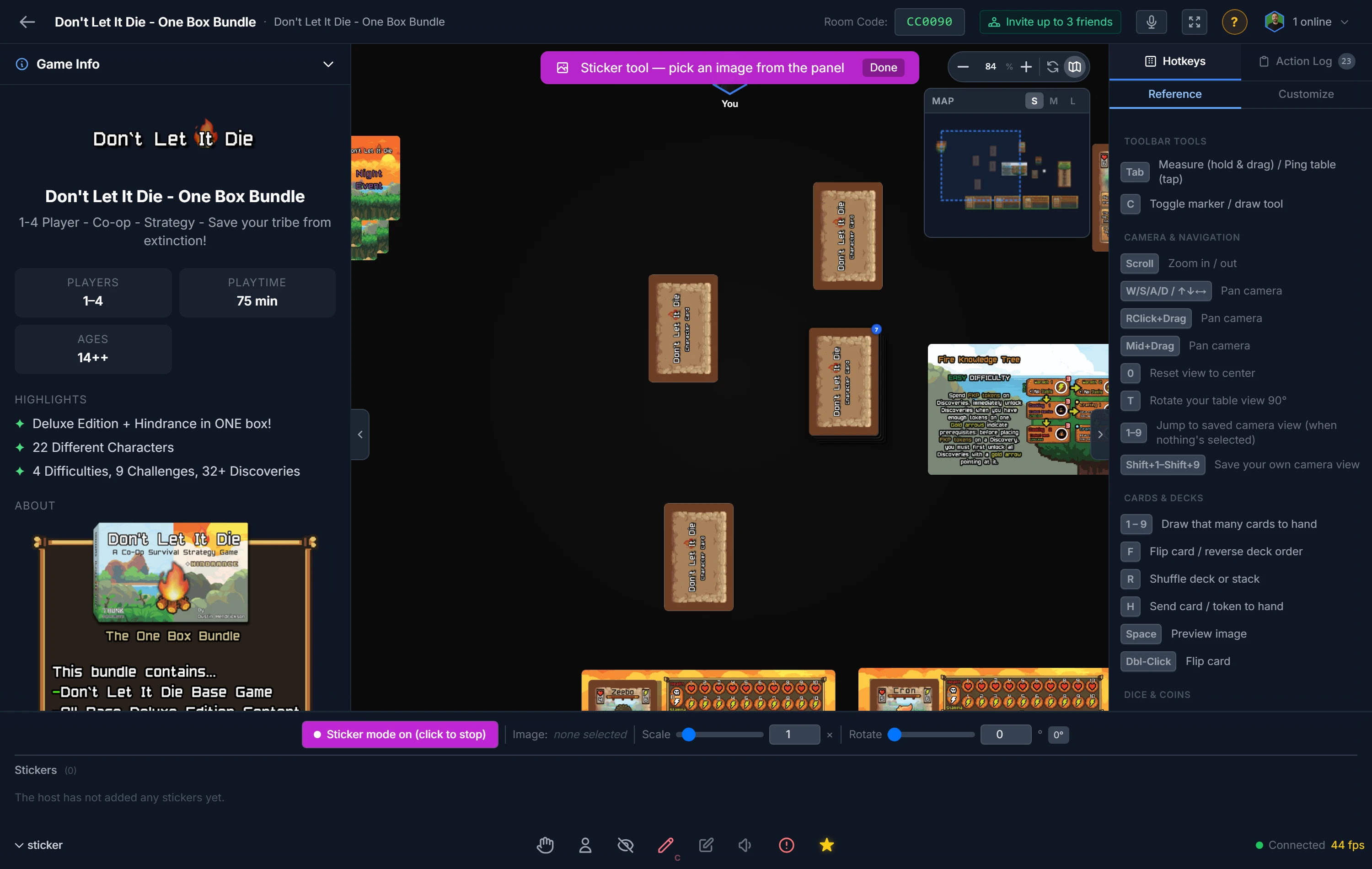
Stickers are small images you can drop onto the table or onto a piece, on top of whatever is already there. Where the marker tool is for freehand drawing, stickers are for reusable graphics: a "stunned" icon on a creature, a damage token on a ship, an arrow pointing at the active player, a logo on the felt. They sync to everyone in real time.
The Sticker Library
Stickers come from a shared library that the host stocks from their Files. The host opens the Sticker Tool, browses their uploaded images, and adds the ones they want available. Once the library has images, every player can place from it; until then, only the host sees the tool.
Note
Only the host curates the library, but all players can place stickers from it. So a host can pre-load a set of status icons and let the whole table use them.
Placing a Sticker
- Open the Sticker Tool from the bottom toolbar, or press
K. - Pick an image from the panel. A semi-transparent ghost of it follows your cursor, sized exactly as it will appear.
- Click to place it:
- on empty table to drop a free-floating table sticker, or
- on a component to attach the sticker to that piece, so it moves, rotates, and scales along with it.
Click Start Sticker Mode again (or press K) to stop.
Adjusting & Removing
- Scale and rotation: set them in the Sticker panel before placing, or click a placed sticker to select it and adjust. Scale runs from 0.25x to 10x.
- Remove: right-click a sticker to delete it.
Tip
Stickers on a component are face-aware: a sticker placed on the front won't show on the back. Flip the piece to sticker its other side.
Permanent Stickers on a Component
The stickers above last for the session. To bake a sticker into a component so it appears on every copy you ever spawn, add it in the component editor instead. Open the component, go to its Stickers area, and place stickers on the front or back face. These travel with the blueprint, just like marker strokes. Useful for a permanent set symbol, a faction crest, or an edition stamp on a card.
Related: Markers, Drawing & Labels · My Files · Editing & Syncing Components