Print & Play Maker
The Print & Play Maker is a Pro tool that turns your project's component library into a professional print-and-play PDF, complete with cut lines, bleed marks, and proper component layouts, ready for testers to print at home.
What Is the Print & Play Maker?
Turn your project's component library into a downloadable PDF your testers can print at home, no graphic design software, no manual layout work. You pick the components to include, configure page size and margins, and choose print aids like cut lines and bleed marks. The tool packs your components onto pages at their correct physical sizes and generates a ready-to-print PDF.
- Print-Ready PDF: components laid out at accurate physical sizes with optional bleed and cut marks.
- Auto Layout: components are automatically packed onto pages, no manual positioning.
- Saved Layouts: save your configuration and regenerate updated PDFs as your game evolves.
Getting Started
The Print & Play Maker is available to Pro subscribers. Click Tools in the top navigation and select Print & Play Maker.
Important
The Print & Play Maker is a Pro feature. Free users see an upgrade prompt instead of the layout builder.
Before generating a PDF, make sure your components have:
- Correct physical dimensions: width and height set in inches or mm on the component form.
- A front image URL: a public URL pointing to the component's front artwork.
- Quantity set: how many copies of each component to include.
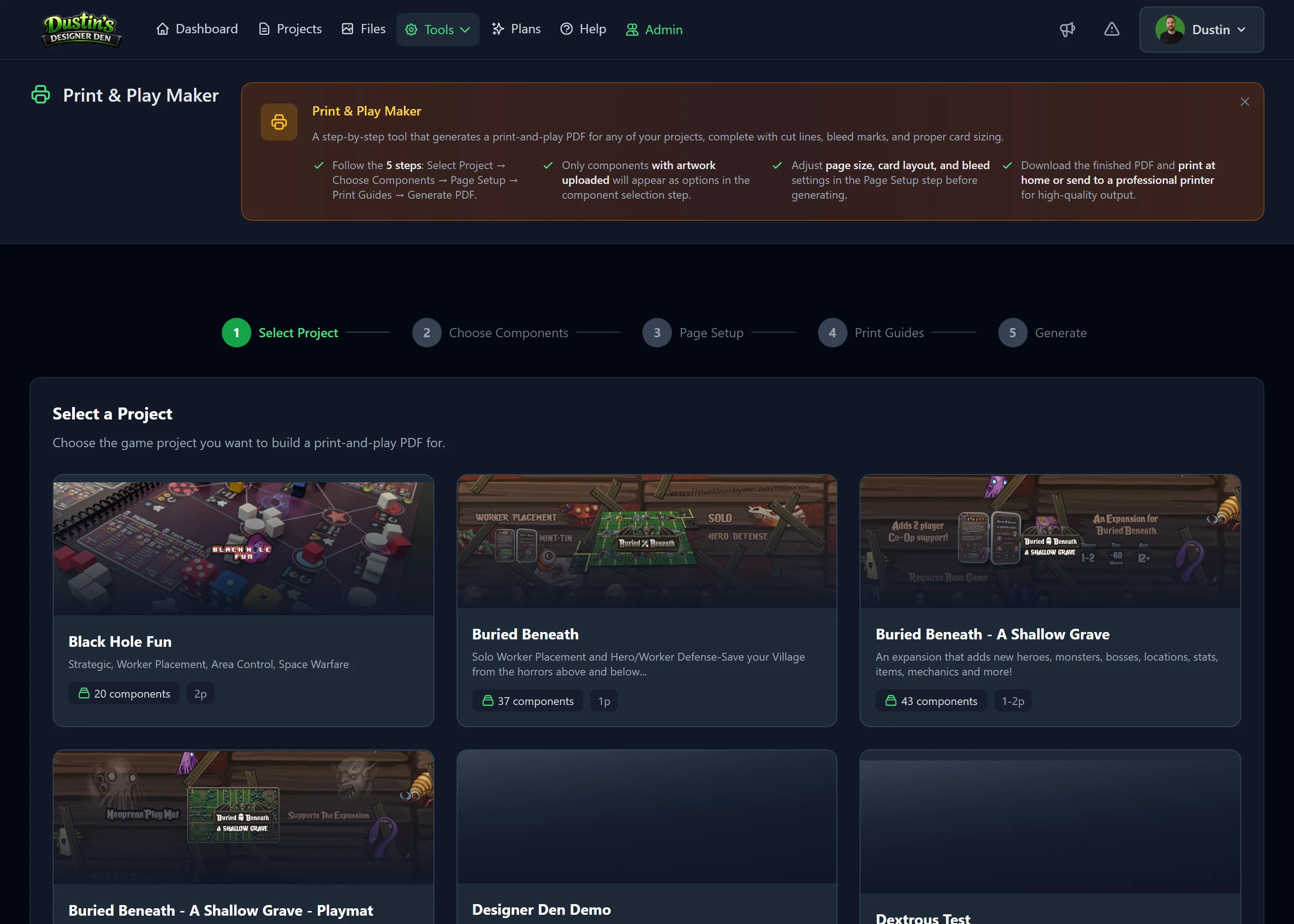
Step 1: Select a Project
Choose the game project to generate a PDF for. Each project has its own component library and saved layouts. Previously saved layouts appear under Saved Layouts, click one to resume instead of starting fresh.
Step 2: Choose Components
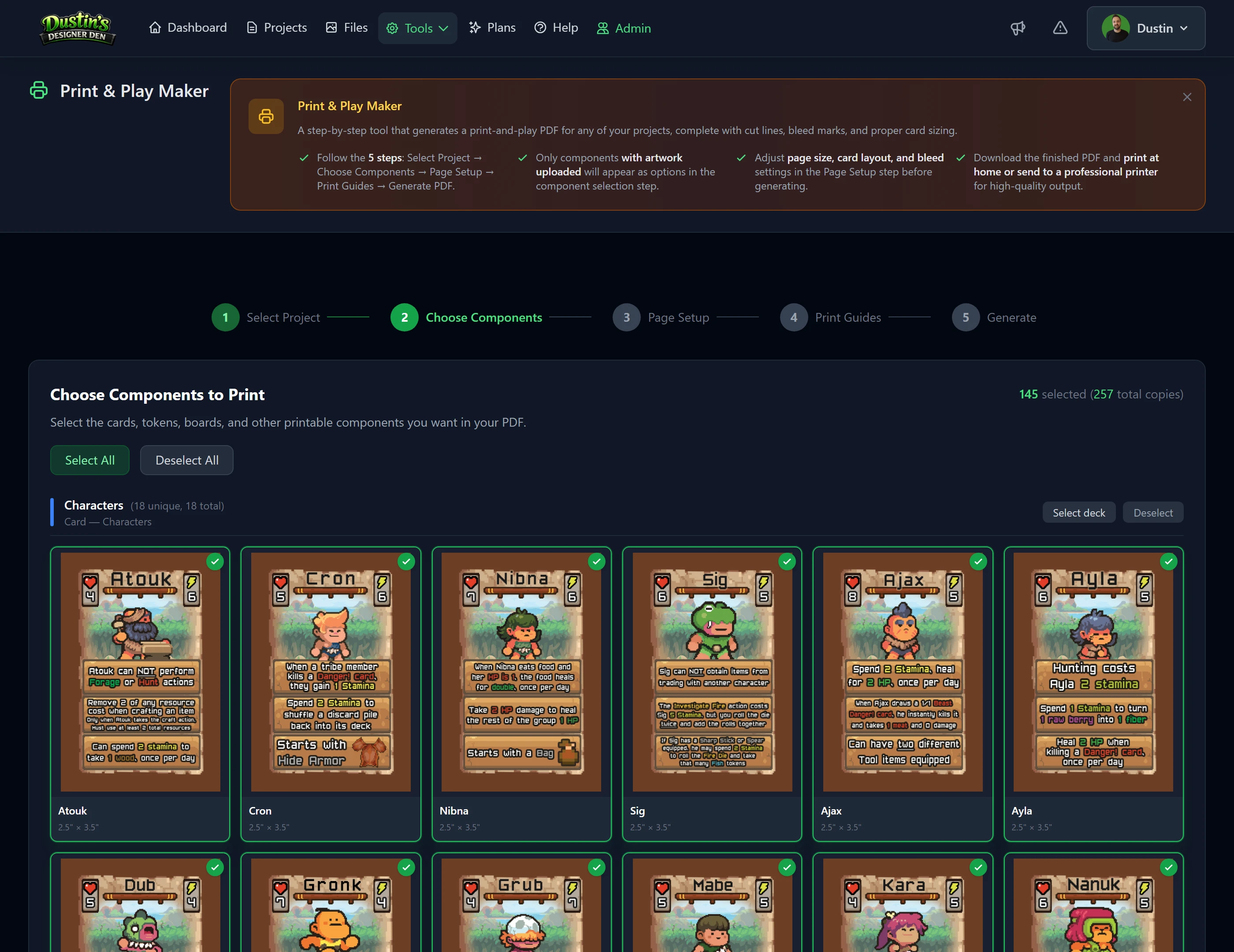
Pick which components to include and how many copies of each. Components are organized by type. Each one previews with its real artwork at its true size and shape, so you can see exactly what will print.
-
Include / Exclude: toggle components in or out.
-
Include back-side pages: add the back images as separate printable sheets.
Components missing a front image URL are skipped automatically.
Step 3: Page Setup
| Setting | Description |
|---|---|
| Page Size | Letter (8.5" × 11"), A4 (210 × 297 mm), Legal (8.5" × 14"), or Tabloid (11" × 17"). Match your printer. |
| Orientation | Portrait or Landscape. Landscape fits wider components like boards more efficiently. |
| Margins | Space between the page edge and the component area. Most home printers need at least 0.25". |
| Gap between components | Spacing between components. Increase if cut lines feel crowded. |
Tip
If sending to a print shop, ask for their required bleed size and set your margins accordingly.
Step 4: Print Guides
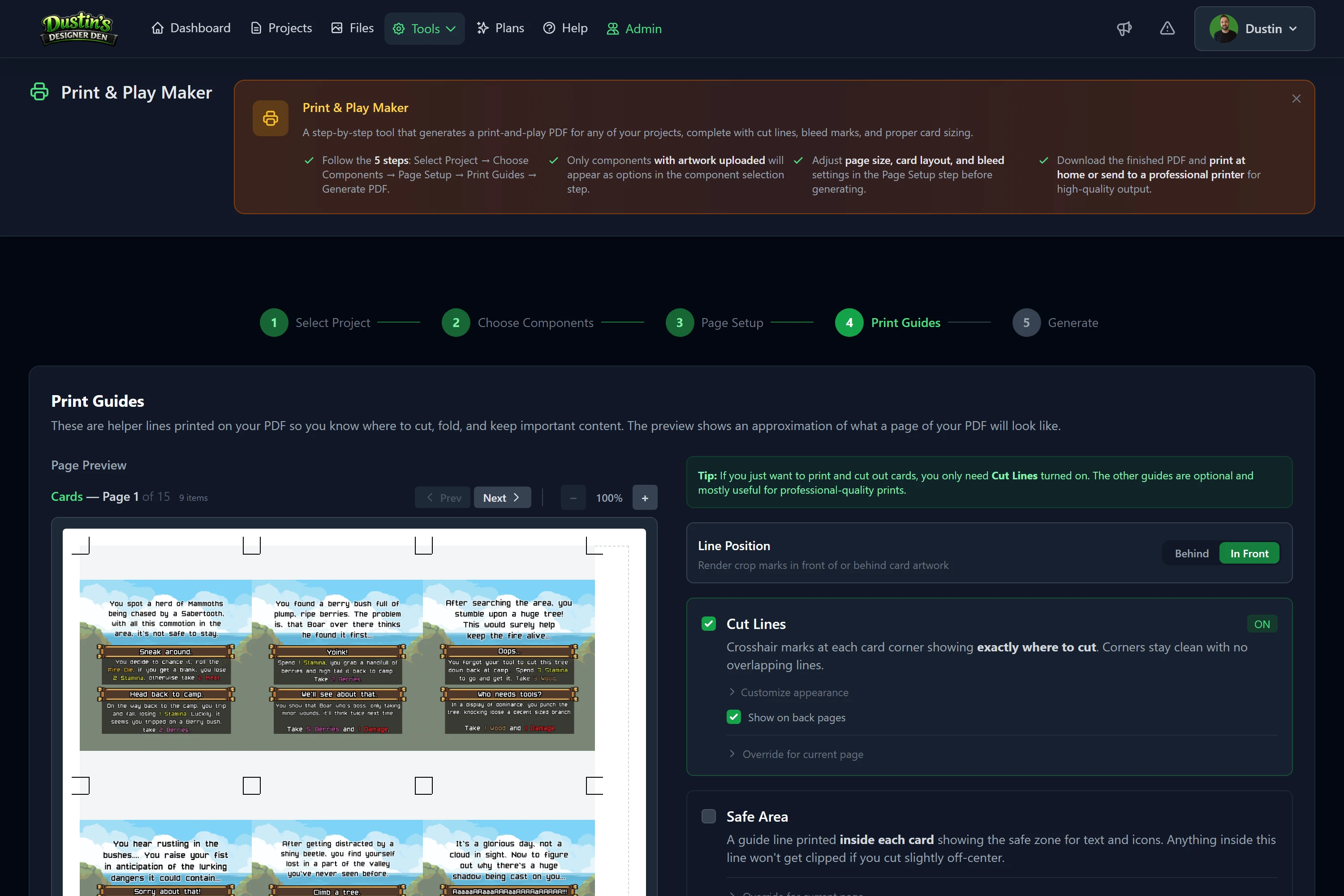
Each guide is an independent toggle, turn on any combination, each with its own line style, color, and opacity (plus optional back-face variants):
- Cut Lines: lines marking where to cut each component (corner crosshair, full "+" crosshair, or full-line mode). Good for scissors or paper cutters. In crosshair mode, Crosshair Size (under "Customize appearance") controls how long each mark is, from 0.1" to 0.75" — shorter marks stay out of the way on densely-packed pages, longer ones are easier to see and line up a cutter with.
- Safe Area: an inner boundary showing where important art should stay clear of the cut.
- Bleed: a boundary drawn beyond the component edge by a configurable amount (0–0.5"); extend your art into it so trimming leaves no white edge.
- Grid: a square or hex alignment grid.
- Fold Lines: guides for components that fold.
Leave every toggle off for clean sheets with no marks.
Step 5: Generate PDF
Click Generate PDF. The server fetches all your component images, lays them out at correct physical sizes, saves the finished PDF to your account's storage (My Files), and starts the download automatically.
- Generation time: PDFs with many high-resolution images may take 5–30 seconds. Don't navigate away.
- Counts against your storage quota: like any other export, the PDF sticks around in My Exports (account menu → My Exports) so you can redownload it later, and it counts against your plan's storage limit. If it would push you over quota, generation is blocked upfront with a clear message, free up space and try again.
- Save your layout first: give it a name and click Save Layout so you can regenerate with one click after updating artwork.
Saved Layouts
A saved layout stores your component selection, page setup, and print guide preferences under a name you choose (e.g. "Cards Only – A4"). Layouts are per-project.
- Resume later: every setting is restored exactly as saved.
- Regenerate on demand: after updating artwork, open the layout and regenerate.
- Multiple per project: keep a "Cards Only" and a "Full Set" layout and switch between them.
- Delete anytime from the layout list.
Tips & Best Practices
- Image resolution: use at least 300 DPI at the physical print size. A poker card (2.5" × 3.5") needs ~750 × 1050 px.
- Use HTTPS image URLs: images must be at a publicly accessible HTTPS URL; private/local URLs fail silently and those components are skipped.
- Backing cards: enable Include back-side pages for cards that need backs; backs lay out on separate pages for double-sided printing.
- Test with one card first: generate a one-page test, print and cut it, and check dimensions before the full run.
- Naming: use descriptive names like "Full Game – Letter – Cut Lines" so you know what each layout produces.
- Print shops: often want 1/8" bleed per side; set margins accordingly and use bleed marks.
Frequently Asked Questions
What component types can I include?
Printable types are cards, tokens, boards, and rulebooks. Everything else (dice, packaging, and other types) is non-printable but can appear on a separate reference page if enabled. Components without a front image URL are skipped.
My component images aren't loading. What's wrong?
Common causes: the URL isn't publicly accessible (test it in a private window with no login); it returns a redirect rather than a direct image; or the host blocks server-side requests (try re-hosting on Imgur, Google Drive with link access, or Dropbox).
Generation is taking a long time. Is that normal?
Yes, the server fetches every image from the internet and embeds them. A 50+ card deck with high-res images can take 15–30 seconds. Don't navigate away. If it times out, reduce image resolution or component count.
Can I use it without artwork yet?
You can assemble and configure a layout, but the PDF only includes components with a front image URL. Use a placeholder image service (e.g. https://placehold.co/750x1050.png) until your real artwork is ready.
Is it free?
No, it's a Pro feature. Free users see an upgrade prompt.