Snap Points
Grids handle regular, all-over alignment. Snap points handle the specific, irregular spots: a single card slot, a dice tray, the six starting positions on a board. A snap point is an invisible anchor, and any piece dropped near one clicks neatly into place. They're entirely optional, and the host places them.
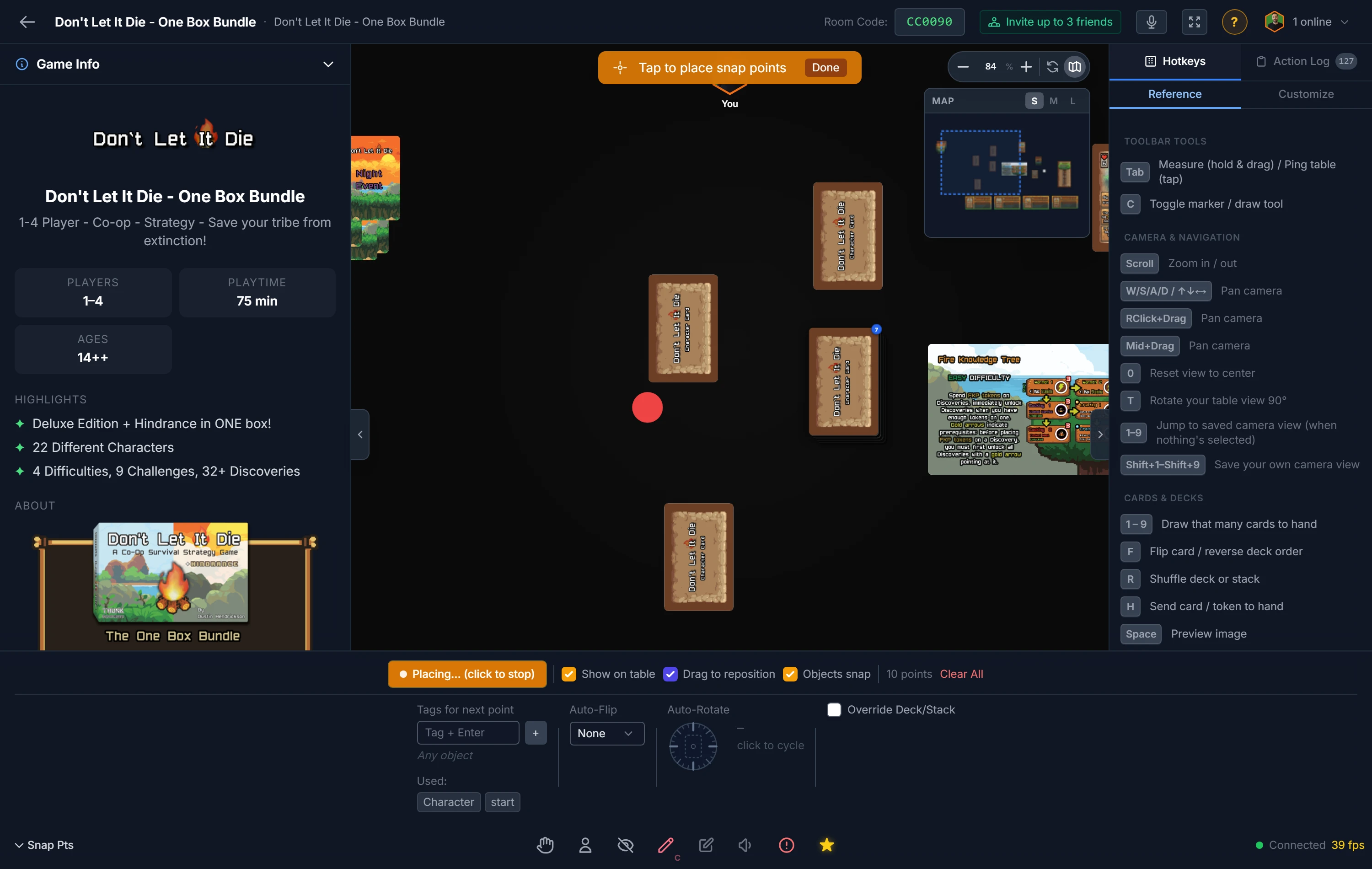
The Two Modes
Open the tool from the crosshair icon in the toolbar (X). The panel at the bottom has one big toggle that decides what your clicks do:
- Placing on ("Placing… click to stop"): you're laying down new anchors. Left-click places, right-click deletes, and a live ghost preview follows your cursor showing exactly where the next points will land.
- Placing off ("Place Snap Points"): you're selecting and editing existing anchors instead of making new ones.
While the tool is open, your clicks act on snap points only. The pieces on the table sit still so you can't nudge them by accident, and right-click never opens the usual table menu. A compact reminder of the current controls always shows just under the toggle.
Who Sees the Markers
By default the anchor markers are working guides, not part of the game: they show only to you, only while the tool is open, and disappear when you close it. Snapping itself keeps working for everyone whether or not the markers are visible.
If you want the anchors visible to every player at all times (handy for teaching a layout, or for slots that should always read as "put a card here"), turn on Always show to all players. That setting saves and loads with the table setup, so a setup can ship with its slots permanently on display.
Placing Points
With Placing on:
- Left-click drops a point. Click empty table for a fixed anchor, or click an object to attach the point to it.
- Right-click removes the point under your cursor.
- Drag an existing point to nudge it.
- Press
Escto stop placing.
Placement Brushes
The Placement menu stamps more than one point per click, which saves a lot of clicking on regular layouts:
- Single: one point (the default).
- Grid: rows × columns, with an adjustable gap.
- Row / Line: a straight line of N points at a set gap.
- Ring: N points evenly spaced around a circle of a chosen radius.
- Freehand paint: hold and drag to lay a trail of points at a set spacing.
The ghost preview always shows the exact pattern before you commit, so you can line it up first.
Editing Points
Switch Placing off to select and adjust what's already there:
- Drag across empty table to box-select several points at once.
- Click a point to select it;
Ctrl-click to add or remove from the selection. - Drag a selected point to move the whole selection together.
- Delete removes the selected points (or the one under your cursor).
- Ctrl+C / Ctrl+V copy and paste points, so you can build one slot and repeat it.
- Right-drag still pans the camera.
Whatever you have selected, the panel switches to "Editing N" and every change (tags, auto-flip, auto-rotate, override, lock) applies to all selected points at once.
Attaching to Objects
There are two kinds of snap point, and you move freely between them just by dragging:
- Table snap points stay fixed on the table.
- Component snap points are attached to an object, so they rotate and scale with it. Perfect for slots printed on a player board.
Drag a table point onto an object and it attaches. Drag it back off and it detaches. If you want a point to belong to an object but sit outside its edges, turn on Lock parent attachment to freeze its ownership so it won't detach as you move it.
Per-Point Settings
Each point (or your whole selection) can carry:
- Tags: a tagged point only accepts pieces that carry one of its tags; a point with no tags accepts anything. Use tags like
card-slotordiceto keep the right pieces in the right places. Tagging the pieces themselves is covered in Snap Tags. - Auto-flip: force pieces face-up or face-down when they land here.
- Auto-rotate: turn pieces to a set angle on snap. The dial previews the exact landing angle.
- Override deck/stack: keep a piece from merging into a deck or stack when it snaps here.
- Lock parent attachment: freeze whether the point is on the table or on an object.
Note
You place snap points as the host, but once they exist they work for everyone. That makes them ideal for fixed card slots, resource tracks, and player-board layouts that should stay neat no matter who is moving pieces. You can even drop a piece onto a snap point that sits on a locked object.
Tip
To make snap points permanent on a component (so every spawned copy has them), add them in the component editor's Snap Points tab instead of placing them live. The pieces' own tags live in the editor too, in the Snap Tags field. See Components.
Related: Snap Tags · Grids & Snapping · Moving & Arranging Objects · Host Controls