CSV & JSON Import / Export
Building a hundred cards one at a time is slow. This panel lets you create or update your components in bulk from a spreadsheet or a JSON file, and pull what you already have back out in the same shape.
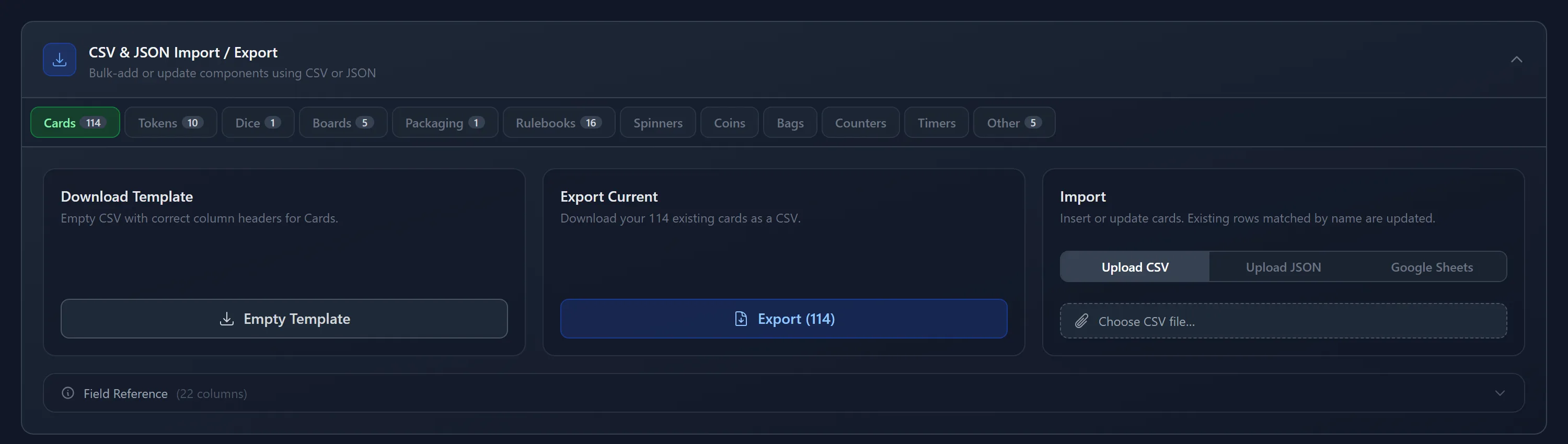
Where To Find It
Open a project, expand the Game Components section, and look for the CSV & JSON Import / Export panel. Click the header to open it.
One Component Type At A Time
The row of tabs across the top is the component type you're working on: Cards, Tokens, Dice, Boards, Packaging, Rulebooks, Spinners, Coins, Bags, Counters and Timers. The number on a tab is how many of that type your project already has.
Note
An Other tab appears only if your project still holds components of that retired type, so you can export and re-file them. It disappears once the last one is gone. New components can't be created as Other, so it isn't offered otherwise. See Component Types.
Everything below the tabs applies to the selected type only. Each type has its own set of fields, so a Dice file has columns a Board file doesn't. Importing cards and tokens means two files and two imports.
CSV Or JSON?
The toggle in the Import box (Upload CSV / Upload JSON / Google Sheets) also changes what the other two boxes give you: pick JSON and the template and export both switch to JSON.
Both formats carry exactly the same fields and are processed by exactly the same rules, so nothing behaves differently once the file is read. Pick whichever is easier to produce:
- CSV if you're working in Excel, Numbers, or Google Sheets. One row per component, headers in the first row.
- JSON if the data comes out of a script or another tool, or if your text contains commas, quotes, and line breaks that make CSV fiddly. The file must be an array of objects, with the field names as keys.
Start From An Empty Template
Download Template gives you a file with the correct field names for the selected type, already filled in with one example row so the format is obvious. Delete the example, add your own rows, and import it.
Rulebooks get three example rows instead of one, because a rulebook is stored as one row per page: the same book_name repeated, with page_name and sort_order changing per page.
Because each page is its own row, phys_width_in and phys_height_in are per page. Give two pages different sizes and they keep them; leave them empty and that page takes the shape of its own artwork on the table.
Export What You Already Have
Export Current downloads every component of the selected type as CSV or JSON, sorted by name (rulebooks by page order). The button shows the count, so Export (114) means 114 cards are coming.
This is the safest way to make a bulk edit: export, change what you need in a spreadsheet, and import the same file back. Because the export includes each component's unique_id, every row matches its original component exactly and updates it in place instead of creating duplicates.
Tip
Exporting also fills in a unique_id for any older component that didn't have one yet, so an export-edit-import round trip is stable from then on.
Importing
The Import box has three ways in:
- Upload CSV takes a
.csvor.txtfile, up to 2 MB. - Upload JSON takes a
.jsonor.txtfile, up to 2 MB. - Google Sheets takes the URL of a sheet on
docs.google.com. The sheet has to be shared as Anyone with the link can view, and if the URL includes agidfor a specific tab, that tab is the one read.
Pick your file, confirm, and run the import.
Note
Importing edits a project, so on the Free plan the project has to be one of your unlocked, editable ones. Downloading templates and exports works either way.
How Rows Are Matched
Every import is an insert-or-update. For each row:
- If the row has a
unique_idthat already exists in this project, that component is updated. - If not, the row is matched by name against components of the same type (for rulebooks, by
book_namepluspage_name). A match is updated. - If neither matches, a new component is created and given its own
unique_id.
Important
A CSV or JSON import never deletes anything. Leaving a component out of the file does not remove it. To delete, use the component list itself.
Blank cells behave differently depending on the type. For every type except rulebooks, a blank value is skipped, so the existing value stays as it is and you can import a file with only the columns you care about. Rulebook rows are written whole, so a blank cell on a rulebook row clears that field.
name is required (book_name and page_name for rulebooks). If the column is missing entirely the import stops and tells you which one is missing. If a single row has an empty name, that row is skipped and reported while the rest still import.
Fields That Hold More Than One Value
A few fields pack several values into one cell, separated by a pipe (|):
deck_nameson cards andstack_nameson tokens put the component into one or more decks or stacks. Groups are matched by name and created if they don't exist yet. Leave it blank and existing memberships are left alone.die_face_urlsanddie_face_labelson dice, in face order.spinner_sectionson spinners holds a small JSON snippet inside the single cell.
Two more worth knowing:
- Image fields accept a full
https://URL or a relative path inside your own hosted storage, for exampleimages/card.png. card_mask_typeon cards andshapeon tokens accept the built-in shapes, written asdefault:{shape}(for exampledefault:circle,default:star,default:pointy), and also your own custom masks, referenced either by name or by thecustom:{id}string. Every shape shows its exact reference under it in the Mask Editor, and clicking it copies it. Names are matched ignoring case and extra spaces, and no two of your masks can share one, so a name always points at exactly one mask. Thecustom:{id}form never changes, even if you rename the mask.nonemeans no mask at all: the artwork is drawn unclipped and keeps its own proportions, which is what a new token is.default:rectangleis the rectangle mask, and is a different value. Leaving the field empty is the same asnone.
Numbers are checked as they come in: quantity falls back to 1 if it isn't a whole number of at least 1, and image_rotation and facing only accept 0, 90, 180, or 270.
The Full Field List
Every tab has a Field Reference strip at the bottom. Open it for a table of every field for that type, whether it's required, what it means, and what values are valid. It's the authoritative list, and it relabels itself for JSON keys when you switch the toggle.
When The Import Finishes
You come back to the project page with a summary of what happened: how many components were created, how many were updated, and how many rows were skipped, along with the specific row errors so you can fix them and re-import.
Note
This panel is not the same as the project-level Export PDF / Export CSV buttons, which produce a bill of materials for your whole catalog and save it to your account storage. See Exports & Bulk Import.
Related: Components · Component Types · Deck & Stack Builder · Exports & Bulk Import · Dextrous Import · Project Backup · Tabletop Simulator Import