Playing Shared Games
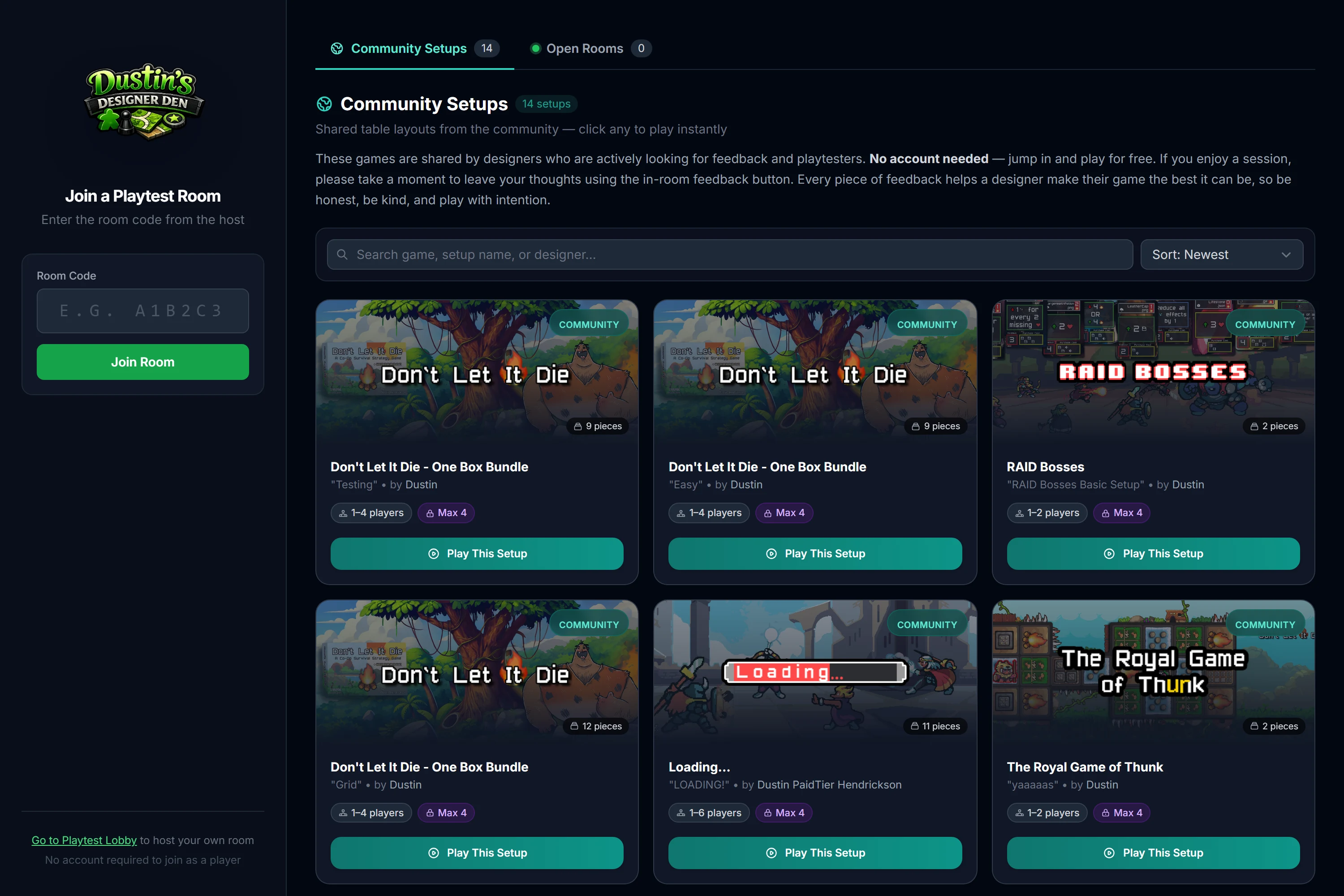
You don't need your own project to play. Designers can share a complete table setup publicly, and anyone can pick it up and host a room with that game's pieces already arranged. The public lobby is where those shared games live.
Find it at the public join page. No account is required.
Tip
Signed in? You can browse the same community games without leaving the app: open Community → Other Designers' Games in the top navigation. It lists the same shared setups and live rooms as the public lobby, just inside your normal dashboard view.
Two Ways In
The lobby has two sides:
- Join a room with a code. If a host gave you a six-character code, enter it here, pick a name, and you're in. See Starting & Joining Rooms.
- Browse community setups. These are shared table layouts from other designers. Filter by genre, click one, and you instantly host a room pre-loaded with that game, no account needed.
Note
The lobby also shows how many rooms are live now, so you can see what's active at a glance.
Sharing Your Own Game
Want your game to appear here for others to try? Pro designers can mark a saved setup public, which lists it in the lobby, or generate a private share link. See Saved Table Setups.
Tip
A public setup is the easiest way to demo your game. Send the link and a playtester is at a fully arranged table in seconds, with nothing to install.
Related: Saved Table Setups · Starting & Joining Rooms · Community Resources