Getting Started with Designer Den
New here? This guide walks you through everything, from your first project to your first real playtest session with friends. Everything happens in the browser; there's no software to install.
Tip
Just want the fast version? The Quick Start Guide gets you to a live playtest in about five minutes. This page is the full, unhurried tour, with the why behind each step.
What Is Designer Den?
Designer Den is a browser-based workspace for board game designers. It lets you:
- Organize your game: keep all your components, rules, and artwork in one project
- Playtest virtually: run a real-time virtual tabletop session with anyone, anywhere
- Collect feedback: log sessions and track what your playtesters said
- Print & manufacture: generate print-and-play PDFs, export your data to CSV, and import a game from The Game Crafter for real manufacturing pricing
- Pitch to publishers: browse publishers who are accepting submissions and send them your game, or become a publisher yourself and receive pitches
How It All Fits Together
Designer Den is built around a repeating design loop:
- Create a Project: your game's home base. All components, playtest history, and exports live inside a project.
- Build Your Components: add each game piece (cards, tokens, dice, boards) with a name, quantity, and optional image. These populate your playtest table when you spawn them.
- Upload Artwork: store your card art, tokens, and board images in Files. Once uploaded, paste the URL into a component's image field and it appears on the virtual table.
- Playtest It: launch a room and share the link. Anyone with the room code can join, no account needed. Play, gather feedback, then close the room.
- Review & Iterate: log the session, review notes and analytics, update your components, and playtest again.
Tools in the nav bar is a bonus layer: calculators, the Print & Play Maker, SVG Cutout and the Mask Editor, useful extras outside the core loop. Community is where other designers are: their shared games, community resources, the suggestion board, publishers and design competitions.
Step 1: Create a Project
A Project is your game's home in Designer Den; it holds everything related to your design in one place.
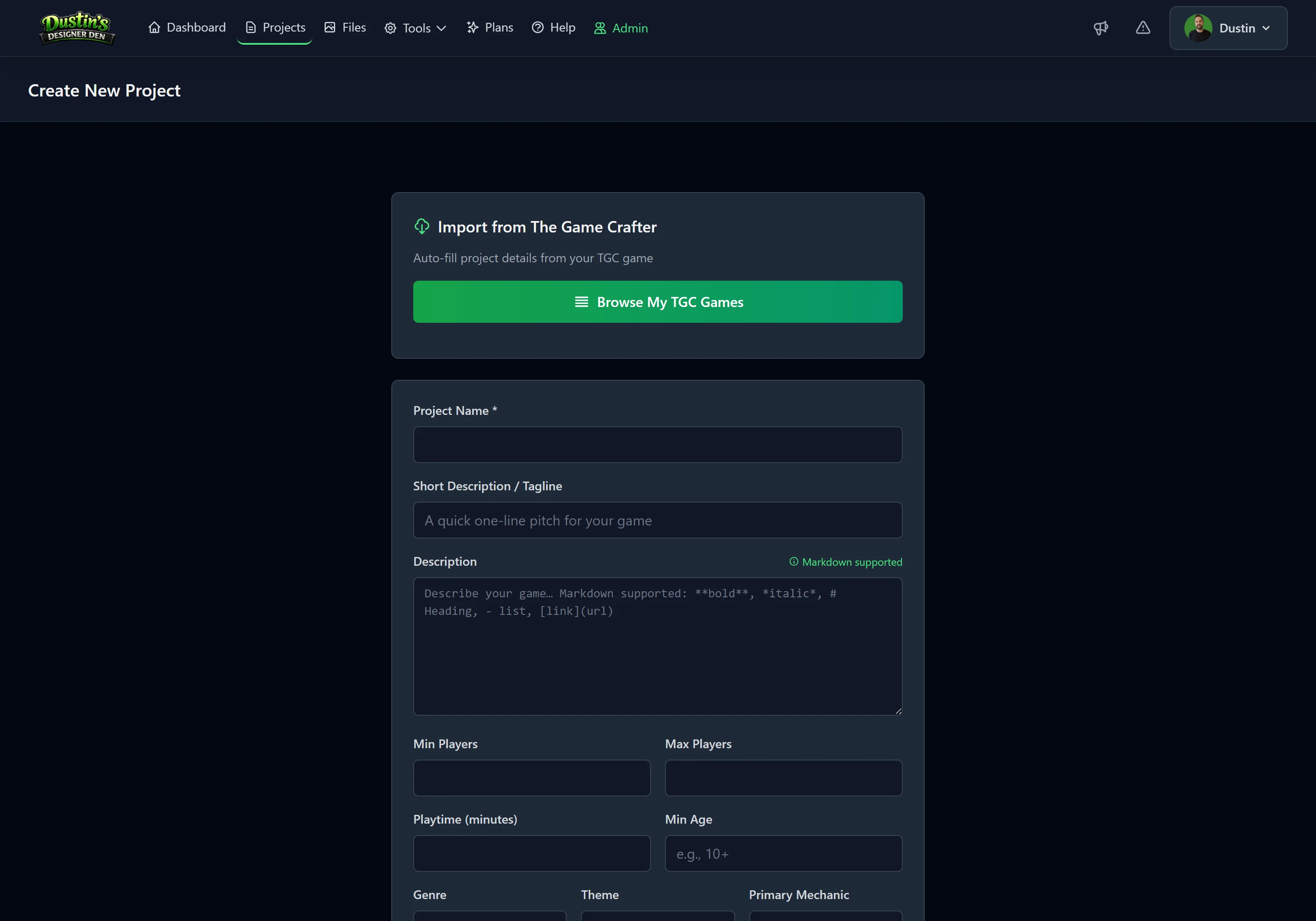
- Click Projects in the navigation bar.
- Click + New Project.
- Enter your game's name and a short description, then save.
- You'll land on your project page, where you'll do most of your work.
What's inside a project
| Tab | What it holds |
|---|---|
| Overview | Game details, genre, player count, play time, cover image, and the Launch Playtest Room button |
| Components | Every piece of your game, cards, tokens, dice, boards |
| Playtests | Session history with notes, ratings, and player feedback |
| Saved Setups | Snapshots of your virtual table layout; mark one as default to load automatically |
Step 2: Add Your Game Pieces (Components)
Components are the physical pieces of your game. Each one is available to spawn onto the playtest table from the room sidebar.
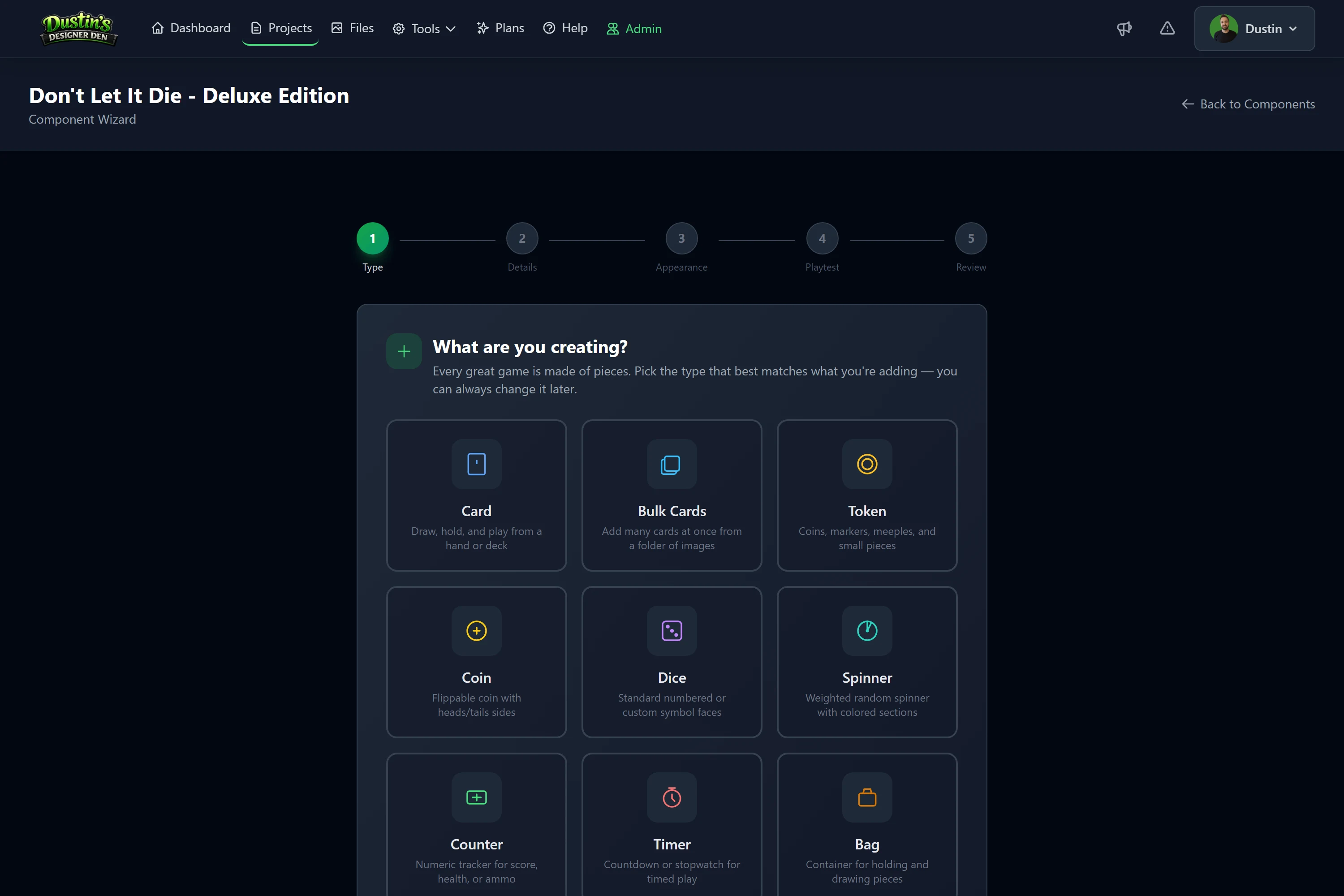
- Open your project and click the Components tab.
- Click Component Wizard, a guided, step-by-step setup, and choose a type.
- Fill in the name, quantity, and optionally an image.
- Finish, the component is now available in the playtest room sidebar.
You can also create components straight from the table: in a playtest room, open the Generic Objects panel, spawn a blank piece, style it, then right-click → Save as New Component (in the piece's right-click menu).
Component types
| Type | Description |
|---|---|
| Card | Draw, hold, and play from a hand or deck |
| Deck | Bulk-create many cards from one folder of face images |
| Token | Coins, markers, meeples, and small pieces |
| Coin | Flippable coin with heads/tails sides |
| Dice | Standard numbered or custom symbol faces |
| Spinner | Weighted random spinner with colored sections |
| Counter | Numeric tracker for score, health, or ammo |
| Timer | Countdown or stopwatch for timed play |
| Bag | Container for holding and drawing pieces |
| Board | Game boards, play mats, and shared surfaces |
| Rulebook | Multi-page rule or reference books |
| Other | Standees, trays, screens, and custom pieces |
Want to bulk-add? Use CSV import, download the template, fill it in a spreadsheet, and upload it to create many components at once.
Already have your game elsewhere? Import it instead of retyping: pull a whole game in from The Game Crafter, sync your component data from a Dextrous feed, or upload a Tabletop Simulator save to bring across your pieces and the table layout together.
Using images? Upload your artwork to My Files first, then paste the URL into the image field. You can also paste any external image URL, the app internalizes it automatically.
→ Read the full Components guide
Step 3: Upload Your Artwork (Files)
Files is your personal image library. Upload your card art, tokens, and board graphics here so you can use them anywhere.
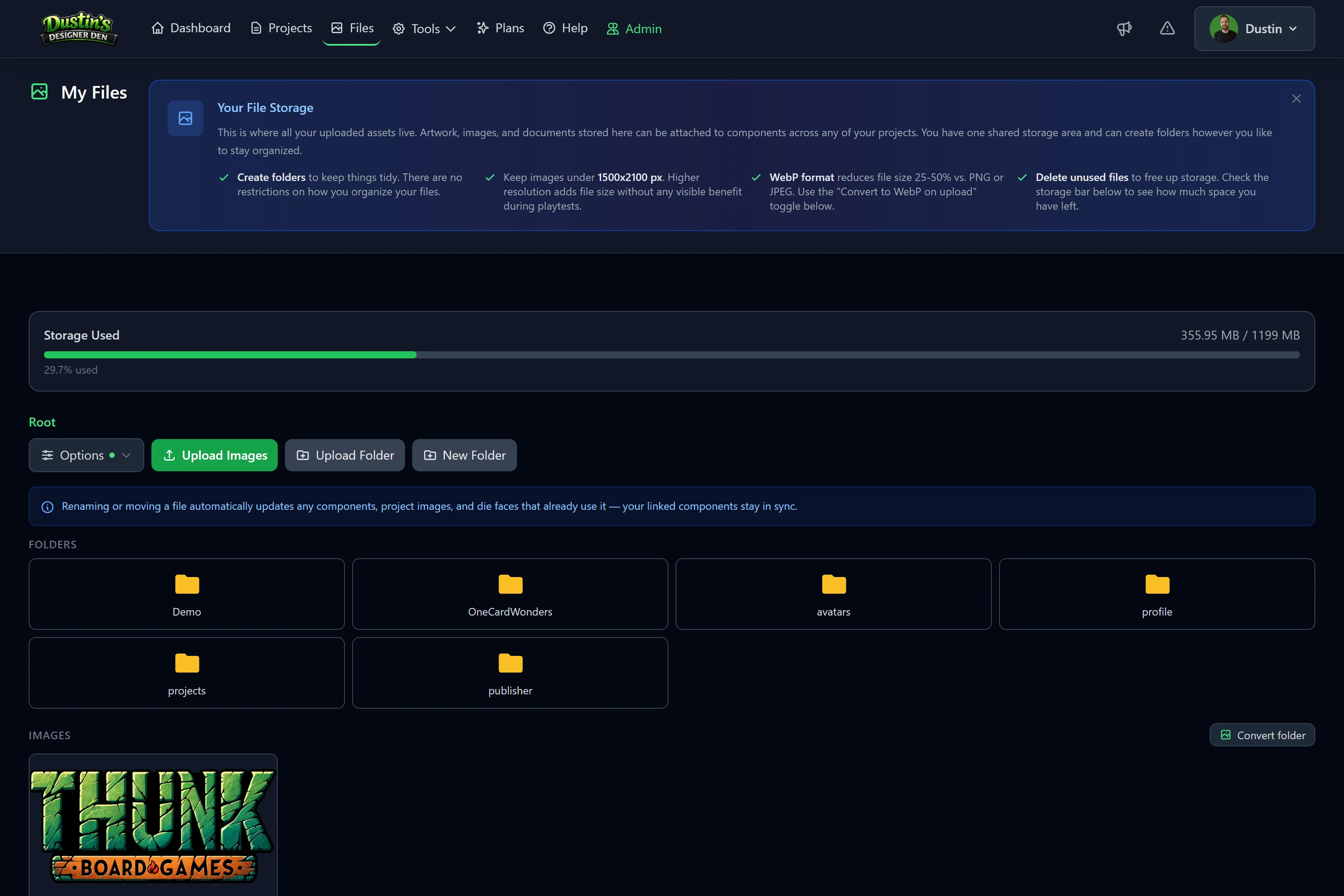
- Click Files in the navigation bar.
- Drag and drop images onto the page, or click Upload.
- Hover an image and click Copy URL.
- Paste that URL into the image field on any component, and it appears on the virtual table.
- Accepted formats: PNG, JPG, GIF, WebP, AVIF, and SVG. PNG is recommended for card art and tokens.
- Organize with folders by game or component type.
- Storage limits: Free is 100 MB; Pro is 1 GB. Completing onboarding quests can add bonus storage, and Storage Add-ons add 5 to 20 GB more on any plan.
→ Go to My Files
Step 4: Start a Playtest Room
A Playtest Room is a live virtual tabletop where you and your playtesters play your game in real time. Players join with a link; no account needed.
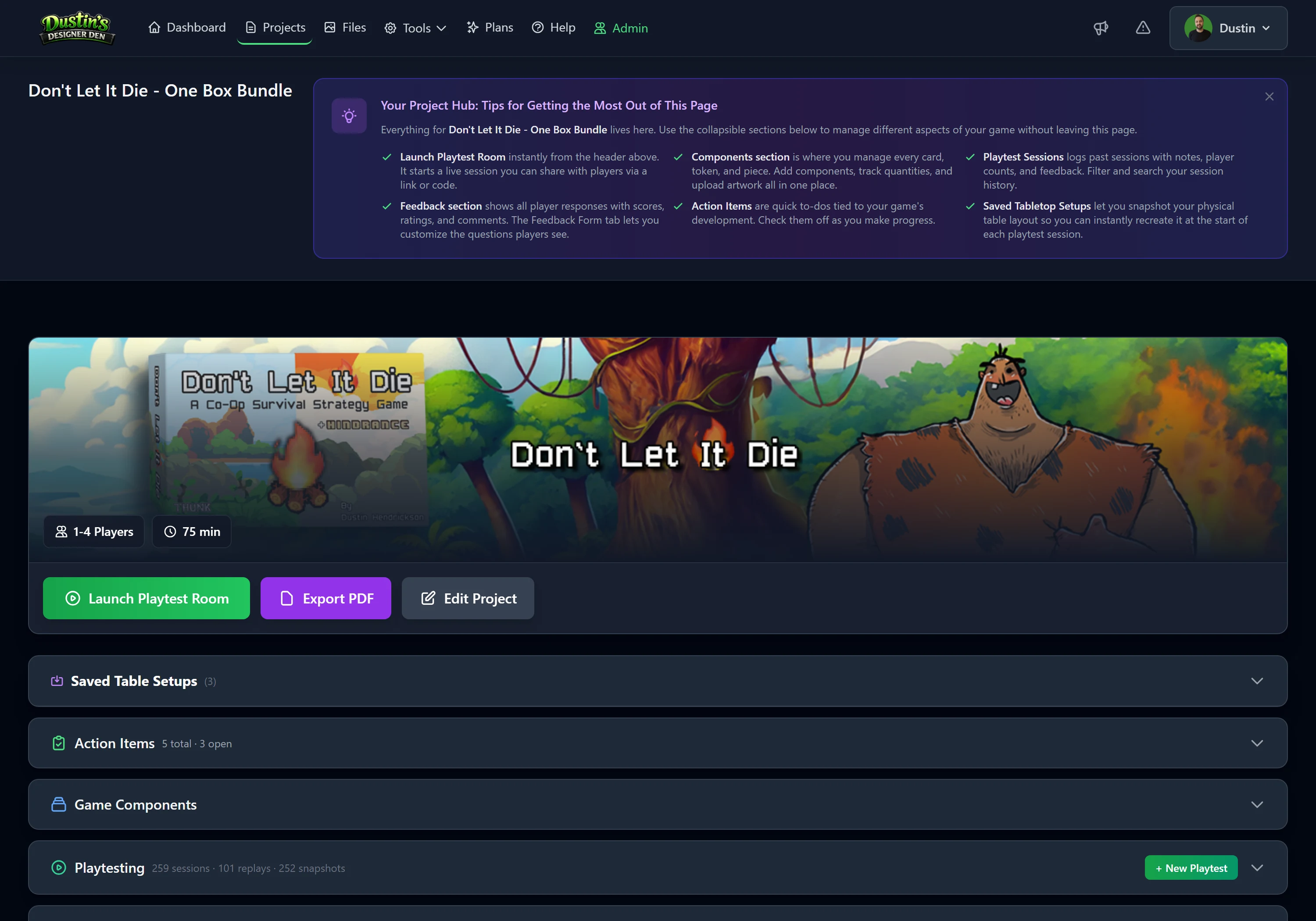
- From the Projects page: click Start Playtest Room on the project's card (the quick action).
- From the project page: click Launch Playtest Room in the header. It opens a blank table, or loads your project's default saved setup if you've marked one.
- From a saved setup: open the project's Saved Table Setups and launch a room pre-loaded with that arrangement.
You're automatically the host, and the room opens ready to share.
What you'll see when the room opens
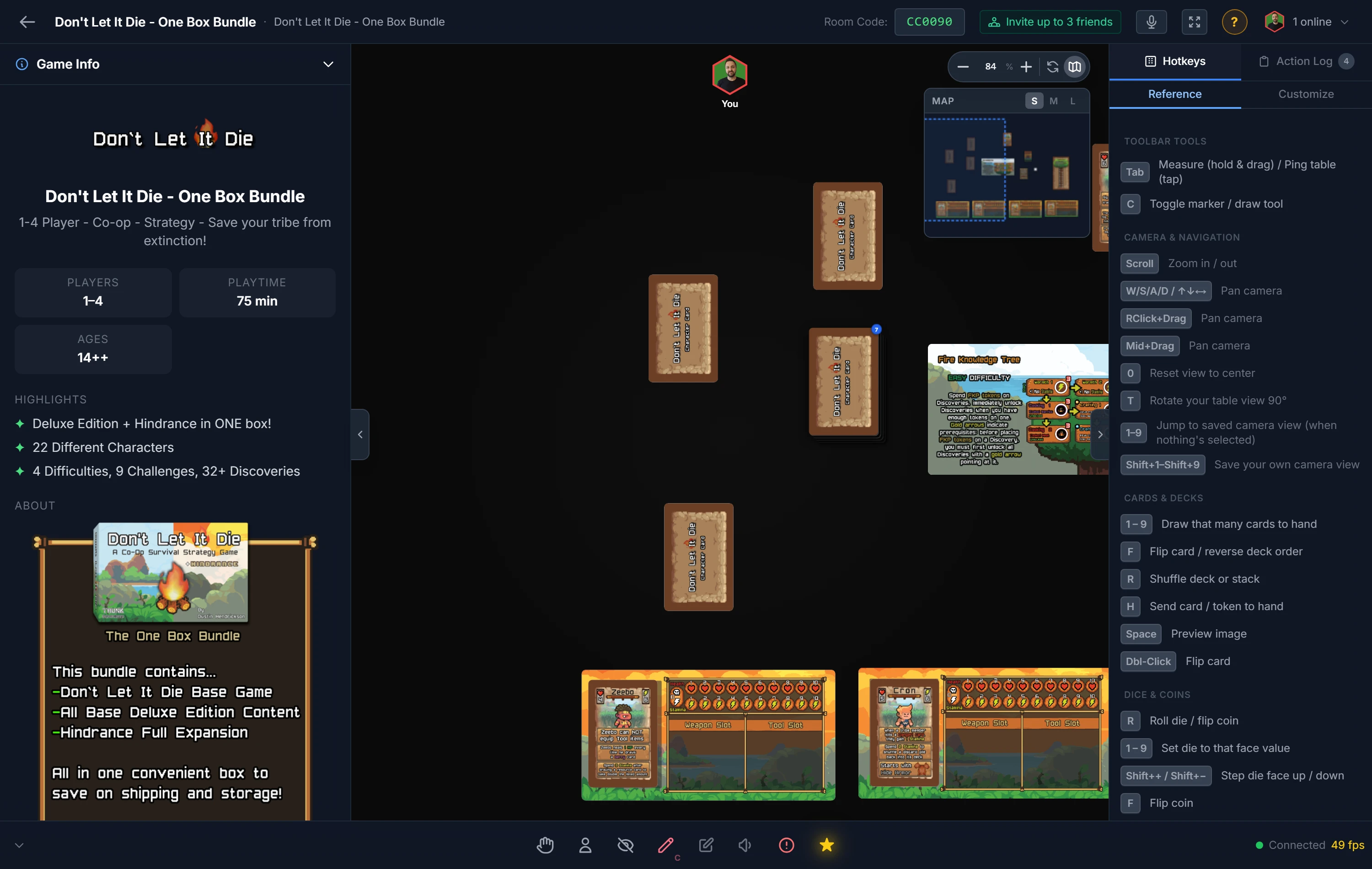
| Area | What it does |
|---|---|
| Top bar | Room code (click to copy the invite link), player list, and host controls |
| Left sidebar | Your project's components, host only. Click any to spawn it onto the table |
| Center canvas | The table, starts empty; you set it up by spawning components |
| Bottom toolbar | Your hand tray, camera controls, and host tools |
Setting up the table
Components don't appear on the table automatically; you spawn them from the sidebar each session, or load a saved Setup.
- Open the left sidebar and find the component you want.
- Click it, a spawn dialog appears with quantity options.
- Click Spawn and it appears in the center of the table.
- Drag it to position. Repeat for each piece you need.
Tip
Right-click anywhere on the empty table to quickly spawn generic pieces, dice, tokens, counters, bags, and zones.
Save the arrangement so you only do this once
Once the table looks right, save it as a setup and every future session starts from there.

- Frame the camera how you want players to see the table. Your view and zoom are saved too, and become the view players get when they join.
- In the bottom toolbar, open Save & Sync and click Save.
- Name it and save. Use the Overwrite Existing tab to update a setup you already have.
To bring it back, open Save & Sync and click Load mid-session, or mark the setup as your project's default (the next to it on the project page) so Launch Playtest Room opens straight into it.
Free accounts keep one setup per project; Pro raises that to 50. Full details in Saved Table Setups.
Inviting your players
- Click the room code in the top bar, the full invite URL is copied to your clipboard.
- Paste and send that link to your playtesters.
- Players open the link, enter a display name, and click Join Room.
- They appear in the Players panel, no account required.
Free rooms support up to 6 players; Pro rooms up to 10.
→ Read the full Realtime Playtest guide
Saved Setups, Save, Load & Share
A Setup is a complete snapshot of your table state, every object's position, rotation, face state, groupings, zones, and labels.
Saving a Setup
- Arrange the table the way you want it.
- Click the save (disk) icon in the bottom host toolbar.
- Give the Setup a name and click Save.
- Click the star to mark it as Default, and it auto-loads every time you launch a room for this project.
Loading a Setup
- On room launch: the default Setup loads automatically; if you have multiple, you'll be prompted to choose.
- Mid-session: click the load icon in the bottom host toolbar to switch Setups.
- From your project: go to the Saved Setups tab to rename, delete, or reorder.
Storage limits: Free accounts save 1 Setup per project; Pro accounts save up to 50.
Sharing a Setup (Pro)
Pro designers can make a Setup public and share it via a link, great for distributing a pre-configured table to demo your game. Open your project → Saved Setups → open the Setup → enable Make Public → copy the share link.
Component Library vs. The Table
One of the most important concepts: the Component Library and The Table are two separate things.
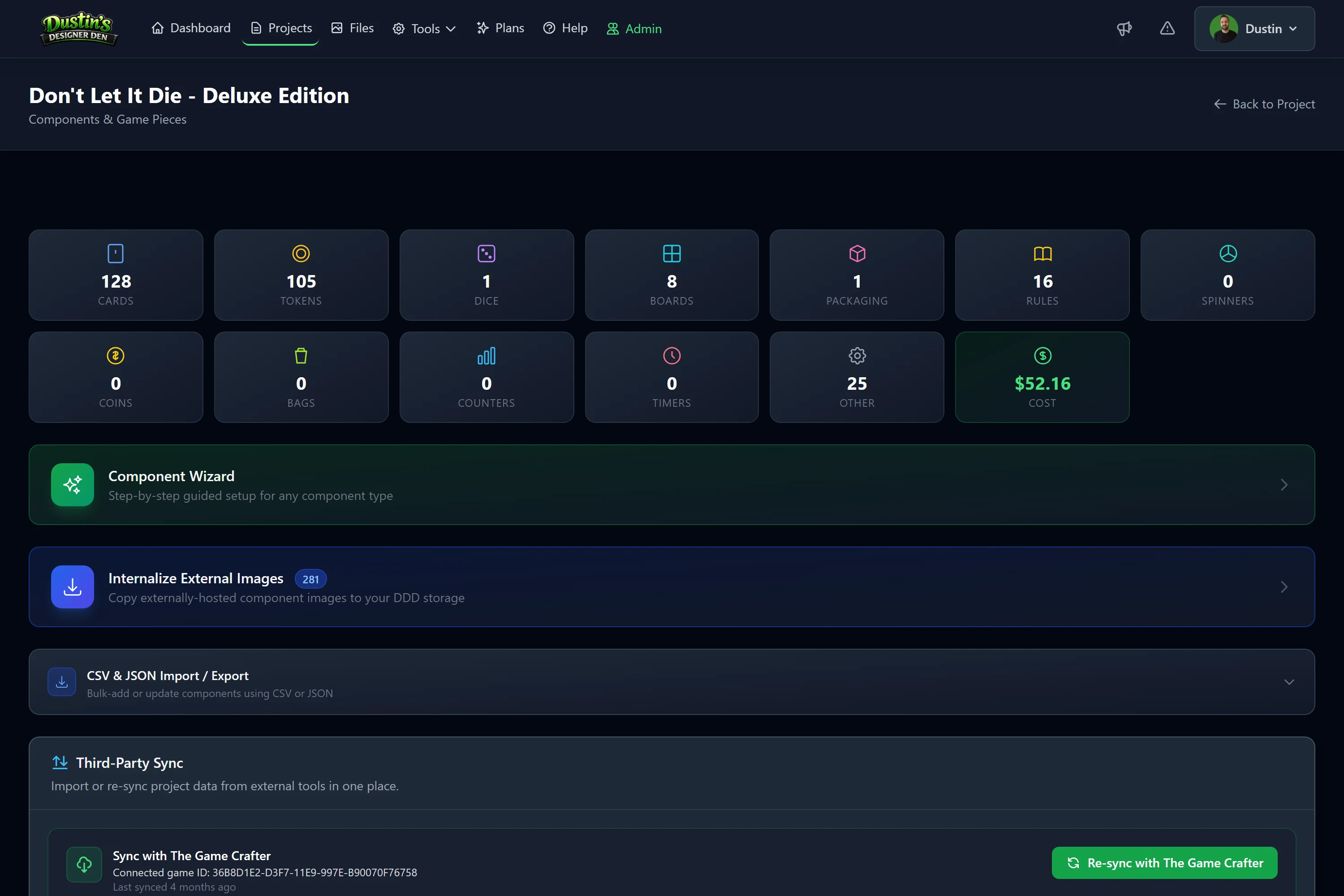
- The Component Library (the blueprint): the Components tab stores the master definition for each piece (name, type, image, dimensions, quantity). This is the source of truth.
- The Table (the live instance): when you spawn a component, you create a live copy. You can move, flip, or rotate it without affecting the blueprint.
Changing a blueprint doesn't update existing table objects. If you edit a component's image in the library, objects already on the table aren't automatically updated. The next fresh spawn uses the new version.
Sync options, right-click any component-linked table object
| Option | What it does |
|---|---|
| Edit Component… | Update the blueprint without leaving the room |
| Restore from Component | Pull the blueprint's current definition down to this table object |
| Save State to Component | Push this object's current state back to the blueprint |
| Save as New Component | Promote a quick-spawned generic object into your Component Library |
Quick iteration tip: updated artwork mid-session? Use Edit Component… to swap the image, then Restore from Component on the affected objects to see the new art immediately.
Step 5: Log a Playtest Session
Every playtest session, virtual or in-person, is worth logging.
- From a realtime room (automatic): when you close a playtest room, a session log is automatically saved to your project's Playtests tab, capturing duration, action log, and any feedback.
- Manual entry: go to your project → Playtests tab → + New Playtest, then fill in player count, duration, notes, and rating.
In-session feedback: during a live room, players can submit a rating and comments at any time, saved to the session log immediately. Available on all plans.
Analytics over time (Pro): Pro accounts get aggregated analytics across sessions, average ratings, feedback trends, and session frequency.
→ Read the Playtest Analytics guide
Step 6: Explore the Tools
The Tools menu holds standalone tools that support your design work:
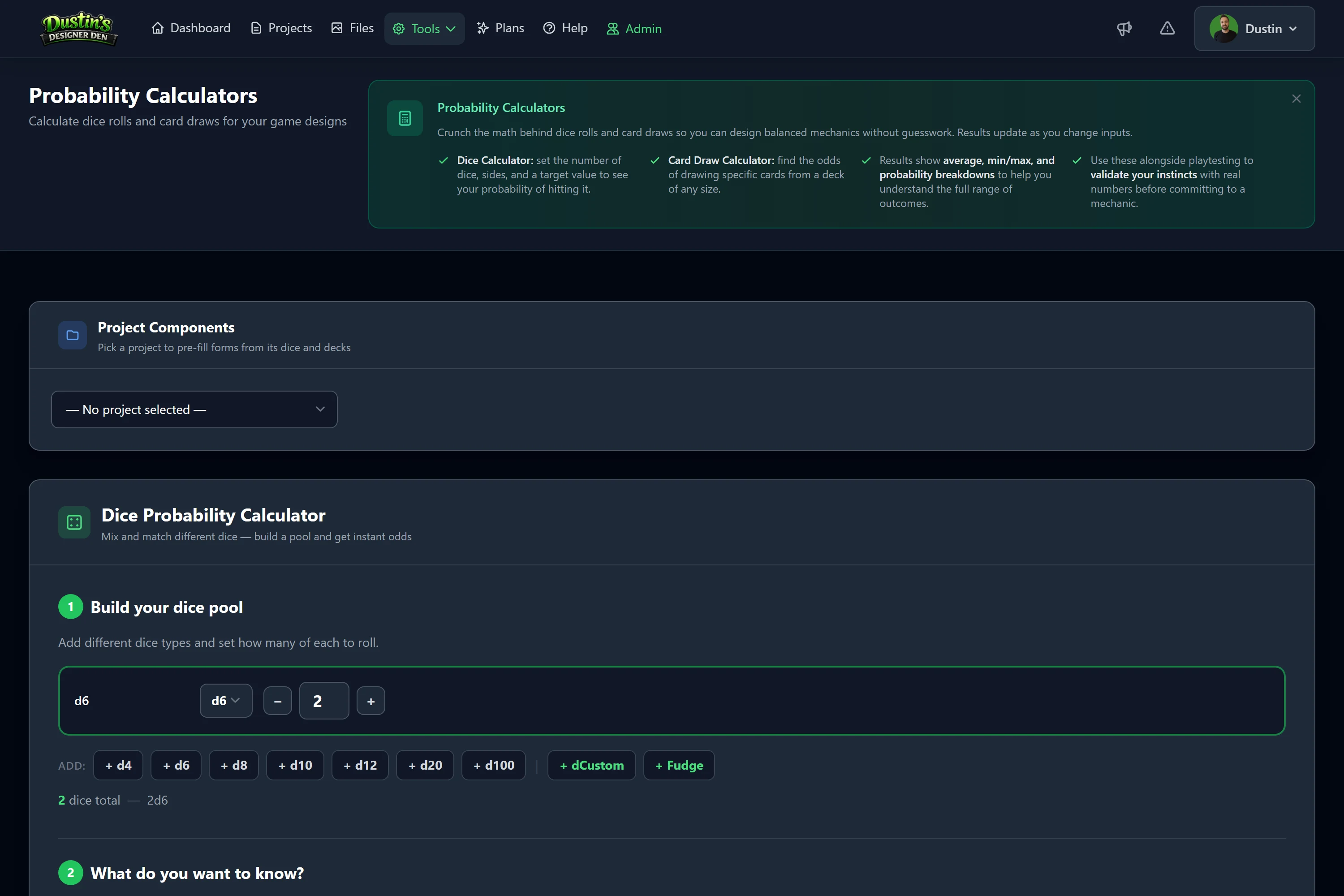
- Calculators: probability calculators for dice rolls and card draws.
- Other Designers' Games: browse community-shared table setups and live playtest rooms from other designers, and jump into any of them to play instantly. (To launch a room for your own game, open the project and start a playtest from there.)
- Community Resources: a community-curated library of articles, templates, and tools.
- Print & Play Maker (Pro): generate print-and-play PDFs from your components.
- Suggestion Board: post ideas for new features; the community upvotes them.
- Publishers: browse publishers who are accepting pitches and send them your game. See Publishers & Pitching.
Free vs. Pro
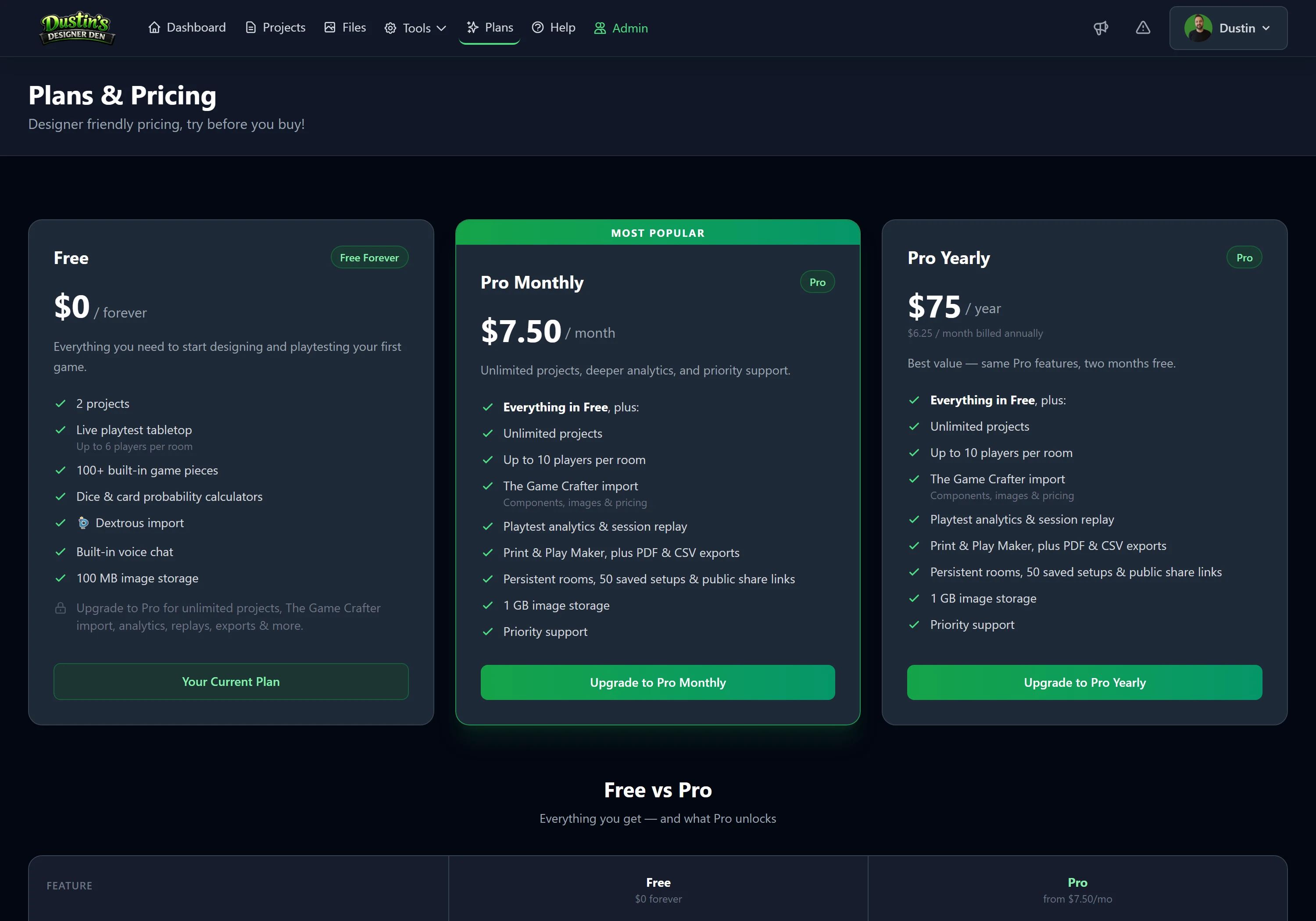
| Free forever | Pro only |
|---|---|
| Up to 2 projects | Unlimited projects |
| Components & the component system | Playtest analytics |
| Realtime virtual tabletop | PDF & CSV exports |
| Dice & card probability calculators | The Game Crafter import |
| Built-in voice chat | Print & Play Maker |
| Up to 6 players per room | Up to 10 players per room |
| 100 MB file storage | 1 GB file storage |
| 1 saved setup per project | Unlimited saved setups + share links |
| Persistent rooms & public lobby | |
| Session replay recording |
→ Read Plans & Pricing for the full breakdown, or the Plans page for current prices.
Common Questions
Do my playtesters need an account? No. Anyone with the room code can join without signing up. Only the host needs an account.
My components aren't appearing on the playtest table, why? Components don't auto-spawn when the room opens. Open the left sidebar, find your component, and click it to spawn it. Make sure it has a quantity of at least 1 and is saved.
Can I save the table layout and continue next session? Yes, click the save icon, name the setup, and save. Next launch, select it from the dropdown to restore instantly. Free: 1 setup per project; Pro: up to 50.
I updated a component's image, why doesn't it look different on the table? Editing the library updates the blueprint, not objects already on the table. Right-click a table object → Restore from Component, or delete and re-spawn it.
Can I share my table layout with someone else? Yes, with Pro. Save the layout as a Setup, open it in the Saved Setups tab, and enable Make public for a shareable link.
What file types can I upload? PNG, JPG, GIF, WebP, AVIF, and SVG. PNG is recommended for card art and tokens.
Can I share a project with another designer? Currently projects are private to your account. The playtest room is fully collaborative, share the room code with anyone.
Why can't I access the Print & Play Maker? It's a Pro feature. Upgrade to unlock it, along with PDF exports, analytics, and more.
Where to Go Next
- Components, everything about building your game pieces
- Realtime Playtest, deep-dive into the virtual tabletop
- My Files, managing your images and artwork