Setting up the table…
Shuffle ? This cannot be undone.
Layout Options
When a card or token is dropped in, force it to the chosen face. Works with any zone type.
Press H to move selected cards to your private hand at the bottom. Only you can see your hand. Press F while hovering over a card in your hand to flip it and see the back. Press Space while hovering over a card in your hand to preview it. Drag cards from your hand to play them on the table with their current facing.
Drag cards onto cards to create decks. Drag tokens onto tokens to create stacks. Drag items into bags. Drag cards into deck zones for organized play areas. Token stacks support the same flip mechanic as decks — press F to flip a stack and reverse which end you draw from.
Zones are colored regions drawn on the table (host only). Click the zone icon in the toolbar then drag to draw one. Right-click a zone to edit, join, or trigger zone actions. Each zone can have a type:
All zone types also support Auto-Flip on Drop — set in zone settings to force objects to face-up or face-down when dropped in.
Click the marker pen icon in the toolbar to enter Marker Mode. While active, draw freehand strokes directly on table components or on the table surface itself — visible to all players in real-time. Use the toolbar to pick color, size, and opacity. Press Undo to remove your last stroke. Use Clear Selected, Clear Table, or Clear All to erase marks. Right-click any component → Clear Marks to erase strokes from a single object. Press Esc to cancel an in-progress stroke or exit Marker Mode. Marker strokes saved to a component in the editor appear automatically on all matching table instances.
See other players' cursors and selections in real-time. All actions sync instantly via WebSocket.
Click the mic button in the top toolbar to join peer-to-peer voice chat with everyone in the room. Audio goes directly between browsers — no server in the middle. Use the mute button in the top-left panel to toggle your mic. Each participant shows as a colored avatar bubble. No external app needed.
View the action log on the right to see what everyone is doing. Toggle visibility with the log icon.
As host, you see a sidebar on the left with all project components. Click any component to spawn it on the table. Use the search box to filter components.
Right-click the empty table to spawn generic objects (dice, tokens, counters, zones, bags) manually. Right-click any spawned component to see the Component ▶ submenu, which lets you Open in Editor (new tab), Save to Component (writes current table state back to the project), or Load From Component (pulls the latest data from the database — images, name, markers, snap points, scale, and more — and applies it to all matching instances on the table including cards inside decks).
Toggle the lock icon in the top bar to make the room persistent. Persistent rooms stay open even when empty (max 5 active).
Open the Players panel (top-right) and click the Co-Host pill button next to any player to grant them full host controls — they can spawn components, move locked objects, manage the table, and more. Click Revoke to return them to player status. Co-hosts cannot promote other players.
If players get out of sync, use the "Force Resync" button in the top-right menu to push your current state to all players.
Save your current table setup and load it later or in different rooms. Great for recurring game sessions.
Click the violet refresh icon in the host toolbar to pull the latest data from the database for every component currently on the table — including cards and tokens inside decks, bags, and stacks. This updates images, names, marker strokes, snap points, scale, colors, and more in one pass. A progress overlay shows each component as it is fetched and applied. Use this after making edits in the Component Editor to see your changes reflected immediately in the playtest room without reloading.
Click the crosshair icon in the toolbar (or right-click a component → Snap Tags) to enter snap point mode. Click anywhere on the table to place a fixed snap point, or click directly on a component to attach a snap point that moves with it. Objects dropped within range snap automatically. Use tags to control which objects snap where. Right-click a snapped object → Restrictions to disable snap follow or prevent snapping entirely.
Right-click any component → Scale row → click Free. Drag any of the 4 corner handles to resize the component freely. Click Done in the blue banner to finish.
Keeper - 1st Draft (Shared)
Keeper
Up to 4 players can join this room.
Rotate your device
The playtest room requires
landscape orientation.
From: • click a card to add it to the table
Click to spawn a chip. Right-click to rename or stack.
Customizable game pieces (right-click to change color):
Vehicles & Transport
Figures & Pawns
Buildings
Markers & Tokens
Resources
Dice Faces
Card Suits
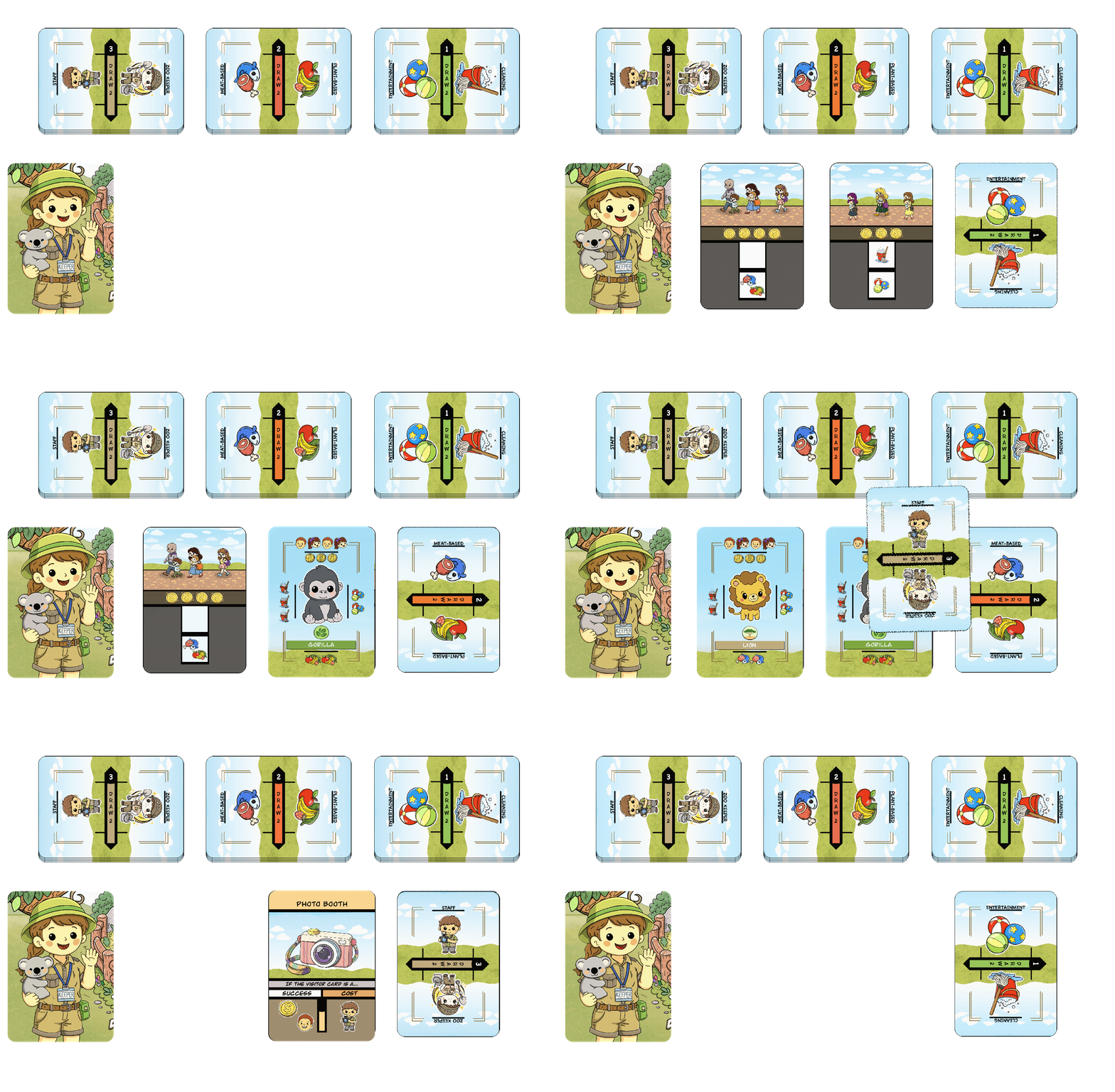
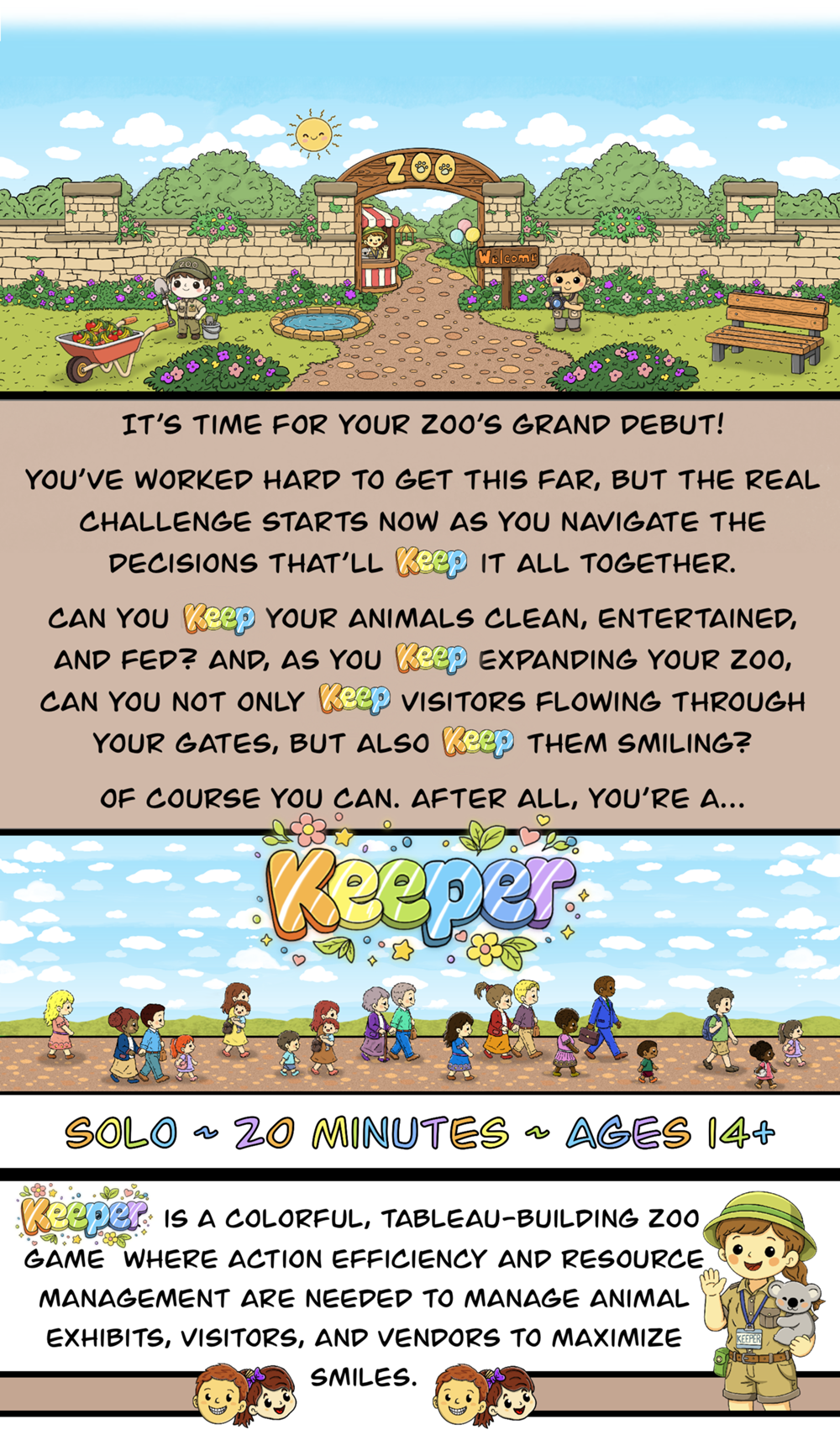
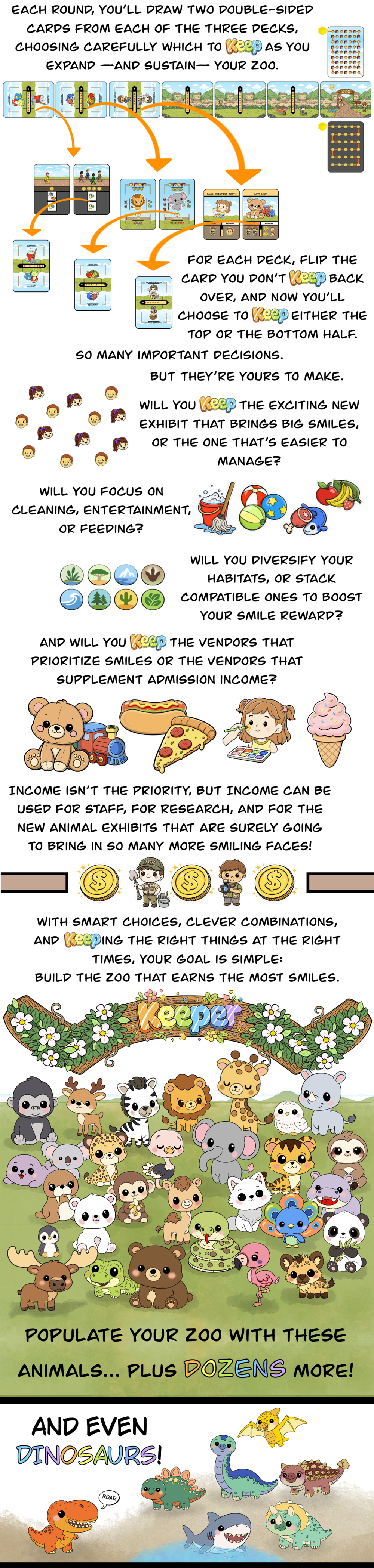
Keep your zoo running. Keep your Exhibits maintained. Keep your visitors SMILING!
Players
1–1
Playtime
25 min
Genre
Strategy
Ages
14++
Theme
Zoo
Mechanic
Resource Management
Highlights
About
Check out Dustin's Designer Den, the coolest, smoothest new Tabletop Simulator replacement out there.
While you're at it, you can even playtest KEEPER!
Coming soon... ROPE WALKERS!
Hosted by Curry
Blindfolded
Press N to remove blindfold
15° steps
Capture a note to address later. Appears on your project dashboard.
Ctrl+Enter to save
15° steps
15° steps
Rotation when played
No cards in hand
Share your thoughts on Keeper. Your feedback helps the designer improve the game!
No tags — open to all
Cards and tokens that snap here will be forced to the chosen face.
Click the dial — the card shows
exactly how it will land.
Defines where labels and icons anchor. Defaults to match Default Rotation.
Poker card = 2.5" × 3.5". Tabletop uses 80 px/in.
Click the canvas to place a snap point. Drag dots to reposition.
When a snap point requires specific tags, only components carrying at least one matching tag will be allowed to snap there. Leave empty to snap anywhere.
component(s) on the table. Select which to pull from the database.
created, updated in database. Apply changes to objects already on the table?
Please wait — do not close the tab
Component saved. Update all matching instance(s) on the table with the new data?
Saved to the component database.
Update matching currently on the table with the newly saved component data?
The component this piece was linked to no longer exists — it may have been deleted and recreated. Pick a replacement to re-link it.
No components match your search.
Found something broken? Let us know and we'll fix it! Your report will be submitted without leaving the room.
Be specific about what went wrong and how to reproduce it
JPG, PNG, GIF or WebP — max 5 MB
Select a setup to load. The current room state will be replaced.
This snapshot saves all component positions, deck states, and board configuration.
Your current view position and zoom level will be saved as the default camera when players join this table.
Select a setup to overwrite with the current state. This cannot be undone.
Your current view position and zoom level will be saved as the default camera when players join this table.
Add components from another project you own to this room.
No other projects available. Create more projects to use as expansions.
Creates a shuffled deck with this many copies of the card.
Creates a single stack with this many tokens on top of each other.
Spawns separate items scattered on the table.
⚠ Minimum must be less than maximum.
Players
No players in room
Zones
Select a new card back design for this deck: